Ensure all your artwork touches this red edge. Bleed and crop marks are essential for accurate trimming and full-edge color coverage, ensuring a professional final product.
Understanding bleed, crop marks, and trim marks
Printers use bleed to create a seamless look, with the image or background printing right to (and through) the edge of the paper. This is difficult to achieve by printing the exact size paper. It’s critical to get the bleed size right because even the smallest amount of misregistration or knife draw could leave finished work with white edges - and a distracting, unprofessional look.
What are crop marks, then? Crop marks are two perpendicular tick marks at each corner of a printed piece, and they instruct the printer where the final trim size ends. Crop marks, together with bleed, ensure accurate trimming and full-edge color coverage.
Another important element is the safety line. This demarcates the area where it’s safe to print all content. Make sure the text and designs you want to be printed are within this zone to avoid them running off the page.
Setting up bleed and crop marks in InDesign
Go to the third option on the left under Marks and Bleed and turn on Crop Marks as well as Use Document Bleed Settings. Once you’ve exported your artwork, you’ll see the crop marks positioned over the bleed area. Type in 3mm. You will notice that a 3mm rim has been applied to all of the artwork (see fig 3.2).
When extending images like photographs, be careful to avoid distortion. Extending edges should be handled with a 3mm allowance; fill the newly created transparent area with something similar to the original image to maintain visual continuity.
If there is a rectangular object or a group that reflects the exact position and size of a card, you could use a script that comes with InDesign to set crop marks. If not, you can add rectangles on an additional layer and then run the script action on the rectangles. Select all rectangles, open Window > Utilities > Scripts. Under Samples > JavaScript you’ll find cropmarks.jsx. Double-click its name to run. A new dialog pops up: No registration marks needed, so turn off that option. Run the action with OK.
Below the result where you first removed your helper rectangles: Remove all elements that you do not need. Bleed and crop marks ensure accurate trimming and full-edge color coverage.
Workflow considerations for printing
Getting a project ready to print can be overwhelming. There are so many details to get right, and once you’ve finalized the design, you’ll need to take several more steps to ensure the final formatting is correct. Whether you’re using Adobe Print, Illustrator, Photoshop, Acrobat, or another program, it’s important to understand exactly what the printer needs. That means mastering bleed and crop marks, among other important printing terminology.
Print marks are detailed instructions that let printers know exactly where to cut the paper, packaging, or other substrate. Without these marks, your printer will not be able to guarantee the finished product will look exactly as you envision it; these marks matter.
When you save a file in PDF format for print, every component that constitutes your document (color, fonts, etc.) is solidified within it, which eliminates guesswork at the print stage. PDFs can embed fonts, which reduces issues caused by font differences or missing fonts. This is particularly important when working across programs like InDesign, Illustrator, and Acrobat.
Pro Tip: Creating a PDF to print is easy. For decades, professionals have relied on well-prepared PDFs to ensure reliable results across printing providers. When you plan projects like business cards, brochures, large format signage, promotional items, ads, stickers, books, or more, precise bleed and crop marks help deliver consistent, high-quality output.
Practical tips and best practices
- Always set a safe zone for essential content to avoid important information being trimmed off.
- Use a bleed of ⅛” (3mm) as a practical default for most print jobs requiring crop marks.
- Export with both bleed and crop marks enabled to ensure printers receive complete instructions.
- Test with a PDF proof to verify that bleed, crop marks, and safety lines align with your printer’s expectations.
- Consider creating scripts or using helper shapes to streamline the placement of crop marks when dealing with complex layouts.
Table: key terms and their purposes
| Term | Purpose |
|---|---|
| Bleed | Extends artwork beyond the trim edge to prevent white edges after trimming. |
| Crop marks | Indicate where to trim the final piece. |
| Safety/Live area | Zone where important content should remain to avoid trimming errors. |
| PDF for print | Contains embedded fonts and all elements for reliable final output. |
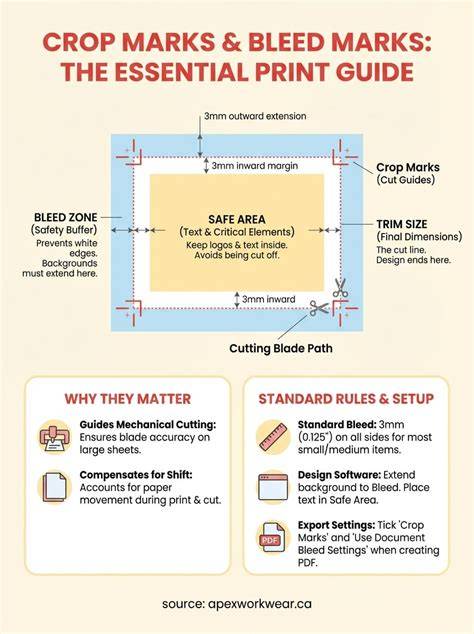
In practice, 3mm bleed is a common default, and crop marks are typically exported with the document, guiding printers to trim accurately. The combined use of bleed, crop marks, and proper safety margins leads to consistent, high-quality print results.