Color swatches are foundational for consistent design across projects, enabling designers to build libraries of reusable colors and apply them quickly to artwork in Photoshop, Illustrator, InDesign, and other tools. This article compiles practical methods and insights drawn from extensive swatch workflows, including Perfect Palette® colors from Dunn-Edwards and techniques for extracting color sets from images, importing swatches, and organizing palettes for efficient use.
Foundations of color swatches in Photoshop
The Swatches panel (Window > Swatches) stores colors that you frequently use and displays a default set of swatches you can customize. By default, all swatches are stored in RGB color mode, with automatic CMYK conversion when used in CMYK documents. This ensures compatibility across workflows, though note that CMYK gamut limitations may shift hues from their RGB originals.
The Color panel (Window > Color) shows the color values for the current foreground and background colors. You can edit these colors with sliders and sample new colors by clicking the color ramp or using the Eyedropper tool. The foreground color swatch is the primary target for applying color to layers and elements.
A swatch can be applied to pixel layers by dragging a swatch from the Swatches panel onto a layer in the Layers panel. The ability to sample from images and create new swatches is central to building cohesive palettes for a project or brand identity.
Importing and loading color swatches from files
Creative Colors for Adobe Photoshop CS and Illustrator CS offer downloadable color swatches palettes. A swatch file (.aco) can be loaded into the Swatches panel via the panel options menu’s Load Swatches or Replace Swatches options to merge or replace the existing palette. Illustrator swatches (.ai) can be opened using Open Swatch Library > Other Library to access additional color sets.
When working with swatches from external brands, like Dunn-Edwards’ Perfect Palette® colors, the numerical values are intended for general color information and illustration purposes. Always verify a physical paint sample to ensure the color matches your expectations before committing to a design or print run.
In some cases, swatches saved as Color Tables (.act) can be used to create larger color sets. To convert an image-derived color table to a usable swatch library, save the Color Table, then import it through the Color Swatches folder in the Photoshop Presets. Note that Color Tables and .aco files use different file structures, so you may need to use the Replace/Load workflow appropriately depending on the file type.
Extracting color palettes from images
Creating color swatches from an image can be done through several approaches. One approach involves sampling colors manually with the Eyedropper tool and then adding them as new swatches. A more automated method uses filters to reduce an image to a smaller set of colors, which you can then convert into swatches.
For a quick automatic extraction, you can apply a filter such as Filter > Pixelate > Crystallize to reduce an image into crystal-like color blocks. The Cell Size slider controls how many colors appear, with larger values producing bigger color blocks. After sampling colors from these blocks, you can create new swatches from the foreground color and save the collection as a swatch set.
A second method uses Image > Mode > Indexed Color to quantize the image to a chosen number of colors. Local (Perceptual) preserves perceptual color relationships, while Local-Adaptive emphasizes colors common in the image. After forming a color table, you can save it as an ACT file and load it into Photoshop via Replace Swatches, or convert to an ACO file if needed for compatibility with the Swatches panel. This process yields a rich palette drawn directly from your image.
Managing and organizing swatches for repeat use
The Preset Manager (Edit > Presets > Preset Manager) is essential for organizing swatches. Select Swatches in the Presets dropdown, then you can delete, reorder, or group swatches. Grouping swatches helps maintain brand consistency and speeds up workflow when building layouts or applying color themes across multiple design assets.
To save a curated set for reuse, open the Swatches panel flyout menu and choose Save Swatches to store the current palette as an .aco file. You can later load or replace these swatches to apply a consistent color scheme across projects. If you’ve created a highly specific palette from an image, you can reorder or prune swatches to reduce duplicates and ensure the most important colors are readily accessible.
In cases where you need more advanced color management, you can create swatch groups within the Swatches panel to organize related colors (for example, brand colors, accent colors, and neutrals). You can move swatches between groups by dragging them, which helps maintain a logical structure in large libraries.
Practical workflows and tips
One common workflow is to start by clearing the Swatches panel, then using a favorite image as the source for a new color palette. Save the current swatches as a backup, sample colors from the image, and create new swatches for use in your project. This approach lets you quickly generate color themes that are cohesive with the image’s tones.
Another key workflow is to extract a color theme from an image using the Color Theme concept from other Adobe applications. While this feature is not native to Photoshop in the same way as InDesign’s Color Theme tool, you can approximate similar results by sampling dominant colors and creating swatch sets that reflect strongest complementary colors and harmonies. Saving these sets to the Swatches panel makes it easy to reuse them across layouts and designs.
When working with text and shapes, applying consistent swatches across elements helps ensure uniform color usage. You can apply a swatch to a text layer, shapes, or pixel layers to maintain a consistent color language across a poster, flyer, or digital asset.
Limitations and considerations
Be aware that CMYK conversions can shift colors from their original RGB representations due to gamut differences. Always verify on a physical print sample or a device calibration to avoid surprises in the final output. For Illustrator users encountering issues with swatches, simple fixes include editing the swatch files in a plain text editor to correct delimiter characters or syntax that can cause errors in some environments.
Color swatches are a powerful tool, but they require thoughtful organization and validation against real-world samples. Approaches like indexed color palettes and color tables expand the ways you can predefine and reuse color schemes, increasing efficiency while preserving brand fidelity across multiple projects.
Illustrative workflows and examples
To illustrate the power of swatch-based workflows, consider a scenario where you collaborate with a client who provides no predefined brand colors. You can sample a range of hues from a reference image, create a cohesive swatch set, and then apply those swatches to all design elements in Photoshop, ensuring a unified look across the project.
In practice, you might work with Dunn-Edwards’ Perfect Palette® colors as reference tones, while understanding that actual paint samples should be verified for precision. The combination of swatch libraries, color tables, and image-derived palettes allows flexible, repeatable color workflows across print and digital media.
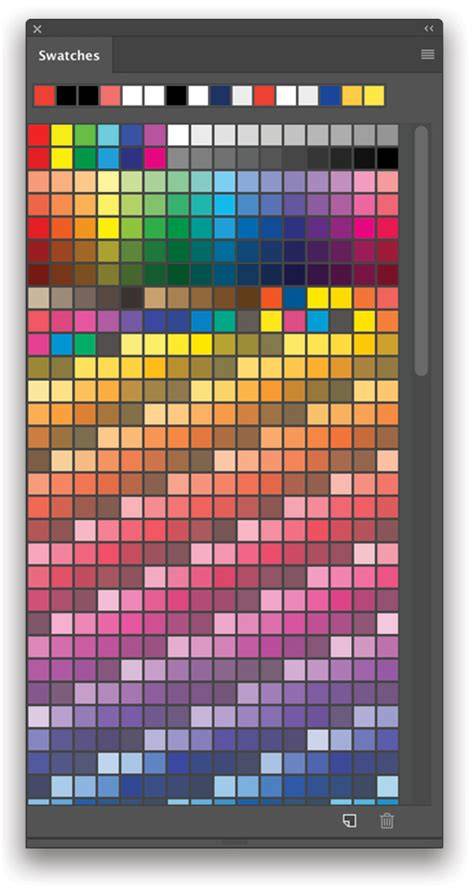
Swatchoos - Swatch Manager for Adobe Photoshop | TIP 10 - Extract swatches from the picture
By combining manual sampling, automated color quantization, and strategic organization of swatches, designers can build robust color systems that streamline creative decisions and maintain visual consistency across all project assets.