Blurring isn’t just about hiding things-it’s a powerful way to direct attention and add depth to a scene. When editing videos, controlling your viewer’s attention is key to effective storytelling. In DaVinci Resolve, blur tools are robust and versatile, enabling precise masking, tracking, and creative application that integrates seamlessly with color grading and other effects.
Getting started: importing and setting up blur projects
First, open DaVinci Resolve and navigate to the Edit tab at the bottom. Select File > Import > Media and select your video clip. To begin applying blur in DaVinci Resolve, understanding the software’s structural layout is key. After importing your video clips and organizing them on the timeline, the next step involves moving to the Color tab. This section serves as the core environment for detailed visual adjustments and is where blur effects are shaped and refined.
Foundation: masking with Power Windows
With just a few steps, you can implement professional-level blur techniques, adapting each to the specific needs of your footage. The Power Window is an essential tool for selecting areas of interest. Represented visually by simple shapes such as circles or rectangles, as well as a pen option for more customized outlines, this feature allows users to define exact parts of the frame that need to be blurred. You should have a window around your object in the first frame it appears in your footage. To do so, open the Tracker panel (the crosshair icon in the toolbar). Next, press Track Forward to track the mask forward through your footage. Once DaVinci is tracking the object accurately, apply the blur.
Tracking: following moving subjects
Tracking ensures your blur follows moving objects. When working with moving subjects, a static mask won't suffice. Resolve includes a dedicated tracker panel that allows you to link the power window’s movement to the movement of the subject. This ensures that the blur effect stays aligned with the object or person throughout the sequence. By clicking to track forward or backward from the playhead, Resolve analyzes the motion path and automatically synchronizes the blur’s position across frames. If the subject moves, you can refine keyframes and mask shapes to maintain precision.
Applying blur: types and controls
DaVinci Resolve provides six blur effects to choose from. Box blur creates a uniform, pixelated blur; Directional blur adds blur with a specific direction; Radial blur creates blur that radiates from a central point. Gaussian blur is often used for a smooth, natural out-of-focus look, while other effects offer stylistic options. In the Blur panel (the teardrop icon) in the toolbar, you can adjust radius, softness, opacity, and blend range to integrate the blur naturally with the scene. To create a smoother effect, you can refine the edges of your mask and adjust the softness in the Window panel. You can also apply multiple blur types in separate nodes for complex scenes.
Nodes and modular workflows: organizing multiple blurs
One of the strengths of DaVinci Resolve lies in its node-based editing system. Each node can house different adjustments, effects, and masks, offering an organized way to layer visual changes without overlapping edits. If a clip features several subjects requiring blur, you can create a new node for each subject, allowing unique shapes, intensities, and tracking paths. This modular approach improves clarity and makes revisions easier. You can duplicate or extend nodes to apply additional blur styles, such as a tight rectangular mask with light blur for one subject and a circular mask with heavier blur for another. The layering capabilities enable you to elevate storytelling by varying blur properties over time to reflect mood or narrative emphasis.
Background blur and depth: isolating the subject
Next, create a dedicated node for your background blur. Isolate your subject so that you can blur everything else (the background). When learning how to blur part of videos, tracking ensures your blur follows moving objects. Resolve’s node-based approach makes it easy to mix foreground and background treatments while preserving focus on the main action. In scenes with multiple moving subjects, multi-node setups help assign distinct blur types and paths for each object, maintaining visual harmony across the edit.
Automation and tracking enhancements
Resolve offers powerful tracking capabilities that synchronize blur with subject movement. The Tracker panel enables forward or backward tracking, updating mask positions as the subject moves. In cases where automatic tracking drifts, you can manually adjust keyframes, refine the mask, or reshape the outline to maintain accuracy. For large projects, AI-assisted tools and external filters can accelerate masking, providing smart face detection and automatically generated masks that you can fine-tune. These features speed up complex sequences without sacrificing control.
Motion blur: adding a sense of movement
Motion blur is a widely-used visual effect for enhancing realism and conveying speed. In DaVinci Resolve, motion blur can be added via Fusion with Optical Flow and Vector Motion Blur for best results, or through the built-in temporal blur options in the Edit tab. For Studio users, the Motion Blur effect can be found in the Effects Library under Resolve FX Temporal, where you can customize parameters such as intensity, direction, and type. Vector Motion Blur is often recommended for its natural direction-based softness, especially when combined with motion data from tracking. For a more cinematic look, you can stack multiple blur types across nodes and adjust keyframes to evolve the blur over time, supporting transitions, reveals, or emotional crescendos.
Presets and workflow optimization
DaVinci Resolve allows you to save node structures and settings as presets, making it easy to replicate blur parameters across multiple scenes. This is especially useful for faces, license plates, or logos that require consistent treatment. Compound clips help manage complex sequences by grouping clips and simplifying the application of effects across a coherent timeline. AI-assisted filters and face-detection tools can automatically identify faces and generate masks, with manual overrides available for precise control. Final verification features, such as mask overlays and side-by-side comparisons, help ensure accuracy before exporting.
Integration with the broader DaVinci Resolve toolset
Blur integrates smoothly with color grading, audio editing, and fusion effects. Whether you’re protecting privacy, guiding viewer attention, or adding narrative depth, blur is an indispensable utility and a medium for artistic expression. The workflow remains cohesive within Resolve’s ecosystem, enabling post-production efficiency without exporting to another application.
Practical tips for efficient blur workflows
Organize footage on a well-structured timeline, label and sort clips, and use compound clips to simplify complex scenes. When multiple blurs are needed across a timeline, a multi-node approach helps maintain precision and clarity. If you’re working with moving subjects or longer durations, AI-assisted masking and tracking can dramatically speed up the process, with manual overrides available for edge cases. As you gain experience, you’ll develop a fluent sense of when to use static masks versus tracking, how to balance softness, and when to apply background or subject-dominant blur to achieve the desired storytelling effect.
How To BLUR A Moving OBJECT In Davinci Resolve
In today’s evolving landscape of filmmaking and content creation, the blur effect has established itself as far more than a simple tool for hiding sensitive information. It has become an essential storytelling device, influencing both the visual and emotional tone of a video. Whether using the free version or the Studio edition, editors are empowered with tools that support a wide range of workflows. With just a few steps, you can implement professional-level blur techniques, adapting each to the specific needs of your footage.
Blurring content in video projects has become a key tool for editors, especially as the scale and complexity of their work grows. Whether dealing with sensitive information, dynamic faces, or distracting background elements, effectively applying blur is essential for maintaining privacy and guiding narrative direction. This tutorial-style guide outlines masking, tracking, and multiple blur options, including traditional and motion-based approaches, to help you elevate your editing craft in DaVinci Resolve.
Motion blur: a quick refresher
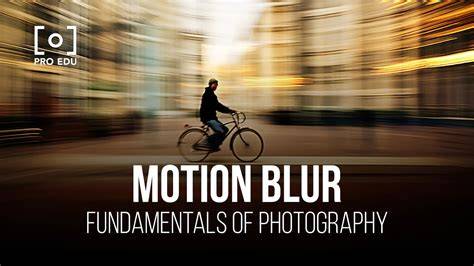
Motion blur is one of the prime examples of visual effects worth mastering. The technique adds natural-looking blur during movement, and can be applied to fast-moving objects or camera motion. It can also be used for stylistic streaking or dream-like sequences, and is useful for anonymizing faces or license plates when necessary. Mastering motion blur in DaVinci Resolve involves choosing between the built-in blur options or Fusion-based approaches, depending on the project’s needs and your version of Resolve.
Final steps: rendering and deployment
The final step in the process leads to the Deliver page, where the edited sequence is rendered at the chosen resolution and format. As editors continue to explore the synergy between motion tracking, blur dynamics, and intelligent automation, they unlock new dimensions of creativity and control. Blurring isn’t merely a technical necessity; it’s a nuanced storytelling tool that protects privacy while directing attention and enhancing depth.