Combining pictures in GIMP can be straightforward or tailored to a specific result, depending on what you want to achieve with the two images. One of the solutions is to use File / Open as layers. It depends what you want to do with the two pictures.
Choosing the right method
If you want to set the first picture next to the second one you have to extend the canvas 'Image / Canvas Size' to the width of the two pictures. Then you can move the layers to the left or the right in the way you want.
Another way to save the picture is : 'File / Save as JPG'. By saving, the two layers are merged to one picture. If you want to merge the pictures as one picture in gimp, then you can use 'Flatten Image'.
Save the file as .jpg is done as follows: ' File / Export As ' and fill in a name with the .jpg extension (ex. two pictures.jpg ).
Click with right mouse button on the layer section where your pictures are and click on 'Flatten Image'.
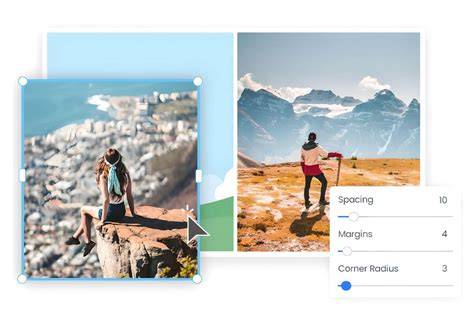
Using File / Open as layers is especially useful when you need to keep both pictures as separate layers for further adjustments. You can then align, resize, or mask each layer before finalizing the composite.
To create a more seamless blend, you can also use layer masks, opacity, and blend modes after placing the images as layers, although those steps are not described in the draft.
For a simple horizontal combination, extend the canvas width to accommodate both images, position the first image on the left and the second on the right, and then proceed to merge if a single output image is desired.
Exporting to JPG merges visible layers into the final raster image, but you also have the option to save projects in GIMP's native format to preserve layers for future editing.
Gimp Lesson 7 | Intro to Layers
In practice, start by opening both images as layers, adjust their positions with the Move tool, and then decide whether to keep layers separate for further edits or flatten/merge for final output.
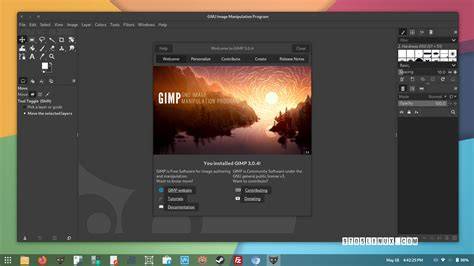
- Open as layers to keep each image editable
- Extend canvas size to fit side-by-side placement
- Move layers to arrange composition
- Decide between Flatten Image or Save as JPG for final output
Step-by-step quick reference
- Open both images using File / Open as layers.
- Use Image / Canvas Size to extend the width for a side-by-side layout.
- Move the layers into the desired positions with the Move tool.
- Export as JPG with File / Export As, or Save as JPG to merge layers.
- Alternatively, use Flatten Image to merge all layers into a single image within GIMP.