Levels in digital video describe the range of numeric values that encode image data and how software interprets those values for playback, grading, and export. This article compiles and organizes insights from user discussions and practical observations to explain how Premiere Pro, Davinci Resolve, and various codecs communicate about data levels, and why black and gamma shifts can occur during round-trips between applications.
The core question: what are data levels and why do they matter?
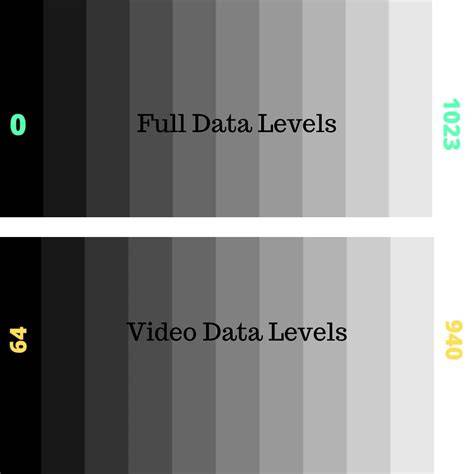
Levels refer to the range of values contained within an image file. Every image and video file is encoded within a specific range of values. At their most basic, there are two main distinctions: full for computer displays and video for video monitors. Full level files encode their image data within a full range container, for example 0-255 in 8-bit. Video level files encode data within the broadcast-like range, for 8-bit, 16-235. This distinction matters because software, codecs, and monitors interpret those ranges differently, leading to visible shifts in black, gamma, and overall contrast if interpreted incorrectly.
Modern workflows involve many software packages-Premiere, Resolve, Avid, Nuke, FCPX, Flames, etc.-each with their own defaults for color management and level interpretation. Resolve, in particular, operates with a flexible, full-range internal processing model (often described as full-range or 32-bit float internally) and relies on your project settings to map incoming media to the appropriate output range. Premiere, by contrast, offers fewer explicit controls for re-interpreting source files into a target color space and level designation, which can leave users with murky or inconsistent behavior when round-tripping with Resolve or exporting to different codecs.
How Resolve handles data levels internally
Resolve works in a full-range, 32-bit float ecosystem internally. Any video-level files imported are flagged as video and scaled to full-range values for processing. The viewer and scopes can display 10-bit full-range values (0-1023 in a 10-bit space, with video-range being 64-940). If a video card and hardware encodes to a display, Resolve will scale internal full-range values back to video range before sending the signal to the display.
In practice, this means Resolve continuously scales between full and video ranges as data passes through the pipeline. This scaling occurs regardless of whether you are grading, rendering, or exporting, and it hinges on the file’s header information and the project’s data level settings. When you export with a codec/container that carries embedded level information (or when a decoding step misreads that information), you can see premature clipping (e.g., blacks around 16) or washed-out transients depending on how the downstream software interprets the data.
What Premiere does with levels and why round-trips can go wrong
Premiere’s color management options are comparatively limited compared to Resolve, especially for reinterpreting source files into a project’s color space. Some users report that Premiere tends to treat media as video levels by default, which can lead to clipping or aggressive remapping when importing or exporting, particularly when the source data is full-range data or RGB data. When exporting from Resolve to a Premiere-friendly DNxHR, ProRes, or similar codec, Premiere may interpret the incoming file as video levels, scale it accordingly, and then re-interpret it again on export, causing double scaling or gamma shifts. For this reason, working between Premiere and Resolve often benefits from exporting/importing using a clearly defined, consistent data level strategy (e.g., using RGB/Full or Video/Video with explicit level settings) and testing with color bars or test charts to verify stays within expected ranges.
One practical takeaway is that if you are delivering between Premiere and Resolve, exporting with a RGB/full-range codec can help preserve the intended signal path. The opposite risk is exporting with a video-range interpretation when the source is full-range, which can cause clipped blacks or crushed whites once re-imported or reinterpreted elsewhere.
What are “levels” and how do they map to the practical workflow?
Levels map to two basic schemes:
- Full range (0-255 for 8-bit, 0-1023 for 10-bit): computer or graphics work, where the full dynamic range is preserved. Used by graphics pipelines and some camera RAW workflows.
- Video range (16-235 for 8-bit, 64-940 for 10-bit display perspective): broadcast/television workflows, where data is constrained to traditional IRE-friendly limits to avoid clipping on legacy hardware.
Two core concepts accompany these: source level designation embedded in file headers, and the software’s interpretation of that designation. If a file’s header says “video levels” but the content actually contains full-range values, the consuming software might clamp, scale, or misinterpret the data. Conversely, if a full-range file is treated as video levels, it may look washed or clipped depending on the scope and display path.
Practical guidance for working with Premiere and Resolve
- Define a consistent workflow: Decide whether your final deliverables require full-range or video-range at project start. Align your source imports, timeline interpretation, and export settings to that choice.
- Test with test charts: Use color bars/test patterns to verify blacks, whites, and gamma across software. Look for clipping at 0 or 16 IRE (or 64/0 in a different scale) on scopes when moving between apps.
- Prefer explicit RGB/full vs video when crossing apps: If possible, export/import with an RGB/full-range codec to minimize implicit remapping by the receiving software. Be mindful that some codecs (e.g., ProRes 4444) may encode as YCbCr, and even if flagged as full-range, practical interpretation can vary by app and version.
- Use Resolve’s data-level controls to align with your target: In Resolve, set the project data levels to the target of your delivery (Video or Full) and ensure that outputs match the intended range, particularly when exporting to DNxHR, ProRes, or other wrappers used by downstream editors like Premiere.
- Don’t rely on a single software opinion: Because different packages interpret ranges differently, cross-check with alternate viewers/scopes and, if possible, render a short test and view it in the final target environment (theatre, YouTube, broadcast monitor) to confirm the signal path is correct.
Key scenarios: reader-friendly summaries
Scenario A: You edit in Premiere, export to a 10-bit DNxHR or ProRes file, and re-import into Resolve for grading. If Premiere outputs video levels while Resolve expects full or vice versa, you can observe black levels around 16 IRE and a gamma shift. The cure is to ensure the exchange codec/container properly conveys the intended level designation (prefer RGB/full or explicitly set data levels where the software supports it) and verify with scopes mid-workflow.
Scenario B: You grade in Resolve and export back to Premiere. If Resolve exports with auto levels or a mismatch in the data level interpretation, Premiere could reinterpret and clamp values, causing a washed look or crushed blacks. Explicitly set Resolve’s data levels to match Premiere’s expectation on export (and test with a short sequence).
Scenario C: You work with codecs that can carry RGB full data (e.g., some 4:4:4 codecs). Some users report that even when a file claims to be full-range, downstream software may still interpret it as video levels. The practical approach is to test encoding settings and, when in doubt, render using a robust, widely interoperable route (e.g., Resolve to a common DNxHR 444 or ProRes 444 with clear level designation) and confirm in the target app.
Additional notes on practice and terminology
Hitting the complexity of terminology-full vs video levels, IRE scales, YUV vs RGB, 4:4:4 vs 4:2:2, and various codecs (ProRes, DNxHR, DNxHD, Cineform)-is common. The critical takeaway: know how your source media is interpreted by each tool, set project and export data levels accordingly, and verify through scopes and visual checks across the workflow.
Resolve’s documentation and various community discussions emphasize that you can work in full-range internally and convert to video or data levels on export, provided the codec/container supports the intended mapping. Premiere’s behavior can be less flexible, so explicit level handling through export/import conventions helps reduce surprises when round-tripping with Resolve or other NLEs.
Situational table: typical level mappings
| Scenario | Software role | Recommended approach | Notes |
|---|---|---|---|
| Premiere to Resolve, DNxHR export | Source interpreted as video levels | Export/import with RGB/full or explicitly set data levels | Test with color bars to verify black/white handling |
| Resolve project, output to Premiere | Resolve uses full-range internally | Set data levels to Video or Full to match Premiere’s expectations | Double-check on export and import |
| ProRes 4444/444XQ | Codec may store YCbCr data | Assume potential ambiguity; test with scopes and test footage | Some reports suggest internal storage is YCbCr |
| DNxHR 444 in workflow | Resolve may render with full-range by default | Use explicit data level setting (Full vs Auto) on export | Premiere may interpret auto levels differently |
Ключевые практические выводы
- Full-range vs video-range handling is a historical artifact that persists in modern software. Always verify how each tool interprets the incoming media.
- Use explicit data-level settings when exporting/importing across apps to minimize surprises with black levels and gamma.
- Test cross-application workflows with color bars/test charts to detect clipping or gamma shifts before final delivery.