If you check on Instagram, there are 405 million posts for #selfie. I think everyone with a phone camera has taken a one at least once, and it’s totally normal behavior. Maybe you loved your #MOTD or felt particularly #GGSS (Gandang Ganda Sa Sarili) that day. Whatever the reason is, I’m sure you’d want to put your best face forward so you may have tried some photo editing apps. Whether it’s just for color correction, making the photo look more ~aesthetic~, or even change your look up, tinkering with photo apps can be a lot of fun. Some can even completely transform your look. Let’s take a peek at some of the more popular options!
For my baseline photo, I took a barefaced selfie using my iPhone 6s’s front camera. It was a gloomy day so the lighting is not the best, so I’ll also get to try how apps can improve photos taken at less than ideal lighting conditions.
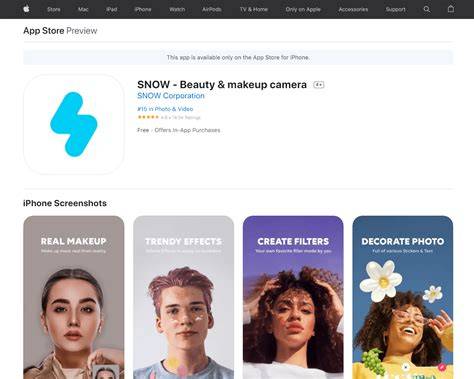
Snow: beauty editing with extensive controls
Snow is one of the most popular beauty apps in South Korea, and that’s not really surprising considering the many editing options it offers. I was able to improve the look of my skin, slim the width of my face, sculpt my jaw into a more V shape, thicken my brows, narrow my nose, get smaller lips, and lift my cheekbones! I also brightened my skin and made my pupils bigger. Check out the difference between my original photo and the “enhanced one” - it’s like I had plastic surgery.
The app also offers a Makeup feature to complete the “makeover”, allowing full customization of colors and application, which looks really realistic as well.
Soda: automatic whole-face adjustments with presets
Soda is a relatively new camera/photo editing app that is rapidly gaining popularity in South Korea. It’s a bit easier to use because you can just a preference for the overall face look and the app automatically adjusts all the other factors like skin, chin, eyes, and nose. You still have the option to edit each feature individually. However, the makeup settings cannot be adjusted - they are more like preset filters where you can only control the overall intensity of the makeup. For this photo, I used the Celeb option at 100% intensity because the makeup filter doesn’t show up well on my tan skin.
Line Camera: facial feature control and blemish removal
Line Camera allows control over image brightness as well as editing facial features like smoothing skin, slimming the face, or enlarging the eyes. It allows photo manipulation of the body as well! You can create the appearance of a slimmer waist or even larger boobs, but I personally didn’t attempt to alter my body because I found the controls difficult. Instead I removed my blemishes and tried to do the same for my eyebags, but the controls for that area were also difficult.
Meitu: popular Chinese editor with brow styling
Meitu is one, if not THE most popular camera/photo editor in China. Unlike the other apps I tried which allow you to adjust features to a specific numerical value, Meitu only offers a slider without indicators so it may be difficult to replicate results. I liked that the app allows control of the brow style as well as the color.
Facetune2: western favorite with paywalls
Finally, we come to Facetune which seems to be the most popular editing app in the West. I first tried the auto retouch for the skin, then used the Heal option to delete all my pimples. Under the Face button, I found options for making my jaw thinner and less prominent as well as “fixing” my nose shape. When I was done with editing, I was shocked to find that users need to pay to be able to save photos! There are monthly subscriptions (P175/monthly) as well as one-time fees (P2,600) but I find both options too expensive for something I just use for fun. If you enjoy this app and don’t want to pay, you can use screenshots to save a copy.
There’s nothing innately wrong with using these apps but I can see how they can negatively affect one’s self-esteem. Use them in moderation, and maybe avoid them completely if you already struggle with confidence issues. As for me, I don’t think I’ll be using these apps anymore. Maybe I’ll keep one just to help me visualize certain makeup shades or new hair colors, but I’m sticking to #nofilter selfies.
Watchful caveats and responsible use
Do you use photo-editing apps for your photos? Why you should trust us - Erin Roberts is a freelance writer covering cameras and camera accessories at Wirecutter. She is also a professional photographer with a wide range of experience researching, testing, and writing about photography trends, techniques, and tools - including in her role as mobile-imaging editor at DPReview. Her smartphone photo library is overflowing with photos of her three dogs and all the apps to edit them. Wirecutter editor Ben Keough wrote earlier versions of this guide. He’s covered cameras, printers, and scanners at Wirecutter for over seven years, as well as for other publications around the web for more than a decade.
What Wirecutter tested and found about mobile editors
We’ve spent hundreds of hours researching dozens and dozens of photo editing apps since the guide was first published in 2019. For this last round of testing, we took a fresh look at more than 30 apps and thoroughly tested 15 of these, using the same sample image to see what each could do.
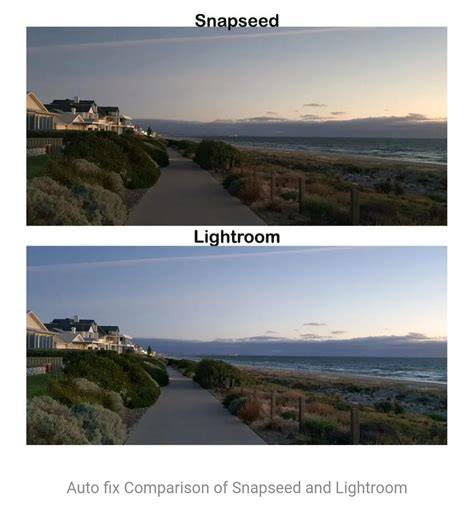
Top pick: Snapseed. The app includes all the editing tools most people need - even some premium AI-powered features. It’s easy to use and completely free. Snapseed (Android, iOS) is the best mobile photo editor for most photographers. It’s incredibly intuitive and packs a lot of compelling features - including raw-file editing, AI-powered selective editing and expand tools, and smart portrait enhancements - into a totally free, well-organized app with zero ads. However, its edits are generally not as granular as those of our upgrade pick, and its healing tool isn’t as accurate. It also doesn’t offer some of Lightroom’s more advanced AI features, or its practical library management and ability to edit the same photo (with a continuous edit history) on multiple devices.
The best choices for different needs
The apps below represent a spectrum from free, beginner-friendly to professional-grade, with capabilities ranging from basic color correction to advanced retina-clearing and artificial intelligence-based edits. They excel when used for creating consistent looks across a batch of selfies or achieving a polished, magazine-ready finish.
- Adobe Lightroom: the most powerful mobile editor with extensive AI tools, cross-device editing, and advanced masking, best for serious editors and professionals.
- Snapseed: free, robust toolset with a strong selective editing system and addictive “Looks” presets; ideal for most users who want deep editing without cost.
- VSCO: strong for film-like aesthetics with a rich preset library and occasional AI features; great for artistic, consistent looks though processing is filter-driven.
- Apple Photos: free, integrated with iOS, easy to use for quick tweaks and organized editing with AI-assisted cleanup on newer iPhones.
- Google Photos: broad editing tools with AI features, cloud-backed organization, and easy sharing; best for ecosystem users.
Table: quick feature at-a-glance
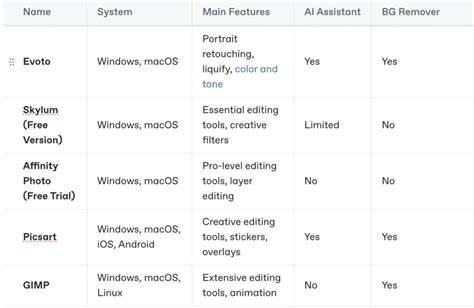
| App | Key strengths | Free vs paid | Best for |
|---|---|---|---|
| Lightroom | Granular controls, AI removal, cross-device | Free tier available; premium unlocks advanced tools | Professional edits |
| Snapseed | Zero ads, powerful local edits, Looks presets | Free | Everyday power user |
| VSCO | Film-like filters, strong preset library | Free with paid tiers | Filters and style |
| Apple Photos | Integrated iOS editing, AI cleanup | Free | Quick, on-device edits |
| Google Photos | AI tools, cloud storage, search | Free | Organization plus edits |
In the end, mobile editing can dramatically enhance selfies, but it’s wise to balance improvement with authenticity. The best editors give you powerful tools without forcing you to rely on flashy filters. You can achieve professional-quality results on a phone, but you don’t need to replace your entire workflow unless you want to.