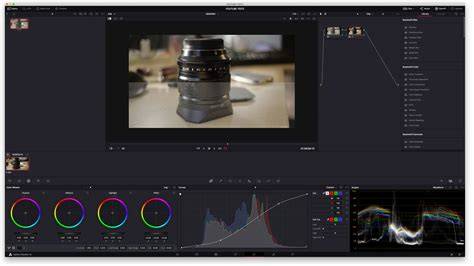
Learn the basic tools in the DaVinci Resolve Color page. Use Primary Wheels, Log Wheels, Adjustment Controls, Color Bars, Curves and more for your primary corrections. Perform selective secondary corrections with Power Windows and Qualifiers. Learn strategies and workflows for shot matching and work through entire shows efficiently. Learn the fundamentals. Understand the impact of node order and color spaces. Leverage DaVinci Resolve Color Management and understand the Cache system.
Foundations of the Color Page
Primary tools affect the entire image and you use them to adjust brightness and color levels to remove unwanted tints and to create a neutral starting point. Each wheel is mapped to a different part of the tonal range. You can simply click and drag inside a wheel to adjust that range’s color, then use the master dial below the wheel to change its overall level. This palette also has adjustment controls, primary bars and log controls.
The primary color wheels let you adjust balance and brightness in overlapping tonal ranges called lift, gamma and gain (also known as shadows, midtones and highlights). The secondary palette contains incredibly powerful primary adjustment controls that let you quickly adjust image contrast, saturation, hue, temperature, tint, midtone detail, color boost shadows, highlights and more. They’re an indispensable set of creative tools that you’ll use every day!
For example, midtone detail lets you adjust contrast in areas with high edge detail to increase or decrease image definition or sharpness. Color boost, also referred to as vibrance, intelligently adjusts areas of an image with low saturation, resulting in a subtle and more natural looking increase of color. The primary bars are an alternative to the primary wheels that allow for more subtle changes to individual color channels and luminance. The log grading wheels have more tightly defined tonal ranges for shadows, midtones and highlights than the primary wheels.
Curves, Color Space, and HDR Foundations
Curves let you sculpt the color and contrast of an image with much finer detail. Curves can be displayed by clicking on the first icon in the center palette. Each curve lets you adjust a customizable region of the image based on hue, luminance or saturation. There are five curves that let you select one thing, such as hue, and change another aspect of it such as luminance or saturation. The default "custom" curves let you adjust red, green, blue and luminance curves independently, while displaying a live histogram to help guide adjustments.
The HDR palette allows you to address the different tonal ranges of the image, from shadows and highlights, to super blacks and specular whites. You can also create new color wheels and define your own custom tonal ranges in each image, enabling you to adjust tonality and colors based on the media’s unique requirements. Resolve Studio provides tools for wide color gamut and high dynamic range (HDR) workflows, including Dolby Vision, HDR10+ and new HDR Vivid metadata palettes, as well as color space transforms supporting ST.2084 and HLG tone mapping.
Color Management and RAW
DaVinci Resolve works with virtually all native camera RAW formats. The RAW palette gives you total control over highlight recovery, white balance, gamma, exposure, color temperature, tint, sharpness and more. RAW image processing is non-destructive and processes the clips before the node editor input, re-interpreting the camera’s original sensor data. This is essential for preserving maximum information from the capture to grading.
Selective Corrections and Node-Based Workflow
Selecting a specific area for color correction is called "secondary grading." The qualifier palette lets you select and adjust part of an image based on hue, saturation or luminance. To start, click the eyedropper in the toolbar and then click and drag on the viewer to select the area you want. The selection is highlighted in the hue, saturation and luminance strips. Click the magic wand icon in the viewer to see the selection or "key".
Power Windows let you define a selection by drawing shapes around specific objects in a scene. Click on the Power Window icon to choose a shape, place it in the viewer, and adjust size, softness, and position. The tracker lets you automatically animate Power Windows to follow moving objects in a scene. Open the tracker palette and use the analyze options to have the Power Window follow camera movement across the clip.
Nodes are the building blocks of color correction. The first node is usually used for image balancing, while additional nodes are used for more creative work. For example, your first node may be a primary correction, the second might isolate and improve the sky, and a third node could smooth out skin tones. Nodes let you create unique looks without compromising image quality as you would grading with layers. The node editor at the top right is like a flow chart where the image starts at the left and is passed through each color correction or effect node until it reaches the output on the right.
Secondary Tools, Effects, and Gallery
The color page features a library of over 90 Resolve FX plug-ins, organized by category, for adding effects, blurs, color effects, glow, vignettes, and more. To add an effect, drag it to any node; the library switches to an inspector showing the settings for that plug-in, and you can adjust and keyframe values much like in the edit page.
The color page gallery lets you organize, share and reuse grades to speed up workflow. You can copy grades by middle-clicking a clip in the film strip, or save grades by creating a still. Stills can be organized into albums and are stored in the gallery. The Apply Grade command copies a saved grade to another shot. For comparing shots, you can use wipe and split screen modes, or view a lightbox thumbnail grid showing clips with their grades for quick visual evaluation.
Scopes, Delivery, and Certification Context
Professional scopes are essential for consistent color evaluation. The scopes palette includes parade, waveform, vectorscope, histogram and chromaticity scope to verify tonal ranges, skin tones, color balance and reference delivery formats. The color page supports color management and HDR workflows needed for modern productions, including HDR monitoring with built-in scopes and high dynamic range color spaces.
DaVinci Resolve certification encompasses multiple specializations-Editing, Color Correction, Fairlight Audio, Fusion Visual Effects-each with its dedicated exam to validate expertise. Blackmagic Design provides free training materials and a free certification exam, making certification an accessible way to validate skills. Advanced programs, such as bootcamps, mentorships, and professional courses, may offer additional value and career support.
For those studying color grading, prerequisites include basic editing knowledge in DaVinci Resolve, the ability to import and restore projects, and comfort with media and timelines in the Edit page. Certification can enhance credibility, attract clients, and improve job opportunities when paired with practical, real-world projects and mentorship.
Practical Pathways and Next Steps
Great! No problem! You can get a first idea of grading panels and try out the concept for free. The course materials reference DaVinci Resolve 18 Studio with updates into 18.5 Studio and compatibility with 19, along with notes on free-version limitations where some features or watermarks apply.
Whether you are a video editor, colorist, or aspiring filmmaker, a DaVinci Resolve certificate can dramatically enhance your credibility in post-production. The path includes learning the fundamentals of color spaces, node-based grading, and delivery formats, alongside working with RAW formats, HDR, and advanced tools like the Color Warper and Resolve’s Neural Engine capabilities for more efficient workflows and object removal tasks when needed.