In this guide we’ll walk through the different methods to copy effects between clips in DaVinci Resolve, whether you’re editing on the Edit, Cut, or Color pages. This helps maintain a consistent look, speeds up workflow, and reduces human error when matching adjustments across shots.
Why copying effects saves time
When working on large projects, consistency is key. Copying effects between clips helps you maintain a consistent style across your entire video, speed up your workflow by avoiding repetitive work, and reduce human error when matching adjustments between shots.
Method 1 - Copy & Paste Attributes on the Edit Page
The simplest way to copy effects between clips in DaVinci Resolve is by using the Copy & Paste Attributes feature. Steps: select the clip that already has the effects applied; press Ctrl+C (Windows) or Cmd+C (Mac) to copy it; select the destination clip(s); right-click and choose Paste Attributes. In the dialog box, select which effects you want to copy (Color Correction, Zoom, Cropping, Plugins, etc.); click Apply. Pro Tip: This method works for multiple clips at once - just select all the target clips before pasting.
Method 2 - Use Adjustment Clips
If you want multiple clips to share the exact same effects and be able to update them all at once, Adjustment Clips are the way to go. Steps: go to the Effects Library → Effects → Adjustment Clip; drag the Adjustment Clip above the timeline clips you want to affect; apply your desired effects or color grading to the Adjustment Clip; any changes you make to this Adjustment Clip will be applied to all underlying clips. Best for applying effects like LUTs, color grading, or transitions to multiple clips in one go.
Method 3 - Copy Color Grades in the Color Page
If your goal is to copy color correction or grading, the Color Page offers specific tools for that. Steps: in the Color Page, select the graded clip, right-click it and choose Grab Still; in the Gallery, right-click the still and choose Apply Grade on the target clip. Alternatively, you can use Middle Mouse Button Drag from the graded clip thumbnail directly to the new clip. Pro Tip: The Apply Grade method is perfect for keeping exact node structures between clips.
Method 4 - Save & Reuse Effect Presets
If you frequently use the same effect settings, save them as a preset: select the effect in the Inspector; click on the options menu (three dots); choose Save Preset; apply this preset to any new clip whenever needed.
Method 5 - Using Power Grades for Repeated Color Styles
For recurring looks across different projects: save your grading as a Power Grade; access it in the Gallery → PowerGrade folder; drag and drop it onto any clip, in any project.
Troubleshooting: Why Effects May Not Copy
Sometimes effects don’t transfer as expected. Common reasons include the Paste Attributes menu not having the right options checked, the target clip’s format or resolution being incompatible with certain settings, or Fusion effects requiring identical resolution and frame rate.
Notes on track behavior and auto select
By default when you copy a clip, pasting places it back into the track it came from. You can override this behavior by option-clicking the auto select control of the track you want to paste to, which solos that track for pasting. If you turn off a track’s auto select and paste, the clips paste to the next enabled auto select track. To restore normal behavior, you can turn all auto select controls back on. This understanding helps maintain control when copying between tracks, especially across audio and video tracks.
Practical workflow tips
For audio-heavy projects, a track mixer can simplify applying consistent FX across multiple clips. Adjustment Clips provide a robust alternative for sweeping changes, while Copy Attributes is ideal for precise, clip-by-clip transfers. Power Grades help you maintain consistency across projects by reusing proven looks, and Presets save time on frequently used effect settings.
Additional considerations
DaVinci Resolve’s non-destructive workflow means you can undo changes if needed. When working across numerous clips and sequences, combining methods-Copy Attributes for precise transfers, Adjustment Clips for global consistency, and Power Grades for recurring looks-often yields the most efficient and reliable results.
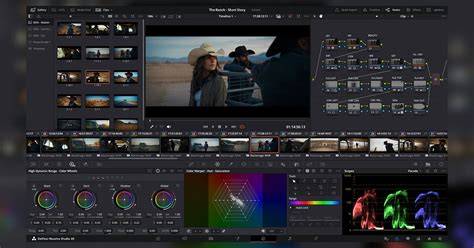
If you want more in-depth techniques for working in Resolve, you can explore tutorials on the Edit Page, Color Page operations, and advanced grading workflows to further optimize your project pipeline.
DaVinci Resolve 21 Quick Tip: Copy Attributes FAST
- FAQ: Can you copy effects from one clip to another in DaVinci Resolve? Yes. Use Copy & Paste Attributes, Adjustment Clips, or saved presets.
- FAQ: How do I paste attributes in DaVinci Resolve? Select source clip, copy, select target clip(s), right-click and Paste Attributes, choose effects, then Apply.
- FAQ: Does Paste Attributes work for multiple clips? Yes, you can apply to several clips simultaneously.
- FAQ: How do I copy color grading between clips? Use Grab Still and Apply Grade, or middle-mouse drag graded clip thumbnail to the target clip.
- FAQ: What is the difference between Adjustment Clips and Paste Attributes? Paste Attributes copies directly to clips; Adjustment Clips apply effects to multiple clips at once without altering them individually.
- FAQ: Can I save effects as presets? Yes, via the Inspector’s preset option.
The beauty of video editing lies in the details. It’s those subtle adjustments and fine-tuning that turn a good video into an outstanding one. DaVinci Resolve offers multiple robust pathways to copy, distribute, and reuse effects across clips and timelines.