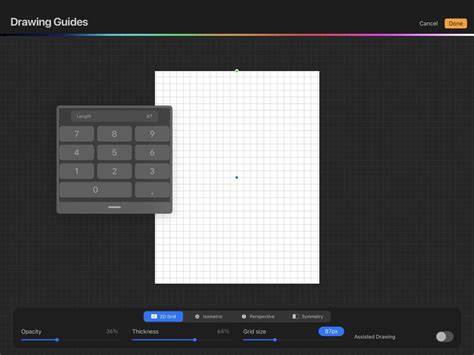
Drawing Guides in Procreate allow you to plan out and draw your artwork with precision and assisted strokes. This small article focuses on a simple use of Symmetry with Assisted Drawing, and the basics of using the 2D Grid for real-world scenarios and measurements. Access additional settings in the Options button.
Symmetry with Assisted Drawing
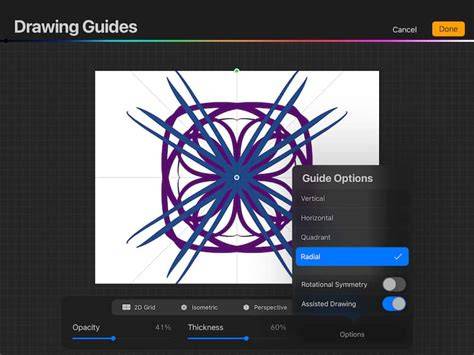
Turn on 'Rotational Symmetry' to have your strokes flip as they are mirrored to the adjacent segments. Procreate does not have a ruler tool (yet!), but you can use the 2D Grid to measure your canvas in physical units or pixels.
In the above example, the canvas is 4000 * 4000 pixels and the grid is set to 250 pixels per square, meaning that there are 16 * 16 squares across and up.
Using the 2D Grid for Real-World Measurements
The 2D Grid can serve as a practical measurement tool when working in Procreate. By setting grid squares to a specific size, you can approximate real-world dimensions, even in the absence of a dedicated ruler tool. This approach helps plan proportions, layouts, and spacing with consistency across your artwork.
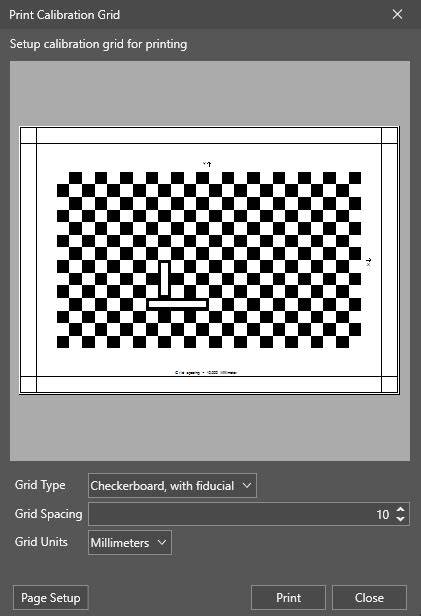
In North America and other regions, 'US Letter' is the closest equivalent to 'A4'. A4 is larger in height and width, so choosing the grid size and canvas dimensions to reflect your intended print size can guide your drawing scale and details.
Apply a grid to calibrate elements such as character silhouettes, mechanical parts, or decorative motifs, ensuring that each segment aligns with your design intent. The grid acts as a lightweight measurement framework that can be adjusted as your project evolves.
Practical Steps to Set Up Symmetry and Grid
- Open the Options or Guides panel and enable Assisted Drawing for your chosen layer.
- Activate Rotational Symmetry to mirror strokes across segmented axes as you draw.
- Access the 2D Grid settings and choose a square size that matches your target units (pixels or inches).
- Adjust canvas dimensions to reflect your project’s real-world size, such as 4000 x 4000 pixels for a large digital piece or an A4-equivalent for print planning.
- Translate real-world measurements into grid steps to guide spacing and proportion during the sketch phase.
Practical Scenarios and Tips
For character design, symmetry can speed up producing balanced facial features or mirrored poses. For decorative patterns, a consistent grid ensures even repetition and alignment. For technical illustrations or UI concepts, grid-based measurements help maintain proportional relationships across different viewports or print sizes.
The provided examples illustrate how a large canvas combined with a fine grid can guide precise placement of lines and shapes, while rotational symmetry enables quick exploration of creative variations without manually duplicating strokes.
Guides, Grids, & Symmetry in Procreate [Lesson 9]
When working with grids and symmetry, consider keeping a separate reference layer with measurements or notes. This can help you compare the drawn elements against your intended dimensions without altering the main drawing as you refine details.
Additional Considerations
Experiment with grid density to find a balance between guidance and freedom. If your device supports high-resolution canvases, you can push for finer grids to capture subtle details, then switch back to a broader grid to check overall composition.