Presets in DaVinci Resolve can completely transform your editing workflow. Whether you’re color grading footage, building cinematic transitions, or animating titles, free Resolve presets give you a professional edge-without hours of manual tweaking. This guide walks you through what presets are in Resolve, where to find the best free ones, how to install them, how to use them creatively, and best practices to keep your edits looking polished. You can also explore ready-made motion graphics, transitions, and design elements in our full guide to DaVinci Resolve templates to expand your creative toolkit.
What Are Presets in DaVinci Resolve?
A Resolve preset is a saved configuration of effects, color corrections, or Fusion compositions that you can instantly apply to new clips or timelines. Professional-grade freebies spanning PowerGrades for cinematic color, Fusion transitions with on-screen controls, and title templates optimized for YouTube, ads, and social. Educational hub offering free LUTs and sample PowerGrades built for real-world color pipelines. Known for meticulous motion design, MotionVFX offers select freebies that feel studio-ready: camera-move transitions, kinetic titles, and graphic accents with responsive controls. Filmic PowerGrades that emphasize natural contrast, gentle highlight roll-off, and cohesive palettes across scenes. Reactor is a community-driven installer that unlocks a vast catalog of Fusion macros, transitions, generators, and utilities. The official Resolve forum often shares user-made templates, node setups, and troubleshooting gems. Tutorial-driven freebies that pair Fusion presets with clear lessons: lower-third systems, callouts, map routes, and HUD elements. A selection of free LUTs focused on storytelling: filmic contrast profiles, clean commercial looks, and camera-matched transforms. Community-maintained lists collecting free PowerGrades, Fusion templates, and Fairlight chains from multiple creators. Pro tip: After importing, save your tweaked versions as custom presets (Gallery PowerGrades, or export Fusion settings).
How to Install Free Presets in DaVinci Resolve
Unlike Premiere, DaVinci Resolve uses a few different preset types. Here’s the step-by-step process:
- Download Your Preset Pack - Unzip the files if needed.
- For PowerGrades (Color Presets): Open the Color page. Right-click in the Gallery panel → Import → select the .drx file.
- For Transitions or Fusion Templates: Copy the downloaded .setting files into the Fusion/Templates/Edit/Transitions folder in your DaVinci Resolve installation directory.
- Restart Resolve to see them appear in the Effects Library.
- Apply to Your Clip: Drag and drop the preset or right-click a PowerGrade to apply it to the current node tree.
- Tweak to Taste: Presets are a starting point-adjust nodes, keyframes, and timing for your specific footage.
Creative Ways to Use Free DaVinci Resolve Presets
- Build Cinematic Consistency - Use film-style LUTs and PowerGrades to give all your videos the same polished look.
- Speed Up Social Content - Batch-apply transitions and lower thirds to make reels and shorts production-ready faster.
- Boost Client Deliverables - Use audio mastering presets in Fairlight to give your clients clean, professional sound.
- Experiment with Fusion - Try creative text animations or 3D camera moves with one click.
If you’d like to create your own reusable assets instead of relying only on presets, check our step-by-step tutorial on how to make a template in DaVinci Resolve.
Best Practices & Common Pitfalls
- Adjust for Each Clip: Color PowerGrades often need exposure adjustments to avoid mismatched shots.
- Avoid Overloading Fusion: Using too many Fusion-based transitions can slow playback. Cache or render in place.
- Mind GPU Load: Resolve uses GPU acceleration heavily; too many heavy effects may cause dropped frames.
- Save Your Custom Versions: Once you tweak a preset, save it to your own library to build a reusable toolkit.
- Verify Download Source: Only download from trusted creators to avoid broken or incompatible files.
If you want to boost your workflow even further, explore our guide to the best plugins for DaVinci Resolve to discover tools that enhance performance, color grading, transitions, and VFX.
What Are PowerGrades in DaVinci Resolve?
PowerGrades are color grading presets saved as node trees that can be applied to any clip or project, giving you a consistent color style quickly.
Frequently Asked Questions
- How do I install transition presets? Copy .setting files into the Fusion Templates folder for transitions, restart Resolve, and you’ll see them in the Effects Library.
- Do free presets work in the free version of Resolve? Yes, most presets work in the free version. Some may require Studio features like advanced noise reduction-check before downloading.
- Can I customize free presets after applying them? Absolutely. You can adjust nodes, timing, easing curves, and keyframes to make them fit your footage perfectly.
- Are free LUTs the same as presets? Not exactly. LUTs apply a single color transformation, while PowerGrades can contain multiple nodes, masks, and effects.
- Do presets slow down playback? Fusion-heavy templates can impact real-time playback.
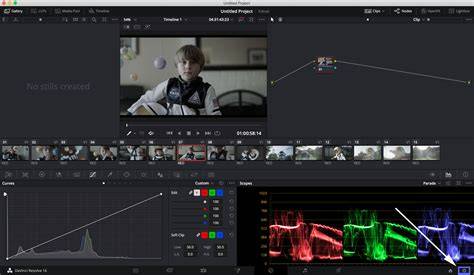
Effective Editing Workflow that can save you hours! Davinci Resolve Beginner Tips
What are the best free Resolve presets and where to find them? Trusted sites include Motion Array, Mixing Light (free LUTs), and Motion VFX freebies. These offer pro-quality and are updated regularly.
In addition to presets, you can explore ready-made motion graphics, transitions, and design elements in our full guide to DaVinci Resolve templates to expand your creative toolkit.