Like a trailer, a movie poster can capture your audience’s attention and spark their interest in your film. A good movie poster should be clear and intriguing. The number of objects and overall composition on the canvas should be focused to instantaneously give the audience an idea of the movie. Prevent yourself from having too many focal points in the poster, which will just make your poster look clustered and frustrating. From an artistic point of view, both posters have very elaborate editing. Do: Keep it simple. A great movie poster doesn’t always need to have fancy Photoshop editing. Sometimes, all you need is a hook. An image that suggests the promise of the plot, or just mainly a shot of what you think is the best moment of the film to lure them into the theatre.
An appealing image. Pull up Adobe Photoshop on your computer. Click File (top left corner) > New to open up the New Canvas Window. The standardized size for a movie poster is 27″ X 41″, and make sure the units are in inches. You also want your movie poster to look crisp, so don’t forget to make sure the “Resolution” box has a reasonable value. Keep in mind that the higher the resolution, the more work your computer will have to do. To make your poster resemble Hollywood-style posters more, you can use the standardized movie poster layout published by the New York Film Academy as a reference. Most movie posters tend to show conflicts to capture the audience’s curiosity. If this is not your intention, it’s also good to know how to enhance your image to make it look more official-even if it’s been taken through a phone camera. The secret words here are vibrancy and contrast (take another look at the examples above). This helps when you want to go back and edit the filters to your image in the future.
You should have your image filling the entire canvas or do your best to blend the image with the background color. Ever wonder what font all modern movie posters use for their credits section? Want more Photoshop tutorials? Poster Templates have varying sizes, and many companies conduct research and use them to market products, services, campaigns, events, or purely for aesthetic purposes. Poster sizes are key to making a bold, effective statement whether for advertising, events, or decor. The right dimensions ensure your design stands out, remains readable from a distance, and fits display areas perfectly.
In this guide, we’ll explore standard poster sizes for both print and digital formats. A poster maker can help ensure your design fits the correct dimensions whether you’re creating small announcement posters or large advertising displays. Using a poster template makes it easier to structure your layout within common poster measurements such as 11 × 17, 18 × 24, or 24 × 36 inches. The letter size poster, also known as poster flyers or A4-sized posters, are the smallest poster sizes available that companies use typically for announcements or advertisements with limited spaces. Mini posters are popular for intermediate printing sizes, including movie posters for advertising or personal wall decorations. Panoramic or roadside billboards have measurements of 480 x 120 inches and are one of the most significant poster print sizes available.
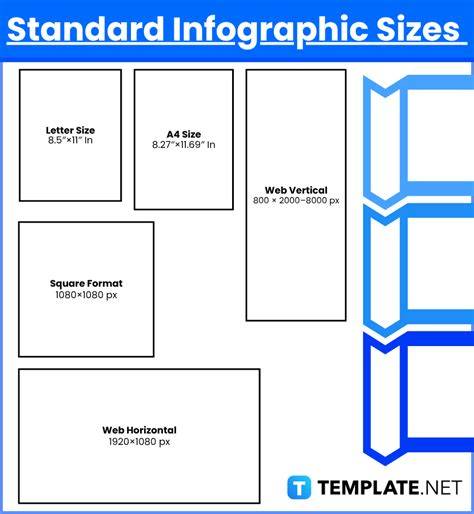
AI generators can help adjust poster layouts by automatically adapting images, text spacing, and design elements to different poster dimensions. The Snapchat photo ratio is 1080 x 1920 pixels. Organizations can use various print sizes for their advertisements and promotions, with most going to printing agencies for specialized printers. Businesses have the option to select from different poster sizes, depending on the audience reach they want to target. The page size specifications when using Adobe Illustrator are set to 8.5 x 11 inches, with resizing option to match the dimensions of a medium-sized poster at 18 x 24 inches. You can also explore professionally designed free templates that follow standard poster dimensions used for advertising campaigns, events, and announcements.
Digital vs. Designing a poster is more than just the text and images you add to it. Other factors like size and dimension play a key role too. Ready to learn more about poster sizes? When creating a poster, choosing the right size is one of the first and most important decisions. Different projects and locations call for different poster dimensions. If you’re designing a poster for a shop window, a small A3 or A2 size often works well. Standard UK poster sizes often follow the ISO 216 A-series system, ranging from A4 at 210 × 297 mm through A3, A2, A1, and finally A0 at 841 × 1189 mm. There are also US sizing standards, such as the tabloid size at 11 × 17 inches. Understanding the common dimensions can help you choose the right poster size for your content and ensure you find the right balance between visibility, content layout, and printing costs.
You can use Adobe Express to create posters of all different sizes. Choosing the best poster size depends on where your poster will be displayed, how much information it contains, and how far away viewers will be. A good rule of thumb is that the larger the distance between the viewer and the poster, the larger the poster should be. For indoor environments like offices, smaller posters such as A3 or A2 are often ideal. Also, think about the content density. Posters with minimal text and bold visuals can still make a strong impact at smaller sizes. There are multiple uses for posters within a business context, so it's best to think about what message you want your poster to relay and whether it needs to inform, educate, empower, or advertise. With Adobe Express, you can quickly resize your designs or start from templates that match your project, giving you the flexibility to create posters that fit any space and purpose. Then, send your posters straight to print. Digital vs. When designing a poster, it is important to plan for where and how it will be seen. Digital posters and printed posters require slightly different sizing and resolution considerations.
For print posters, use a resolution of 300 DPI (dots per inch) to ensure sharp quality. For digital posters, 72 DPI is usually enough. Printed posters must match standard sizes like A3, A2, A1, or A0 to avoid expensive custom printing. Digital posters can use screen-friendly dimensions, like 1080 × 1920 pixels. For print, save your file as a high-quality PDF or TIFF. For digital use, JPEG or PNG formats are usually preferred for quick loading and sharing. Adobe Express lets you download your posters in various formats, should you wish to share them digitally. Choosing the correct colour mode for your poster is key to ensuring it looks its best once completed. There are two main options you can choose from - RGB and CMYK. Use CMYK colour settings for print posters and RGB for digital posters to get the best colour accuracy.
Sometimes you need a poster that does not fit the standard dimensions. Whether it is a unique frame size, a small event board, or a large installation, printing custom-sized posters is easy with a few key steps. If you’re printing at home, check to see which size options you can apply to your printer. If you’re printing at home, you’ll need to check that your bleed margins are set up correctly to ensure nothing important gets trimmed off during printing. To save yourself time, you can always go straight to the design and print services offered by Adobe Express. Enter custom dimensions when you start your design to tailor your poster exactly to your project requirements without stress. You can also design and print hoodies, business cards, brochures, cards, and invitations. Adjust the template size or create a custom canvas by entering your exact dimensions. Adobe Express makes resizing easy, and if you’re unsure, think again about what your poster is for and where it will be seen.
For posters near shop entrances or advertising a car sale in a car window, you can opt for A4 sizing. For music posters in venues or a bedroom, larger sizing such as A3 through to A0 might be better. Insert your text, images, and graphics. Keep your layout clean, and make sure important details are easy to read from a distance. Once your design is complete, send your poster to print directly through Adobe Express. You can also download it in multiple formats, ready for sharing. If you’re designing a digital poster, you want it to be as visually appealing and engaging as possible to help you grab and keep your audience’s attention. What’s the goal of creating this poster? What key message are you trying to communicate?
Another key factor that should drive every decision you make for your poster is the target audience. Decide the best place for your poster to be displayed online. Or all of the above? You don’t have to go with just one option. Often, promoting your content on a range of platforms works well as part of a broader multimedia strategy. This involves looking at aspects such as font choice, size and contrast with background colours. Go for clear, legible fonts, suitable text sizes, and ensure the contrast is strong enough to make the text stand out. It’s important to use high-quality images with high-resolution to avoid pixelation that can affect the visual appeal of your poster. The last thing you want is to upload digital content of poor quality, as it won’t show your brand in the best light. Opt for colours that align with your brand and the mood you’re trying to create, or the message you’re trying to communicate. For example, greens can convey nature and relaxation, while red can suggest caution and call for attention. Posters are mainly created for visual engagement, but it’s still a good idea to include some text. Aim to keep written context clear and concise, so that you can communicate with audiences quickly and effectively. Last, but not least, always check how your poster looks on different devices, including desktops, tablets, and mobile phones, as well as different screen sizes and resolutions.
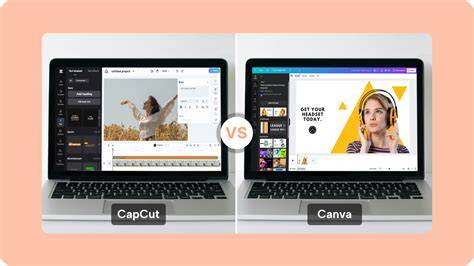
To optimise a poster design for cost-effective printing, start by using standard print sizes. Aim to keep your colour palette simple and avoid heavy ink coverage. Ensure you select CMYK for the printing mode and avoid unnecessary special finishes unless essential. Yes, platforms like Adobe Express offer a wide range of templates in standard poster sizes, making it easy to start your design using the correct dimensions. Adobe Express can help you create high-quality content in the form of posters, flyers, banners and more. It helps by providing professionally designed, fully customisable templates in standard poster sizes, so you can create your ideal poster design with ease. Unlocking the secrets to creating impactful posters in Photoshop begins with mastering the ideal size for poster in Photoshop. With precision and expertise, adjust your poster's dimensions to perfection, ensuring optimal visual impact and professional presentation.Whether crafting promotional materials, event announcements, or artistic expressions, understanding the optimal dimensions is crucial for captivating audiences. In this guide, we delve into the nuances of size of poster in Photoshop, empowering users to achieve stunning visual impact. From selecting the perfect dimensions to optimizing resolution for print or digital display, we'll explore techniques to ensure your posters leave a lasting impression. Additionally, we'll suggest CapCut as a versatile alternative, comparing both platforms to help you choose the best tool for your design needs. Join us on a journey to master the size poster in Photoshop while considering its alternative, CapCut, and elevate your design prowess to new heights.
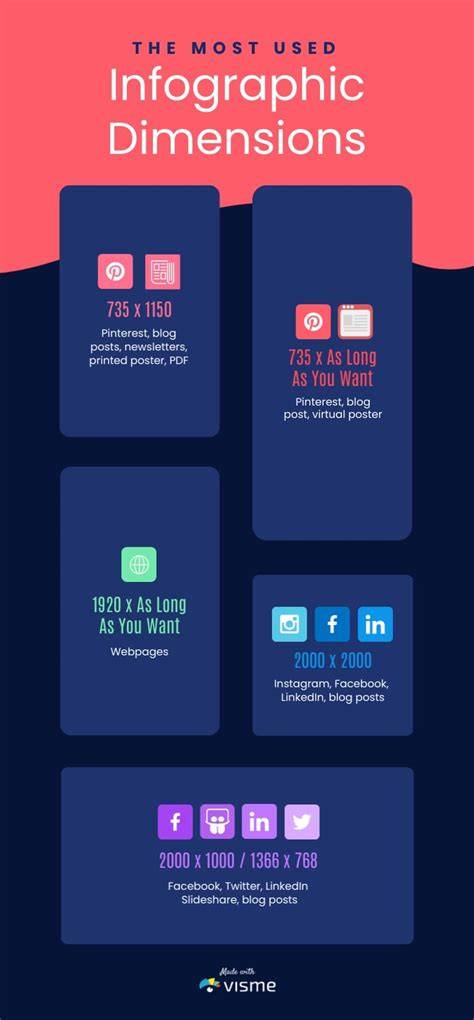
Table of contents
- How to resize poster dimensions in Photoshop
- CapCut - Resize poster dimension (Alternative method)
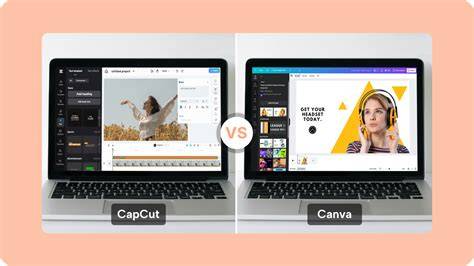
- Photoshop vs CapCut
- FAQs
Explore the official method to resize poster Photoshop dimensions, ensuring precise adjustments for your design needs. With Photoshop's versatile tools, optimize your poster size dimensions photoshop effortlessly, enhancing its visual appeal and overall presentation.
STEP 1 Open the image
Begin by launching Adobe Photoshop on your computer. Once opened, navigate to the File menu located at the top-left corner of the screen and select Open to choose the image file you wish to resize for your poster project.
STEP 2 Go to the Image menu
After opening your desired image, proceed to the top menu bar and click on the Image tab. This will reveal a dropdown menu containing various image editing options.
STEP 3 Select image size
Within the Image dropdown menu, locate and select Image Size. This action will open a dialogue box where you can adjust the dimensions and resolution of your image to suit the specifications required for your poster.
STEP 4 Adjust dimensions
In the Image Size dialogue box, you can adjust the width, height, and resolution of your image. Enter the desired dimensions in either pixels, inches, or centimetres, ensuring that the aspect ratio remains consistent if necessary. Once you've made the adjustments needed, click OK to confirm and apply the changes to your image, effectively resizing it for your poster project.
Loss of image quality: Resizing poster size on Photoshop can result in a loss of image quality, particularly if enlarging the image beyond its original dimensions, leading to pixelation and distortion. Time-consuming process: Adjusting the Photoshop size for poster requires manual input of dimensions and careful consideration of resolution settings, which can be time-consuming, especially for multiple images or complex designs. Limited editing flexibility: Once resized in Photoshop, posters may need help to edit further or revise, as resizing can affect the overall composition and layout of elements.
CapCut offers alternative advantages: Preserve image quality, streamline editing, and provide flexible, non-destructive resizing. Discover a seamless alternative for resizing poster dimensions in CapCut, offering efficient methods to achieve your desired visual outcomes. Log in to your account using your credentials to access the editing features. Sign up for free.
STEP 2 Upload poster
Once logged in, locate the option to import media. Choose to upload the poster image directly from your device or select it from your CapCut media library.
STEP 3 Resize the poster
Within CapCut's editing interface, locate the resizing tools. These intuitive features allow you to adjust the dimensions of your poster, enabling you to scale it up or down to fit your desired size or aspect ratio perfectly.
STEP 4 Export
After resizing your poster, carefully review it to ensure it meets your specifications and requirements. Once satisfied, proceed to export the resized poster in your preferred format, whether it be JPEG, PNG, or another file type. Your resized poster is now ready for sharing, printing, or any further editing necessary.
Nyobain AI GRATIS Untuk Design Poster. Gak Nyampe 10 Menit Kelar! - CapCut AI
Text to image generation in CapCut adds further flexibility: CapCut's Text-to-image generator feature facilitates the transformation of text into visually compelling images, elevating the visual appeal of posters. Users can customize fonts, colors, and styles to harmonize with their poster themes, while artistic effects and overlays add unique touches for captivating designs.
Portrait generator CapCut empowers users to create striking portrait images seamlessly integrated into their posters. With intuitive controls for adjusting facial features, expressions, and backgrounds, users can personalize portraits to suit their design visions. Diverse filters and enhancements further allow experimentation to achieve the desired aesthetic.
Photo colorizer CapCut’s colorizer tool breathes life into poster images by revitalizing black-and-white photos or enhancing coloured ones. Users can fine-tune hues, saturation, and contrast to ensure pictures align with the poster's aesthetic. Text to design CapCut's text to design feature transforms text into dynamic design elements, enriching the visual impact of posters, offering templates, shapes, and graphics for themed designs. Change poster background CapCut’s change poster background feature enables effortless swapping of backgrounds to enhance poster aesthetics.
While Photoshop offers unparalleled flexibility and control for professional image editing and design projects, CapCut provides a user-friendly solution for casual users and social media content creators, particularly on mobile devices. Ultimately, the choice between Photoshop and CapCut depends on the user's requirements, expertise level, and preferred editing platform. The average poster size in Photoshop varies depending on the intended use, but a common size is 18x24 inches for print posters and 1080x1920 pixels for digital posters. The best resolution for a poster in Photoshop is typically 300 PPI for print posters to ensure high-quality output. For digital posters, a resolution of 72 PPI is commonly used.
To make a poster on CapCut, import your image, adjust dimensions using resizing tools, customize with text, effects, and graphics, and then export in the preferred format. This post originally appeared in the Multimedia Tips and Tricks blog (SMDC), which was reorganized into Research Tech Tips as of September 2025. When creating research posters, you may discover that the poster you have been working hard on was created on a canvas or slide size bigger or smaller than needed. While this can be frustrating, in many cases the document can be resized and all your hours of work saved!
The two most popular programs used to make poster documents in many studios are Adobe Photoshop and Microsoft PowerPoint. In PowerPoint, posters can be designed on a single slide that is set to a dimension of your choosing up to 56” x 56”. If you need to resize your poster, you can do so easily by opening the Design tab in the top menu bar and clicking on the Slide Size button. Choosing Custom Slide Size lets you set the width and height in inches, with a choice to Ensure Fit so that objects remain after resizing. If the canvas needs to be scaled, keep the aspect ratio constrained to avoid disproportionate stretching. Your image should now be the desired dimension and can be saved for printing.
In summary, whether you’re using Photoshop or CapCut, understanding the right poster dimensions and how to adjust them precisely is essential for professional results. From standard sizes like 18x24 and 24x36 inches to digital equivalents such as 1080x1920 pixels, choosing the correct dimensions underpins visibility, readability, and print quality. Insert your text, images, and graphics. Keep your layout clean, and make sure important details are easy to read from a distance. Once your design is complete, send your poster to print directly through the chosen tool, or export for digital sharing.