Displacement maps are a powerful Photoshop technique that lets you wrap textures and graphics around surfaces with remarkable realism. By using grayscale images to drive pixel shifts, you can make artwork hug contours, wrinkles, and textures on any object. This article synthesizes practical steps and insights drawn from a rich collection of 12 free displacement map PSDs (2000x3000 px, 300 PPI) and related tutorials, focusing on how to create and apply displacement maps effectively for apparel, logos, and product visuals.
What displacement maps are and why they matter
A displacement map is a grayscale (black-and-white) copy of an image. By simplifying the image’s colors, highlights, and shadows into shades of gray, you can add new elements that follow the peaks and valleys of the original image. Displacement maps let you wrap textures around surfaces so they look like they actually belong there, providing a more convincing integration than simple overlays.
Displacement maps are very powerful and a lot easier than you think to create. When your displacement map is rich in texture, like the linen fabric example, your main image captures that texture with greater believability. They are essential for last-mile realism in fabric wraps, logos on curved surfaces, and product mockups.
Starting with a displacement map: from grayscale to warp
- Duplicate and prepare the background image: With the background layer thumbnail selected in the Layers panel, Layer › Duplicate Layer, then Destination → New. Name the duplicate something obvious like “Displacement Shirt.”
- Desaturate the new PSD: Desaturate the layer to grayscale for easier control of displacement. Use Command+Shift+U (Mac) or Ctrl+Shift+U (Windows) or create a Black & White adjustment layer for contrast tuning.
- Prepare the graphics: Create a new layer on the original image and add your text or logo where you want it. This will be the element that gets warped by the displacement map.
- Apply the displacement map: Filter › Distort › Displace. Convert to Smart Object when prompted. Adjust horizontal and vertical distortion levels (default around 10%, but higher values yield stronger effects). Leave Stretch to Fit and Repeat Edge Pixels enabled for consistent wrapping.
- Tune the result: Fine-tune distortion with blend modes (Multiply, Overlay, Soft Light) and layer opacity. If edges look jagged, blur the displacement map with Gaussian Blur to soften the warp.
- Save and reuse: Save the displacement map as a PSD and reuse it by loading it into new projects as needed.
Practical examples from the 12 free displacement maps pack
The 12 downloadable PSDs include 4 maps each from BUBBLES, NOISE, and SCANS packs. These maps are designed to be quickly applied to various base images to achieve realistic wrapping, texture conformity, and depth. The assets are described as hi-res, well-organized, and versatile for a wide range of design workflows, including mockups and product photography.
To wrap a graphic onto a garment or surface, select the text or logo layer, convert it to a Smart Object if needed, and apply the displacement map as described above. The presets can be used to simulate fabric folds, creases, and other surface irregularities, making your mockups more convincing and production-ready.
Workflow tips for better results
- Start with a grayscale map that has high-contrast areas corresponding to the strongest features in your main image. Use the channel with the most contrast to generate the map for maximum fidelity.
- Experiment with different blend modes and opacities after applying the displacement to find the balance between realism and legibility of your text or logo.
- If the warp looks too harsh, apply a mild Gaussian Blur to the displacement map before applying it, then re-test the warp to preserve important details.
- When working on textiles, ensure your displacement map captures the weave or fabric texture to achieve a believable wrap that follows fabric contours.
Channel-based approach and practical notes
One effective method described in tutorials involves working with channels to identify the most contrasted area for displacement. By duplicating the channel with the greatest contrast and saving it as a PSD, you create a dedicated displacement map that can be refined with a Gaussian Blur before use. This approach helps achieve more pronounced warps and smoother transitions along edges.
Another practical workflow involves desaturating the map and adding contrast adjustments to make the wrap more pronounced. In some cases, you convert text or logos into Smart Objects before applying the displacement to maintain non-destructive editing and easier iteration.
Video and visuals to support learning
Short tutorials and demonstrations accompany the displacement maps to illustrate practical applications, such as wrapping artwork onto a t-shirt or product surface. These videos reinforce the steps for creating the map, converting to Smart Object, and applying the Displace filter with tuned scale values.
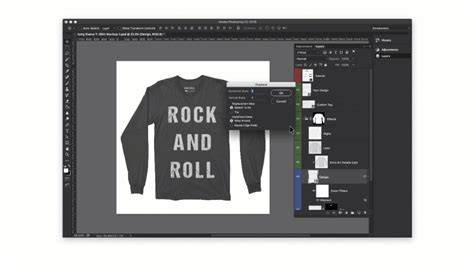
Create a Realistic T-Shirt Mockup FAST!
Additional notes on licensing and access
The collection includes various licensing options that allow for many use cases. The licenses page explains the available licenses so you can choose the one that fits your project. Access to downloads is managed through a straightforward process, and support is available for any technical issues.
Tips for scaling and refinement
- Set the horizontal and vertical scale values to achieve the desired level of distortion. Higher values create more dramatic effects, while lower values preserve more of the original image’s geometry.
- Consider combining displacement with blending techniques to integrate textures naturally into the scene. Blending options like Multiply or Overlay can help textures interact with underlying shadows and highlights.
- When using multiple images or textures, you can stack several displacement maps, applying them sequentially or in layers, to simulate complex materials and folds.
Displacement maps enable a precise last mile in wrapping graphics to surfaces or shapes, whether for a realistic shirt mockup, a textured wall, or product photography. They offer a reliable, non-destructive workflow that designers frequently rely on to preview and refine final results before production.
tags: #displacement #maps #photoshop