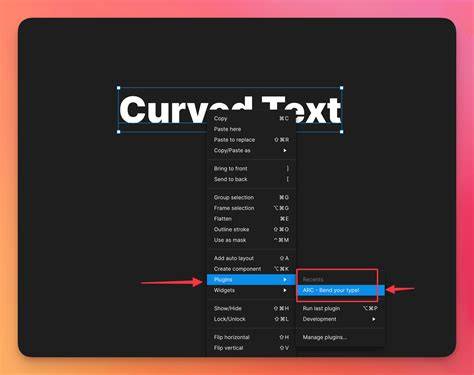
To create text that follows a curve in Figma, we’ll walk through the process step by step. We start by switching to Draw Mode from the bottom floating toolbar. It’s represented by a squiggly line. Once in Draw Mode, we click on the Shapes icon and choose Ellipse. We can create an ellipse with a curve that fits our design needs. Next, we click on the Text icon and move the cursor over the curve. A small curved icon will appear, showing that the text will follow the shape of the ellipse. After typing, we can adjust the position and curvature of the text to make it look perfect.
Curving text in Figma can be enhanced with plugins. You’ll often see recommendations to use plugins or external applications for greater control. If you’re aiming for more control over the subtleties of your text spacing, you might want to look at creating your curved or circle text in another application. You can then import it into Figma. If you copy and paste this directly into Figma it will appear all pixelated. Instead make a duplicate then Command Shift O (Mac) or Control Shift O (PC) to outline type. Then copy and paste to Figma.
So, there you have it. Although not done natively, these options allow you to create curved or circular text in Figma. Either working with a plugin in Figma or using another application such as Illustrator, you can jazz up your Figma designs with curved text.
Approaches to Curved Text in Figma
One approach uses the Draw Mode and an ellipse to establish a curved path, with text aligned along the curve. The other approach involves plugins that automate text on a path, offering different curve shapes and spacing controls. Plugins are constantly being updated and new ones are added, so a bit of research before starting out is recommended.
- Draw a curve with Ellipse in Draw Mode, then place text along it.
- Use a Pen tool path (shortcut P) and explore plugins for curved text.
- For precise tracking, outline text in another app and re-import if needed.
Tips for Better Curved Text
- Test different curve radii to fit your design’s balance.
- Adjust tracking and baseline shift to refine legibility on the curve.
- Consider outlining text in an external app for higher fidelity before re-import.
If you’re planning on using type on a path to create a circular logo, you might want to check out additional resources and tips on designing circular logos. What’s next? To go deeper with Figma, explore broader UI/UX resources and courses to enhance your design toolkit and learn about advanced workflows that complement curved text techniques.