Upload a photo and turn it into a pencil sketch, line drawing, or ink-style outline in seconds. This free photo to sketch tool works for portraits, pets, products, coloring pages, and creative projects - no sign up or login required. Drag and drop an image here or click to upload, or paste from clipboard.
Convert Image to Sketch, Pencil Drawing, and Line Art. Turn photos into pencil shading, crisp outlines, or ink-style line art with a simple upload. This free photo to sketch converter is designed for fast, practical results: choose a style, preview the output, and download a clean sketch for designs, presentations, printables, or social content. Need outlines instead of shading? Use the image to line drawing workflow to turn a picture into line art, a stencil, or a coloring-page-ready template.
Convert photo to pencil sketch online. Upload a portrait, product image, pet photo, or any clear picture and get a natural pencil sketch look in seconds. It is a useful image to pencil workflow for profile pictures, handmade-style gifts, printable artwork, and high-resolution sketch results when you want an artistic finish without drawing manually.
Create line drawings and ink outlines from images. Switch from shaded sketches to clean outlines for an image to line drawing result. Use it to convert images to outline drawings for stickers, stencils, coloring pages, product mockups, simple icons, and design references. Prefer stronger contrast? Try an ink drawing style for bold, graphic results with clearer edges.
How to Convert an Image to Sketch
Convert an uploaded image to a sketch, pencil drawing, or line art result in a few steps - no app install, no login, and no complex settings.
- Upload Your Image - Choose a JPG photo or other supported image from your device. Clear, well-lit pictures produce the cleanest lines and shading.
- Choose a Sketch Style - Select pencil sketch, minimalist line art, or ink outline. If style controls are available, adjust line strength or contrast to match your needs.
- Preview and Download - Preview the sketch or line drawing, then download it for your project. You can continue editing in any image editor if you want additional adjustments.
Sketch and Line Art Variations
Create different styles from the same upload - soft pencil shading, clean line art, or bold ink outlines. Use the results for social posts, product pages, printables, and quick concept visuals.
Realistic Pencil Sketch from Photo
Turn a portrait into a detailed pencil-style drawing with shading and texture. Great for profile images, keepsakes, and portrait photo to sketch transformations.
Minimalist Line Art
Create a simple outline with clean strokes. This style is ideal when you want to make coloring pages from photos or build modern, minimalist artwork.
Ink Line Drawing
Generate higher-contrast outlines with an ink feel. Useful for posters, illustrations, and photo to ink drawing looks that stand out.
Other Notable Styles
- Architecture Outline Sketch - clean outlines of buildings for presentations and mockups.
- Pet Photo to Sketch - charming pencil or outline portraits for gifts and profiles.
- Landscape Sketch Effect - sketch-style nature images for posters and journaling.
Practical Workflows and Tips
Sketch and line-art workflows are designed for fast, practical results, supporting portrait, product, and scene conversions for social content, printable templates, or branding assets. For best results, use a clear, well-lit image with sharp subject detail and minimal background clutter.
If you want outlines instead of shading, use the line drawing workflow to generate coloring-page-ready templates or stencils. For stronger contrast and bolder edges, choose ink drawing and adjust contrast accordingly. You can also combine styles by applying a pencil sketch first and then overlaying ink outlines for a dramatic effect.
Frequently Asked Questions
- Can I convert a photo to a sketch online for free? Yes. This free photo to sketch converter provides quick pencil, line art, and ink outputs without sign-up requirements.
- What file formats are available for download? Sketch outputs can typically be downloaded as JPG or PNG files.
- How do I get the best results from a portrait photo to sketch conversion? Use a clear, high-resolution photo with even lighting and strong facial detail. Avoid heavy blur and very dark shadows. A simple background helps produce cleaner lines around the subject.
- Can I use the sketches for commercial purposes? In most cases yes, provided you own or have permission to use the original image and you follow the site terms of use.
- Is there any limit on edits or the number of images? Some tools support batch processing or multiple edits; others may have single-image workflows per session. Check the specific tool’s guidelines for limits.
Whether you need a vector-like outline for a stencil, a detailed pencil portrait, or a bold ink poster-ready image, converting photos to sketch styles offers a fast, accessible path to hand-drawn aesthetics without manual drawing skills. Tools like these enable educational visuals, social media content, product mockups, and creative experiments with minimal effort.
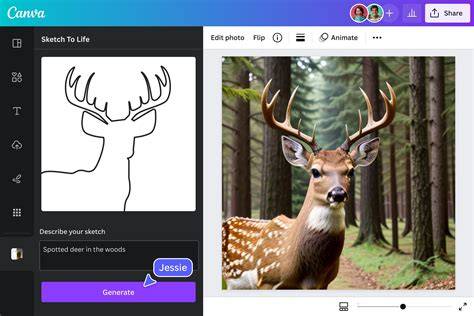
Illustrative sketch output from a photo, demonstrating pencil, line art, and ink styles.
How to turn photos into pencil sketches using adobe Photoshop
Short guide showing how to upload, select style, preview, and download a sketch transformation.
Save time with instant outputs and explore multiple styles from the same image to find the perfect sketch for your project. The process emphasizes fast, practical results with straightforward steps and clear, edge-friendly results suitable for design and creativity workflows.