Dream it. Expand canvas size to create space around your image without altering the original pixels. The canvas size tool lets you increase or decrease the editable area, while the image itself remains intact on the background layer or a duplicated layer for non-destructive edits.
Understanding Canvas Size vs Image Size
Canvas size is the full editable area of an image, while image size refers to the dimensions of the actual image content within that canvas. The canvas can be larger or smaller than the actual image size, and if the canvas is larger, you’ll see a border or space around your image. If you need to extend the workspace without changing the content, you adjust the canvas size rather than the image size.
Two Primary Methods to Resize Canvas in Photoshop
The two main approaches are:
- Extending the canvas with the Canvas Size dialog, which adds space around the image and can anchor the added area to any edge.
- Using the Crop tool to trim or adjust the canvas, potentially changing the visible area while maintaining the chosen aspect ratio.
Method 1: Canvas Size Dialog
To begin, duplicate the background layer to keep the original image intact. Right-click on the background layer in the Layers panel and choose Duplicate Layer. A dialog box will appear. In Photoshop, a best practice is to keep edits on the duplicate layer while preserving the original in the background layer.
Open the Canvas Size dialog by selecting Image > Canvas Size. In this dialog, you can adjust the Width and Height values, choose units (pixels, inches, centimeters, etc.), and decide where the extra canvas should appear using the Anchor grid. The Anchor determines which direction the canvas expands relative to the image. For example, selecting the left anchor adds space to the right, and vice versa.
Next, choose the color of the new canvas extensions. Usually white is used, but you can pick any color that matches your project. The Width and Height boxes accept relative values if you want to add or subtract from the current canvas size. You can also click Relative to input values that will be added to the existing canvas dimensions.
Method 2: Crop Tool for Canvas Adjustments
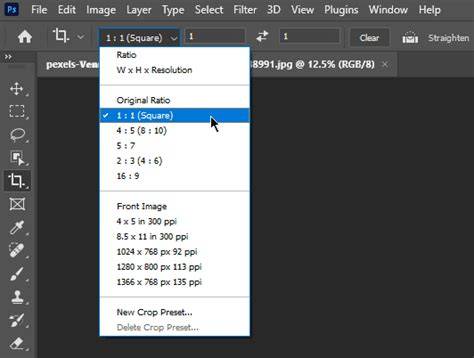
Sometimes you may want to crop the canvas down to a specific size or aspect ratio. Select the Crop tool from the Tools panel or press C. In the options bar, choose a desired aspect ratio. The crop border will adapt as you drag, ensuring the ratio is maintained. Dragging the corners can change the crop size, but keep in mind some ratios may affect the final image’s PPI or resolution.
Additional Context: Image Size and Related Concepts
Image Size refers to the actual dimensions of the content, while Canvas Size refers to the workspace around that content. The canvas can be enlarged to provide space for backgrounds, borders, or other elements without altering the existing pixel data. If you extend the canvas, the new areas are transparent by default or take the color you select for the canvas extension, depending on the file format and layer settings.
Working with Layers for Safe Edits
To maintain maximum flexibility, duplicate the background layer and perform changes on the duplicate. This approach lets you revert to the original easily if needed and keeps the original image data intact in the background layer.
Practical Tips for Canvas Adjustments
- When adding space around the image, use the Anchor to control the direction of extension.
- Choose a canvas extension color that complements your design, especially if you plan to export with a colored background.
- For non-destructive workflow, work on a duplicated layer and consider converting layers to a smart object if you anticipate multiple adjustments.
Related Techniques: Other Ways to Manage Canvas and Image Size
In addition to the Canvas Size and Crop tools, you may encounter related operations such as resizing an image (Image Size) and exporting with different formats and settings. These techniques affect the content or the export properties rather than the workspace, so use them in tandem with canvas adjustments to achieve the desired composition.
Quick Reference Summary
- Canvas Size increase adds space around the image; maintain non-destructive workflow by duplicating the layer.
- Anchor determines where new canvas appears relative to the image.
- Crop tool can alter the visible area and may impact PPI if aspect ratios restrict final resolution.
- Use a neutral or project-appropriate background color for the new canvas area.
Practical Workflow: Step-by-Step Example
Ready to work with canvas size? Start by launching Photoshop and opening your image. Drag the image into Photoshop, then duplicate the background layer. In the Layers panel, right-click the background layer and choose Duplicate Layer. Open Image > Canvas Size, set your desired Width and Height (inches, pixels, or others), pick an Anchor point to position the new space, and select a canvas extension color. Confirm to apply the change. If you prefer trimming space, switch to the Crop tool, set an aspect ratio if needed, and adjust the crop boundary to the desired area. Export options and further edits can follow, depending on your project needs.
Canvas Size - Adobe Photoshop CC 2019
Ready to master the art of resizing your canvas in Photoshop? Get started by launching your Photoshop application, then select any image of your liking and drag it into Photoshop. Right-click on the background layer in the Layers panel. From the pop-up menu, select "Duplicate Layer." A dialog box will appear. In Photoshop, a recommended best practice is to keep the original form of the image intact in the background layer, while creating a duplicate. All your edits should be applied to this duplicate layer. Now, make sure that you have the duplicate layer selected in the Layers panel. Adjust the height and width values in the Canvas Size dialog box as per your needs. Here, the two size values for the canvas operate independently. You also have the choice to use the "Relative" option to add relative values to the canvas. Additionally, you can use the Anchor to modify the direction of the canvas size changes.
Дополнительные заметки
In the broader Photoshop workflow, understanding the distinction between canvas size and image size helps you plan composite layouts, borders, and multi-image canvases. When integrating multiple photos, keep background consistency and consistent spacing to achieve a cohesive final result. The Canvas Size tool is essential for adding breathing room around subjects, while the Crop tool is ideal for precise framing and clean edges.