With the addition of Generative Expand and Fill in Photoshop for iPad v5.4, it is now possible to integrate these features into your Lightroom editing workflow on Lightroom for iPad. In this article I’ll showcase how you can achieve this workflow to expand your image bounds, remove objects, and add elements with Generative AI.
Open Lightroom images in Photoshop for seamless cross-app editing
Thanks to interoperability between Lightroom and Photoshop on the iPad, it is easy to open images from your Lightroom library in the Photoshop app. To do this, click on the share icon in Lightroom. Next, click on Edit in Photoshop. The Photoshop app will open, and your image will load.
Open Lightroom images in Photoshop
Tap the share icon in Lightroom, then tap on ‘Edit in Photoshop’ to open your image in Photoshop for iPad.

Expand your image with the crop tool
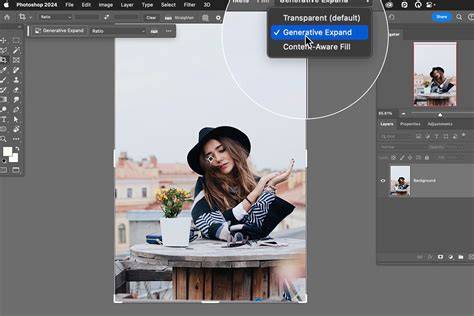
If you have an image you like, but need to adjust the framing of the image by either adding width or height, Generative Expand in Photoshop for iPad can help. To expand your image, click on the crop tool. Press enter or click to view image in full size. Click on the crop tool to open the crop interface and access Generative Expand in Photoshop for iPad.
With the crop tool open, expanding the image is as easy as dragging the boundaries of the image to the desired size you would like, and clicking on the Generative Expand button to the left. If this is your first time using Generative AI tools in Photoshop for iPad, you will be prompted to accept the terms of use before continuing. Press enter or click to view image in full size.
Use generative expand in Photoshop for iPad to adjust the framing of your image. Once the expand is completed, the crop interface will close, and you can continue editing your image in Photoshop, or send the image back to Lightroom. Photoshop will generate three variations of the fill, allowing you to select which one fits your need the best. If you’re not happy with the results, tap Generate again to regenerate the fill. For the highest quality results, or if you find the fill isn’t matching the resolution of your image, try expanding the image in smaller increments. Press enter or click to view image in full size.
Generative expand creates three variations to choose from. If you’re not happy with the results, click Generate again. Remove elements with Generative Fill
Remove elements with Generative Fill
Not only can Generative AI help you expand your image in Photoshop for iPad, it can also be a helpful tool for a variety of removal tasks. In this sunset image, there is an object near the horizon line that does not match with the standup paddle-boarders in the water. To remove that, use the Lasso tool to draw a selection around the object. Press enter or click to view image in full size.
Use the Lasso tool in Photoshop for iPad to select objects you would like to remove. With the selection made, tap on Generative Fill in the contextual toolbar. To perform a removal, leave the prompt area blank and tap Generate. Press enter or click to view image in full size. Use Generative Fill to remove selected objects in Photoshop.
Add elements to your image with Generative Fill
In the same way as removing an object, elements can be added to the image using Generative Fill. In the same sunset image, there is a gap on the right of the sunset causing the image to look unbalanced. Adding a kayak here will help to fill the space. Just like with removing an object, the Lasso tool can be used to select the area where the kayak should be placed. Press enter or click to view image in full size. Use Lasso to select a space to fill with Generative Fill.
Tapping Generative Fill, and providing a prompt of Sea Kayak will generate a kayak in the selected area. Press enter or click to view image in full size. Use a prompt to populate the selected area with the desired content. Once again, variations will be provided in Photoshop and can be toggled between to see the different results. Tap the desired variation to select it. Press enter or click to view image in full size.
Send the completed photo back to Lightroom for final touches
Send the completed photo back to Lightroom once the desired results have been achieved. To do so, tap on the Send to Lightroom button in the top left. Press enter or click to view image in full size. Tap Send to Lightroom to send the edited image back to Lightroom. The image will appear next to the original image and have a Photoshop icon in the top right corner.
As I understand it, when I crop a photo, I should be able to extend the boundaries of the cropped image beyond the edges of the photo as long as the Constrain to Image box isn't checked. This has never worked for me. Crop boundaries are always constrained to the image for me. Is there something I can do to get this to work? I am currently running Build on Windows 11, though this problem has existed for me for several Lightroom versions. This topic is closed to new replies. Start a new post to keep the conversation going.
The Crop tool / horizon levelling always constrains itself to the original image extent without giving the option. Adjustments here include "Scale" - besides Upright and various other controls. So you can shrink down the presentation of your photo, and then the crop (which has not itself taken account of this transform) will reveal some white areas coming from beyond the boundary of the starting image data. This comes at a quality cost: the Scale transform having effectively reduced the resolution of that starting image data.
Are you tired of switching between Lightroom and Photoshop? Today, I’m going to show you an incredible trick to generate AI backgrounds and expand the background of any image all inside Lightroom. This method works seamlessly in both Lightroom CC and Lightroom Classic, as long as you are using the latest version. Ready to dive in? First, make sure your Lightroom is up-to-date.
Open the photo you want to work on in the Develop module. Navigate to the Erase section and ensure that the Eraser mode is selected. Then, check that Generative AI is enabled. Generative AI in Lightroom is a powerful tool typically used for object removal or minor edits like changing hairstyles. You select the area, and Lightroom generates a few variations for you to choose from. However, it doesn’t normally allow for expanding the background outside the original image boundaries.
To expand the background, take a screenshot of your current photo. On a Mac, you can do this by pressing Shift + Command + 4. For PC users, the shortcut is usually Function + Windows Key + Spacebar. Drag to select the area around your photo, including some space you want to expand into. Import the screenshot back into Lightroom as a new photo. Ensure no presets are applied during import. With your new larger photo, go back to the Erase tool. This time, paint over the gray area outside your original image. Click “Apply” and let Lightroom generate new background options based on the existing image. This usually takes a few seconds. Lightroom will present you with several variations. If you don’t like the initial options, you can hit refresh to generate new variations. Lightroom allows you to refine specific sections by selecting only that area and applying Generative AI again. This technique is perfect for portfolio photos where you need that extra background space without the hassle of using Photoshop.
Expand Any Photo In Lightroom Without Photoshop! This Lightroom trick is a game-changer for photographers who prefer to stay within one software environment. Try this method out for yourself and see how it can simplify your workflow and enhance your photos. If you found this tutorial helpful, please hit the thumbs up button, leave a comment below, and subscribe for more content like this. Coming to you from Signature Edits, this informative video demonstrates a clever workaround for expanding photos directly in Lightroom. This method works with both Lightroom CC and Lightroom Classic, as long as you have the latest version. It involves using the new generative AI feature, which is typically used for object removal and other modifications. The process starts by taking a screenshot of the image area you want to expand. On a Mac, this is done with Shift + Command + 4, and on a PC, it's Function + Windows Key + Spacebar. After importing the screenshot back into Lightroom, you use the erase tool with generative AI enabled to paint over the gray areas outside the original image. What makes this technique valuable is its simplicity and speed compared to using Photoshop. While Photoshop offers more control and higher-resolution edits, Lightroom’s AI can produce impressive results quickly. By refreshing the generated variations, you can choose the best one or even layer multiple variations to perfect the photo. One caveat to this method is the potential for lower resolution since you're working with a screenshot rather than the original high-res file. Ensuring your screenshot is as large as possible can help mitigate this issue. Additionally, since this process converts your image to a JPEG, it’s best to apply this technique after you've completed all your other edits.
How To Expand Background In Lightroom | No Photoshop!
tags: #extending #background #in #lightroom