Automatically detect and blur faces in your photos to protect privacy. Our AI-powered tool finds faces instantly and lets you apply blur or pixelation effects with one click. Drop images into this area or select files, or paste images with Ctrl+V. Allowed Filetypes: All image formats (JPG, PNG, TIFF, RAW, etc.).
How the tool works: AI-driven, on-device face detection
Our tool uses advanced AI technology that runs directly in your browser to detect faces. The model analyzes your image and identifies facial features, then creates blur regions around each detected face. You can adjust the confidence threshold to control how sensitive the detection is. On-device face detection finds every face in the photo, and blur them all with a single tap. Is my photo private and secure? Absolutely! All processing happens entirely in your browser using WebAssembly and JavaScript. Your photos are never uploaded to any server - they stay completely on your device. This makes our tool perfect for sensitive photos containing people's faces.
Blur vs. pixelate: two effective privacy methods
What's the difference between blur and pixelate? Blur creates a smooth, out-of-focus effect that softens facial features. Pixelation creates a mosaic of colored blocks, making faces unrecognizable in a more obvious way. Both effectively protect privacy, but blur tends to look more natural while pixelation is more clearly intentional. The app supports different shapes and adjustable intensity to suit your needs, and you can switch between oval and rectangular shapes for the blurred area. Smooth borders ensure the edited regions look neat and polished in your images.
How to blur faces in photos: step-by-step
- Upload your photo by clicking the upload area or drag and drop your image.
- Click 'Detect Faces' to automatically find all faces in the image.
- Adjust the confidence threshold if needed to detect more or fewer faces.
- Fine-tune the blur strength using the radius slider or blur intensity controls.
- Add or remove blur regions manually if needed.
- Download your privacy-protected image in your preferred format.
Batch processing and selective blurring for multiple images
Yes! Upload multiple images and run face detection on all of them. Each image gets its own preview where you can adjust the detected regions. Use 'Process & Download All' to save all your blurred images at once, or download them individually. The app supports a wide range of output formats including AVIF, BMP, GIF, JPEG XL (JXL), JPG, JPEG, PNG, SVG, TIFF, and WebP.
Editing options: refine, customize, and go beyond faces
Editing options include selecting which faces to blur by default, removing false positives, and adding new blur regions manually. You can adjust the blur intensity, change the shape from oval to rectangular, tilt blurred areas for better coverage on angled faces, and resize regions to cover more or less of the face or surrounding features. When exporting, you can choose different sizes and formats for the processed copies. The tool also supports blurring other elements like license plates, documents, or screens, making it versatile beyond facial privacy.
Why use a face blur tool: privacy, compliance, and storytelling
There are several reasons to blur faces: it protects identities in line with privacy regulations, helps comply with GDPR or similar rules, and supports responsible journalism by safeguarding witnesses and sources. Blurring faces of children protects their privacy and dignity. The Blur Faces app creates blurs with smooth borders, ensuring edited regions fit organically into photos while making faces extremely difficult to identify. It processes on your device to preserve privacy and avoid data leakage.
Common questions answered
How do I blur a face in a picture? Go to the app, upload images, and click 'Detect Faces' to blur automatically. If needed, download the images after edits. How can I blur faces online for free? The tool runs in a browser, with no registrations or cookies required for basic use. What is the best app for blurring faces? Watermarkly is simple, fast, and supports batch processing; you can also manually fine-tune blurred regions. How to blur something in a picture? Upload your image, add blur, move and resize the blurred area, and download the processed copy.
Special features and user-friendly design
The app is designed to be straightforward and fast, with on-device processing for privacy. You can blur faces in multiple photos at once, manage detected regions, and switch between blur shapes. The interface emphasizes ease of use, making it accessible even to first-time users. Watermarkly’s Blur Faces tool creates blurs with smooth borders for a polished result, while the on-device processing ensures your data remains private.
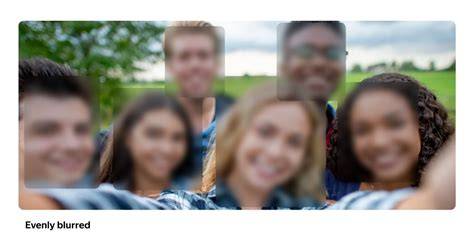
Visual aid showing the privacy benefits of on-device processing and automated face detection.
Unifi Facial Recognition 101 - What you need to know!
Short explainer video illustrating how the AI detects faces and applies blur without uploading images.
Practical tips for best results
- For crowded scenes, consider lowering the confidence threshold to catch more faces, while reviewing false positives manually.
- If some faces aren’t detected, use the manual Add Blur feature to ensure coverage.
- Use selective blurring to keep important subjects visible while protecting others.
- Experiment with blur shapes and tilt to fit irregular angles or occlusions.
Usage scenarios: privacy, journalism, and everyday sharing
Ideal for sharing photos of kids, crowd scenes, or sensitive environments where identities must remain protected. Journalists can anonymize sources while preserving the gist of the story. Individuals can safely post photos from events without exposing attendees’ identities. The tool’s flexibility extends to masking license plates, documents, or other sensitive information in images.