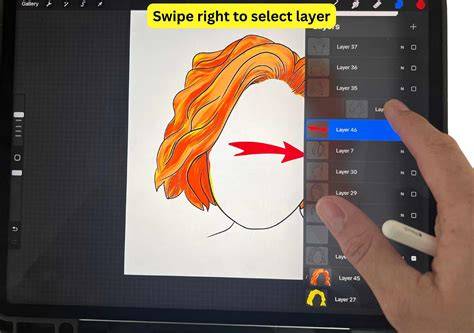
Many Procreate beginners struggle with adding color without destroying their linework. One designer wrote that they had “no clue about layers” at first and kept ruining their sketches. Fortunately, Procreate offers several straightforward, flexible methods for coloring-whether your goal is a loose illustration or a precise flat. In this post, we’ll explore the main approaches, with pros, cons, and tips to make each one work smoothly. We’ll wrap up this post with how to recolor sketches and add shadows and highlights to your rendering.
1. Painting Directly on a New Layer
This approach feels most natural for expressive fashion illustrations.
- Lock your Line Art: Tap the double-square Layers icon at the top right of your screen to open the Layers panel > tap your line art layer > swipe the layer to the left and select Lock.
- New Multiply Layer: Tap the + button at the top of the Layers panel. A new layer will appear above your line art. Tap the little letter N on the new layer to open Blend Modes.
- Choose a Brush: Tap the paintbrush icon at the top right to open the Brush Library. You’ll see categories like Inking, Painting, and Airbrushing. Test strokes on the canvas until you find the brush that feels right for your style. For illustrations, I like to use the custom Watery Marker for a loose, transparent feel with layering ability that resemble professional markers.
- Choose a Color: Tap the color circle in the top-right corner to open the Color menu. You can:
- Pick a color by dragging around the color wheel.
- Use the sliders (Disc, Classic, Value, or Harmony tabs) for more control.
- To save a color, go to Palettes > Tap on the + icon at the top right menu > Create New Palette > then tap empty squares to add swatches. This way you build a custom palette for your project.
- Import a Custom Palette: In the Color menu, go to Palettes > tap the + icon > New from File/Photos/Camera. You can import a .swatches file, or pull colors directly from an image on your iPad. The palette will appear in your library for easy access.
- Paint: Paint directly onto your Multiply layer to render your design. Pros: painterly, natural, expressive look; great for shading, blending, and fabric textures; feels close to traditional illustration with markers or watercolor. Cons: takes more time; requires a steadier hand (though you can use stabilization); harder to make quick colorway changes later.
To add prints to your sketches, take a look at this step-by-step guide on adding prints in Procreate.
2. Color Drop (Fill Tool)
Color Drop is Procreate’s drag-and-drop fill tool. It’s great for clean, flat coloring-especially useful for fashion flats where precision matters.
- Option A - Closed Shapes with Reference Layer:
- Closed Shape: Make sure your line art is fully closed (no gaps in the outlines).
- Lock: Swipe the layer to the left and select Lock.
- New Fill Layer: Tap the + button at the top of the Layers panel. A new blank layer will appear above your reference layer.
- Color Drop: Drag the active color from the top-right circle and drop it into the area you want to fill. You can also drag swatches directly from the Palettes menu: open the Color panel, go to Palettes, then tap-and-drag a swatch straight into your canvas to fill the selected area. Keep in mind you’ll need to drop color into each separate closed area on your reference layer. For example, on a t-shirt sketch you’d fill the body and the sleeves individually.
- Option B - Open shape with Filled Outline Layer:
- Option A works well, but only if your sketch lines are completely closed. In fashion sketches, that isn’t always the case-tiny gaps, expressive strokes, or textured line quality are often intentional and can make the sketch look better. Because of that, many designers (myself included) often prefer the next method.
- Lock your sketch layer: Tap the double-square Layers icon at the top right of your screen to open the Layers panel > tap your line art layer > swipe the layer to the left and select Lock.
- New Layer: Tap the + button at the top of the Layers panel. Drag this layer below your locked sketch.
- Draw an Outline Shape: Tap the color circle in the top-right corner to open the Color menu and pick a shade.
- Color Drop: Drag the active color from the top-right circle and drop it into the outline.
Pros: Very fast and precise; keeps linework separate and editable; great for filling multiple colorways of flats. Cons: Needs perfectly closed outlines; residual color can appear along edges if you drop on the same layer (using a Reference Layer solves this); less natural than painting for fabric rendering.
Common Mistakes to Avoid: Spilling across the canvas (outline gaps); residual color halos from dropping on the same layer as line art. Always use a separate layer for fills.
⚖️ Bonus: Turn on Vertical Symmetry Guide
Tip: To ColorDrop, paint, or outline both sides of a garment at the same time, you can use the Vertical Symmetry Guide. Steps: Go to Actions (wrench icon) > Canvas > Toggle on Drawing Guide, then tap Edit Drawing Guide. Choose Symmetry, then under Options select Vertical. The layer name should now display Assisted.
🌗 Bonus: Add Shadows + Highlights
Once you’ve laid down your base colors, you can bring your sketch to life with shading and highlights. Here’s a simple way to add depth without disturbing your line art or flat fills:
- New Layer: Tap + in the Layers panel to create a layer above your base color.
- Clipping Mask: Tap the new layer > select Clipping Mask. A clipping mask means the new layer will only show up inside the shapes of the layer directly below it-like coloring inside a stencil.
- Blend Mode: Tap the little letter N on the new layer to open Blend Modes. Choose Multiply for shadows, or Overlay/Screen for highlights. Then paint with darker or lighter tones to add dimension.
- Tip: Create separate layers for shadows and highlights. Separate layers enables different blend modes and independent adjusting or erasing.
3. Recoloring Made Easy
Fashion designers often need multiple colorways of the same sketch. Instead of repainting, use Procreate’s layer features:
- Replace with ColorDrop: Drag a new color from the circle in the top-right and drop it into the fill layer. This will overwrite the previous color.
- Clipping Mask: To test multiple color options on different layers, set the original fill layer to white. Then add a new layer above it, select Clipping Mask. On this new layer, drag a color into the sketch. The color will "clip" to the white fill layer below it (acting like a stencil). You can repeat for each new color.
You're currently viewing an older version of the Procreate Handbook. Take your art to the next level with industry-standard color adjustment tools. Hue determines the overall color tone used in the image. Saturation determines color strength. Colors on-screen are formed of a mixture of three primaries: red, green, and blue. Slide to the right to move the tone of your layer towards Red, Green, or Blue. Adjusting the Midtones is the best way to achieve an even adjustment. This tool represents the tonal values of your layer as a straight line on a graph. The colored part of this graph is called a histogram. Drag a node up to affect the lightness of your layer. Drag a node down to affect the darkness. You can add up to 11 nodes. The histogram is an graphical representation of the balance of red, green, and blue color in your image. Colors other than red, green, and blue indicate the channels overlapping. Tap Red, Green, or Blue to start adjusting a color channel in isolation. Small crosshairs will appear in the middle of the screen. Finally, slide the Flood slider at the bottom of the screen. Your chosen color will gradually fill with the replacement color. If you want to replace a different area with your new color, you can drag the crosshairs around at any time to see the effects of the flood fill elsewhere in your layer.
On Procreate, different settings can be tweaked to get favorable outcomes. This is very useful for digital painting artists and lovers of creativity. One of the things you can change is the color of the lines. This can transform your artwork with just a few simple steps.
There are various ways of recoloring a line on Procreate. This is one of the simplest options to recolor lines on Procreate. Check to ensure that the line is alone in a layer. Release the stylus after it touches the line. There are some limits to this technique. If the line you made is thin or you used a rough texture, it won’t work. To color thin lines successfully, zoom them in as much as necessary. Alpha Lock is a feature used for masking layers. This feature gives users more control over transformations and edits to specific layers and shapes. In this method, it is important for the line you want to recolor to be on a layer on its own. This method helps you recolor your line without flowing over. The effect of using Alpha Lock is noticeable once a small grid impression appears behind the layer. If you need to recolor items on Procreate (including lines) more conveniently, you must make accessing the Recolor tool easier. Do this by adding it to the Quick Menu. You could access the Recolor tool in older Procreate versions through the Adjustments Menu. Recolor is not in that menu in the new version, but it can still be accessed. Practicing in Procreate is the best way to grasp how things work. It is much better to learn early, especially if you plan to use Procreate long-term. Learning early helps you save time in the future and gain all the necessary skills needed to do well on the platform. Repeat the steps often to master them and broaden your skillset.
Is it possible to color inside shapes? Yes. You can color inside shapes in Procreate using the drag-and-drop method. You need to drag the color you want from the wheel on your right, then release it inside the shape. Can I color-fill in Procreate? Yes. Drag a color from the wheel at the top and drop it in the text, shape, or layer you need to fill. Why isn’t the color drop working? This happens mostly if Alpha Lock has been deactivated. Check this and try again. The other possible reason is that you may be trying to drop in the wrong area. Should I always use Alpha Lock to color lines in Procreate? No. The color drop method should work well handling lines. However, if you want to color finer lines, Alpha Lock works better and gives good results. Is there a suitable way of coloring a drawing I created in Procreate? First, to shade or color a Procreate drawing, fill every shape with white or any neutral color.