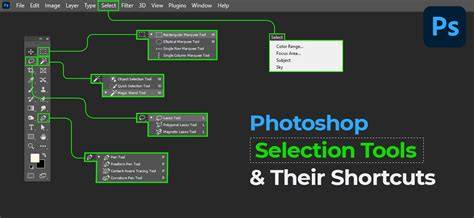
Selection tools are critical in Photoshop, enabling edits that affect only the chosen region while leaving the rest of the image untouched. This article compiles practical tips and methods for fast, accurate selections, drawn directly from the provided material to create a comprehensive guide.
Repositioning the Selection while Drawing
Repositioning the Selection while Drawing - After starting to draw a selection using a Marquee or Lasso tool, press and hold the spacebar (while still holding the mouse down), then drag to reposition the origin of the selection. This technique allows you to refine your initial placement without restarting the selection process.
Shortcuts and Tool Behavior
Softening the Edge of a Selection - When using the Marquee and Lasso tools, tapping Return (Mac) | Enter (Win), will automatically highlight the Feather amount in the Options bar (adding a Feather softens the edge of the selection and is applied to the NEXT selection that you draw with the tool).
Five Ways to Soften the Edge of a Selection demonstrates five different methods to feather a selection, including feathering (or not) selections that touch the edge of the canvas (image area).
Use Sample All Layers in the Options bar to sample more than one layer. Enable Enhance Edge to reduce rough edges of the selection in transitional areas. With Object Subtract enabled, Photoshop will use artificial intelligence when drawing a loose rectangle or lasso around the object to be removed from the selection.
Advanced Selection Tools and AI Aids
Object Selection Tool - The Object Selection tool uses artificial intelligence to help make selections of objects within an image. Choose between Rectangular or Lasso “Mode” and drag a loose rectangle or lasso around an object in the image. Photoshop will help to identify and “shrink-wrap” the selection around the subject.
Select Subject has also been trained on portraits so that if it identifies a person in the image, it will create an accurate selection around difficult-to-select attributes such as hair. To select the sky and replace it with the help of Adobe Sensei’s AI and machine learning, choose Edit > Sky Replacement. Choose from one of the preset skies, or load a New Sky by clicking the gear icon.
Transforming Selections
Transforming Selections - With an active selection in the image area, choose Select > Transform Selection and use the transformation handles to transform the selection (this will transform the marching ants, not the content of the layer). Position the cursor outside the transformation handles to rotate, or use modifier keys to transform from the center, corners, or skew perspective. To apply or cancel, press Return/Enter or Escape respectively.
Previewing and Modifying Selections
Previewing Selections using Quick Mask - To preview a selection as a mask (where red represents the masked area by default), tap the Q key to toggle Quick Mask mode. Quick Mask color and overlay settings can be adjusted for better visibility when edges are similar in color to the subject.
Maximum and Minimum Filters - The Maximum and Minimum filters can expand or contract a selection by a decimal number. First, make your selection, then click the Quick Mask icon to view the red overlay before selecting the filter. This helps refine edges with precision, especially for small or intricate features.
Quick Selection, Focus Area, and Focus on Edges
Quick Selection Tool - The Quick Selection tool automatically switches to “Add To” mode after the initial click, making it easy to drag again to add to an existing selection. After clicking in the image, you can drag to add areas, then hold Alt/Option to subtract from the selection if needed. Pressing [ or ] changes brush size, and Enable Enhance Edge produces smoother edges.
Focus Area Tool - The Focus Area Tool selects regions at the focus of an image, with In-Focus Range adjusting the initial selection automatically. Soften Edges in the Advanced section blurs the edges to blend more naturally. Output options determine whether the result goes to a new selection, a layer mask, a new layer, or the document.
Working Across Layers and Masks
Sample All Layers - If multiple layers exist and you want Photoshop to analyze all visible layers, enable Sample All Layers. When working with masks, the first double-click on a Layer Mask opens a dialog for actions such as View Properties or Enter Select and Mask. Select and Mask provides refined control for edge handling, color decontamination, and output choices.
Practical Tips for Real Estate and Portraits
When shooting real estate interior photos, a fast selection workflow helps you isolate subjects and adjust backgrounds efficiently. Select Subject for portraits benefits from AI training to handle hair and fine details, while Sky Replacement provides nondestructive methods for changing skies with harmonized foregrounds.
In portraits, Select Subject’s AI can identify hair and other tricky details, while Object Aware - leveraging machine learning - can yield the best results when foreground and background contrast is subtle. When the scene has a simple background and high color contrast, Color Aware can yield strong results, especially with refined edge tools.
Saving and Reusing Selections
Saving Selections - After making complex selections, you can save the selection as an alpha channel via Select > Save Selection for reuse later. Alpha channels can be saved in formats such as .psd or .tif. Loading a saved luminosity-based selection is possible via Command/ Ctrl + 2.
Final Notes on Selection Mastery
Mastering the various selection tools in Photoshop-Marquee, Lasso family, Quick Selection, Magic Wand, Focus Area, and the AI-assisted Object Selection-provides greater control over masks, crops, and adjustments. Remember to refine edges with Select and Mask, tune feathering for natural transitions, and leverage AI features like Sky Replacement and Select Subject to streamline complex composites.