Figma finally supports typography variables after teasing us since last June. This article distills how to set up and use typography variables, why they matter for design systems, and practical steps to save time by centralizing text styling across components and frames.
Typography variables give you control to bulk-edit text styles with a few clicks, applying changes across all instances. You can change a single property, like letter-spacing, in one place and have it reflect everywhere, enabling a more scalable approach to typographic systems.
Set up text styles (if you don’t already have them)
You can’t create typography variables without existing text styles. If you have a Design System, you likely already have text styles and can skip this step. Steps: create a text layer and modify the font family, weight, size, etc.; create text styles; name and describe each style; repeat for all needed text styles. Local styles appear in the design panel.
In practice, you’ll see a grid icon next to the Text property and a plus icon to add new Text styles. This creates a centralized library of text styles you can reference with variables later.
Variables for font families
Changing font families for an established Design System is rare, but documenting font family in local variables ensures all text properties are controlled by variables. Steps: open the local variables popup, create a string variable, and name it (for example, Font/Family/Headings). Use the forward-slash to create automatic groups in Figma. Link the font family variables to text styles by editing each style, applying the font family variable so a grey pill replaces the font family name. Repeat for all text styles.
Note: To change the font family in the local variable, you must type the font name verbatim in the file. Ensure the font family is present in the design file for changes to apply.
Variables for font weights
Font weights can use string or number variables depending on naming. For this demo, string variables were used. Steps: create string variables named like Font/ Weight/ Bold; repeat for all weights; link variables to text styles by editing the style, selecting Apply variable, and choosing the corresponding weight variable. The weight variable name must match the font family’s weight names; otherwise, mapping won’t apply correctly.
Variables for font sizes
Font sizes are numbers; use a naming convention such as t-shirt sizes (XS, S, M, L, XL). Steps: create number variables (Font/ Size/ XXL), set the numeric value, link to text styles by applying the variable to the font size in each style. Repeat for all text styles.
Variables for font line-height
Line-height variables follow the same naming approach as font sizes to maintain consistency. Steps: create number variables (Font/ Line-height/ XL), set values, and link to text styles by applying the variable. Repeat for all styles.
Typography modes
Typography modes enable responsive typography by switching whole groups of variables for different contexts (e.g., Desktop vs Mobile). Steps: create a new variable mode in the local variables popup; adjust values in the new mode; apply the mode to frames on the canvas by changing the variable mode in the frame’s Layer properties; repeat for other frames and test the mappings. Modes help the variables update across contexts automatically.
Variable scoping
Variable scoping prevents misuse and improves findability by restricting where a variable applies. For example, line-height variables should not be mapped to font family properties. Steps: edit a variable, switch to Scoping tab, unselect properties it doesn’t apply to, and repeat for all variables. Remember that number variables can apply to more properties, so you may need to unselect more properties.
Practical usage and limitations
Typography variables allow you to apply color, string, boolean, and number variables to various properties beyond typography itself, including text content and visibility. You can bind string variables to the text content of text layers, and numeric variables can participate in prototypes that require calculations. Boolean variables control layer visibility, and variables can be used with variants and components to swap states or appearances.
In the context of components, you can expose text content as a text property and bind it to a string variable; this can improve consistency across different device frames (iOS, Android, Desktop, Mobile Web). However, as noted, binding text properties directly to string variables in instances may require feature expansion, and developers often await more robust support for text props in instances.
Applying variables to design tokens and libraries
As Figma expands its variable feature set, you can use variables and modes to implement design tokens for your design system. You can switch designs between contexts such as light/dark themes, and you can use variables from published libraries. The component playground in the inspect panel helps you experiment with properties without altering the source designs.
- Color variables can be applied to fills, strokes, and color styles.
- String variables can be applied to the text content of any text layer, and even used in prototypes for dynamic subtotals and calculations.
- Boolean variables control visibility and can impact component states in variants and instances.
As you adopt typography variables, you’ll likely create multiple definitions for a variable, each tied to a mode. This enables robust token management for large design systems and helps maintain consistency across devices and locales.
Images and videos
Images and videos illustrating variable setup and use can enhance understanding.
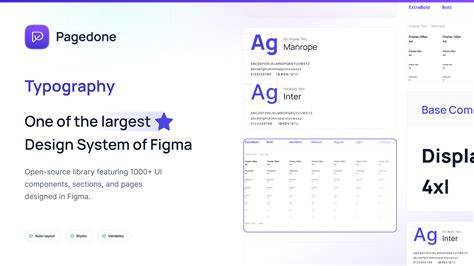
Responsive Typography With Variables | Figma Tutorial
Table: example variable mappings and steps
| Step | Action | Outcome |
|---|---|---|
| 1 | Create text styles | Foundation for variables |
| 2 | Create font-family string variables | Centralized family control |
| 3 | Typography aligned to variables | |
| 4 | Tokenized typography system | |
| 5 | One-place edits reflect everywhere | |
| 6 | Responsive typography across contexts | |
| 7 | Prevents misuse and improves findability |
The new variables feature is great for maintaining design consistency while enabling rapid updates across a design system. You can apply a color, string, boolean, or number variable to a range of properties, and mapping ensures changes propagate where intended. As Figma continues evolving, typography variables will likely expand to cover more text properties and interactions within components and instances.