Users had been asking us to add horizontal scrolling to the Layers panel for a while before it became part of UI3. When nested frames are pushed out of view, you need a scroll bar to shift back and forth. Sounds simple, right? Well, not exactly. “Something that seemed like it would be easy to solve raised really interesting challenges from a design, engineering, and collaboration point of view,” says Figma Product Designer Giorgio Caviglia.
For starters, the Layers panel is “very utilitarian,” Giorgio says. “It’s a tricky surface because it’s used all the time and has to be very reliable.” On top of that, the panel isn’t just a static list of parent and child elements. “Those things are kind of alive,” he says. “You can hide layers, lock them, collapse and expand them. So what happens to those elements when you scroll?”
Adding to the challenge was virtualization, which means that only currently visible layers are rendered, for better performance. As you scroll up or down in the panel, other layers come into play, and the variable text length of those layers causes problems for horizontal scrolling. These factors complicate the ultimate goal, which is to orient users in the hierarchy and signpost to them that there’s more to see.
To untangle this complexity, Giorgio and a development team led by Software Engineers Amy Shan and Grant Phelps went through a range of iterations to create a smooth, intuitive experience. Here, they walk us through three explorations they didn’t ship-and what they learned along the way.
Version one: Out-of-view behavior on the left side
Giorgio dove straight into prototyping with code, using JavaScript, HTML, CSS, and React to get a sense of how different approaches would feel. “I really love prototyping with code because it’s the best of both worlds,” he says. “I can work within the constraints of the code base, but still focus on the craft and how things should look.”
Being so hands-on was especially valuable for a feature as dynamic as scrolling. “When you’re dealing with thousands of layers, multiple scroll directions, and complex interactions, you need to feel how it works,” Giorgio explains. “You can’t anticipate all states when you’re designing statically.”
One question horizontal scrolling introduced was: What should happen to the white space when users scroll deeper into nested nodes? In one version, the team explored a symmetrical treatment for layers when they leave the top-left edge of the panel and enter the bottom-right edge. When layers slid out of view, they would be indicated by icons aligned to the corresponding edge. “The idea was to have a symmetrical design with frame icons above and below, so you would know where you were in the layer hierarchy,” says Giorgio.
This proved thorny from an engineering standpoint, however. Getting icons to stick to the panel edges was a quick change, but they needed opaque backgrounds to cover the layer name text while users scrolled, which conflicted with the way layer rows are structured. “In various situations during horizontal scrolling, the background should appear to be sliding under some layer elements while truncating others,” says Amy, “which is difficult to do when the component we’re styling doesn’t have exact knowledge of where the elements on top are placed.”
It also wasn’t ideal from a design perspective. As users scrolled to the right, the ends of layer names formed a ragged edge of text on the top left. “In design, you so often focus on symmetry, which can be idealistic to the extent that reality is often more complicated than you can predict,” says Giorgio. “This is a clear example of a solution introducing a new problem-more than anything, this iteration opened the door to approaching the white space above the visible layers.”
In another exploration, the team prototyped an auto-scroll behavior. When users selected a layer on the canvas that wasn’t in view on the Layers panel, the scroll bar would automatically move to center it on the panel. While this behavior made sense in theory, it was disorienting in practice. One internal tester explained: “Clicking on something deeply nested is jarring because the layer tree scrolls to it horizontally and vertically. I’ve lost all context of the parent items at that point.”
Giorgio makes an analogy to using Google Maps while driving: If the map were to jump to a different location, the user wouldn’t know where to go next. “As a designer, knowing the exact layer you’re working on-where it is in the hierarchy, what it’s named, whether it’s part of a parent component-is very important,” he says. “You create a mental model that’s reflected in the Layers panel. If you’re disoriented, you start to doubt yourself. You want the tool to support you, not work against you.”
Version three: Renaming layers
The introduction of horizontal scrolling also raised new questions about renaming layers. What would happen if a user clicked a layer to edit the text box, then scrolled to another layer? One option was to set the current input as the new layer name, but this set the stage for unintentional renaming. “We didn’t feel like scrolling was a strong enough signal for confirming a change,” says Giorgio.
Instead, the team explored a text box that expanded out to the right as the user scrolled, although this triggered some awkward UI with the box flickering on the far edge. “Basically, because the team was using JavaScript to resize elements, there was no way to get around the lag caused by resizing the panel horizontally,” says Grant. “If we chose to resize from the left, we got choppiness on the right side, and if we resized from the right, we got choppiness on the left.”
Not only was this a poor experience, but it also means that if the user kept typing, the scroll bar would potentially jump back to bring the text into view-a no-go based on what the team learned with the auto-scroll exploration.
The final version: Finding the right balance
Taken together, the iterations helped the team land on key decisions: They would leave the white space above the visible layers completely blank to match the white space at the bottom of the Layers panel, and they would simply reset the layer name, even if it had been edited before the user scrolled.
To address the auto-scroll question, the team developed heuristics for when and how far to adjust the scroll bar when a user selects a layer that’s out of view. If the layer icon and text length extend beyond the left edge of the Layers panel by 50 pixels or more, for example, the scroll bar shifts left-just enough to show the additional context above it, but not enough to knock designers out of their flow. This presented a unique technical challenge due to virtualization. If a user clicks a layer that isn’t currently rendered-and there’s no information about how long the text is-it’s unclear how much to auto-scroll for proper alignment. “Grant and I figured out a way to do an invisible render of the row before we move it,” says Amy. “We then measure that row and use it for the auto-scroll so that it’s perfectly aligned.”
Each version the team prototyped and tested helped them understand what to automate, what to leave in users’ control, and where to keep things simple. “It was about not overcomplicating things and considering technical constraints to avoid slowing things down,” says Giorgio. “We needed to ship something that felt like an evolution, not a regression.”
Today, the scroll bar works in a way that just makes sense-but as in most cases, that seamlessness is the result of a huge amount of iteration and prototyping. As Giorgio puts it: “Solutions that feel just right don’t start that way. They’re often born out of madness.”
On April 30, we’ll be retiring UI2 and transitioning to UI3. Designers know how important it is to effectively communicate their designs to stakeholders. High-fidelity prototypes are a great way to do this, providing a realistic representation of final designs. With Figma, designers have a tool that allows them to create these prototypes quickly and easily.
Scrolling is an important aspect of designing user interfaces for digital products. In this article, we’ll explore how to configure scrolling in a Figma prototype to create interactive and realistic experiences for stakeholders. In Figma, designers can configure overflow scrolling for frames to ensure that their designs scroll properly. Want to master scrolling in Figma? Here's a quick tutorial!
- Go to the Prototype panel under Scroll Behavior and select “Horizontal”.
- Set scroll behavior to “Vertical”.
- To enable overflow scrolling, the frame must contain “overflowing” content that extends beyond its bounds.
- Figma provides three different overflow behaviors: horizontal scrolling, vertical scrolling, and both combined.
- To enable horizontal overflow scrolling in Figma, ensure that content extends past the width of your frame.
Many designers often make the mistake of using groups instead of frames. When you use a group instead of a frame, the elements within the group will adapt to the group’s bounding box. Create a frame around the selected objects by right-clicking and selecting Frame selection from the context menu. Once your frame is set, click on the frame to reveal the bounding box. You want to adjust the width of the bounding box so that the content overflows past it. Think of the bounding box as a window that displays the content within it. To test out your scrollable prototype, click on the Present button on the right side of the toolbar to enter presentation view. In presentation view, place your cursor within the bounds of your frame and scroll from side to side.
Vertical scrolling in prototypes is often used to reveal hidden content that lies below the fold. Enabling vertical overflow scrolling is much the same as horizontal scrolling. With your frame selected, select the Vertical scrolling option from the Overflow scrolling dropdown. Now it’s time to test your prototype. Enter presentation view and place your cursor within the bounds of your frame and scroll up and down. Finally, you can enable both horizontal and vertical overflow scrolling at the same time. This option allows you to scroll in any direction, which can be useful for communicating an interactive area such as a chart or map. Let’s use a map for our example. Now test out your prototype in presentation view. Place your cursor within the bounds of your frame and scroll up, down, left, and right.
In Figma, clipping content allows you to hide content within a frame that extends beyond its bounds. In many cases, your design will have multiple elements within a frame. To give the appearance of a “window,” select the frame that you want to clip and check the Clip Content option in the Design panel. You’ll notice that your frame has now clipped any overflow content and only shows the content within its bounding box. Don’t worry, though - your objects haven’t been deleted. Now your prototype features a scrollable, clipped frame.
When creating a prototype in Figma that uses scrolling, you might not want every element to scroll along with the screen. Let’s talk about an advanced scrolling technique that can be useful in order to create a realistic user experience for stakeholders. Without this option enabled, the prototype will load the top of the frame every time you navigate to a different screen. This can potentially cause confusion when presenting your designs and represent an inaccurate experience. For this example, we want to show the interaction of a card within a carousel changing state upon being clicked. Frame 1 shows the default state of the carousel with all cards unselected. With Preserve scroll position checked, Frame 2 will load from the last scroll position of Frame. The user is now able to see the intended interaction as a result of selecting the card. Keep in mind that the Preserve scroll position option is only available for certain animations. If Smart Animate is selected, Figma will preserve your scroll position by default.
More often than not, we need to consider responsive design when designing cross-platform experiences. After you’ve selected a device, your prototype will automatically scale your designs to fit the device screen in presentation view. In conclusion, Figma offers powerful prototyping features that will make your designs shine. With Figma’s prototyping feature, you can also present your designs on different devices. Apply scroll position to the objects within frame: Define how objects in your frame behave when you scroll past them. Think of it like any webpage-when you browse on your phone, you can only see the content that fits the dimensions of your screen.
Constraints define how an object behaves when you resize them. To ensure that each object still sits within the selected frame, check the Layers section of the left navigation panel. You can only apply overflow behavior to frames. In the Scroll behavior section, select the Overflow dropdown. Vertical scrolling allows users to swipe or scroll up and down. Horizontal scrolling allows users to swipe or scroll left and right, while maintaining their vertical position. No scrolling prevents users from scrolling in any direction. Scroll position defines how layers in a frame behave when users scroll past them. Select an object, group, or component. In the Scroll behavior section, select the Position dropdown. Objects that scroll with parent move up and down the frame as you scroll. Use this behavior to mimic the behavior of scrolling up and down longer pages of content. Fixed objects don’t move, even as you scroll up and down. When you set an object to fixed, Figma will move it above the other layers in the frame and label them as Fixed in the Layers section of the left navigation panel. Sticky objects will scroll at first, but become fixed once its top edge reaches the top of its parent frame. Note: Preserving scroll position is a type of prototype state management.
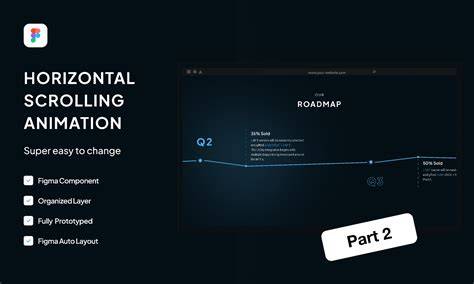
Figma SCROLLING (Horizontal, Vertical, Both Directions) Explained – With Examples
If you’re exploring practical tips, a quick set of steps emerges: configure overflow scrolling, test in presentation view, and adjust behavior with a focus on maintaining a coherent mental model of the layer hierarchy. The result is a horizontal scroll experience that supports users without introducing disorientation, while balancing white space and readability.
- Identify content that should scroll horizontally by ensuring it extends beyond the frame width.
- Set the frame to use horizontal overflow in the Prototype panel.
- Test the interaction in Present mode and refine edge behavior to preserve context.
- Use clipping to maintain a windowed appearance and prevent overflow from disrupting layout.
tags: #figma #horizontal #scroll