Lightroom vs. Adobe Photoshop Lightroom and Adobe Photoshop are both powerful image editing tools. Photo management vs. Start in Lightroom to organize and categorize batches of photos without altering the original files, then switch to Photoshop for pixel-perfect image manipulation. While Lightroom and Photoshop are both digital photography editing programs with a lot of functional crossover, they are designed to meet different needs and achieve different goals.
Lightroom: organizing, processing, and non-destructive editing
On a high level, Lightroom is the best tool to manage and process the thousands of photos that live on your devices. One of Lightroom’s most important features is image management. Many photographers begin the editing process with Lightroom, because it excels at handling large amounts of photos, so you can get more work done more quickly. You can efficiently organize, manage, and find photos in a library-like catalog. Rate photos to identify the best shots and work with albums and collections to manage photoshoots and projects.
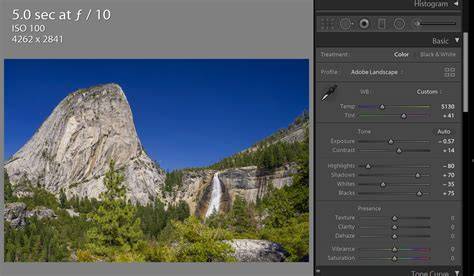
After you've imported your files, move to the Develop module to enhance and edit photos. Here you can tweak your settings to improve every aspect of your photo. Enhance the light and color, correct perspective, sharpen, and add creative effects to make your images shine. Lightroom presets are a time-saving feature that makes light work of applying the same settings to one or countless images, known as batch edits. You can create your own presets or download a wide variety of presets via the Discovery Interactive Edits feature.
Lightroom uses non-destructive editing, which means you can make changes to a photo without permanently altering the original file. If you work with raw files, you’ll benefit from the flexibility raw images give you when editing, without losing the original data.
Lightroom Classic is the desktop-based program for photos stored locally, such as on your external or computer hard drive. There are two versions of this software: Lightroom Classic and Lightroom (cloud-based). Most photographers use Lightroom Classic, which has the most extensive feature set; the cloud-based Lightroom focuses more on mobile and multi-device workflows.
Lightroom’s image editing capabilities span a comprehensive toolset: histogram and crop, spot removal, red-eye correction, gradient and radial filters, adjustment brush, color and tone adjustments, white balance, exposure, contrast, and tone curves, color grading, sharpening, noise reduction, lens corrections, transforms, and more. It also includes modules beyond editing, such as slideshows, printing, and map geolocation.
Photoshop: pixel-level control, composition, and creative manipulation
Photoshop ventures into image manipulation, creation, and enhancement with far greater control and depth. It’s the best choice for pixel-level perfection and complex edits. Photo retouchers, fine artists, and compositing artists may start in Lightroom but will ultimately rely on Photoshop to perform the bulk of the transformation. Photoshop features include removing objects with Content-Aware technology, combining multiple photos for composites, and integrating text and vector graphics for graphic design or digital art. Layers and Smart Objects enable non-destructive, layered editing workflows, where adjustments sit on separate layers above the original image.
Photoshop also supports Camera Raw, which fully mimics Lightroom’s adjustment options. Any edit you can perform in Lightroom can be replicated in Photoshop via the Camera Raw interface. In addition, Photoshop has generative AI tools and extensive local editing capabilities, which go beyond Lightroom’s scope.
Adobe Bridge and Adobe Camera Raw serve as complementary tools; Bridge helps with organizing many file types, while Camera Raw provides a familiar processing engine. Photoshop can be used as a standalone tool or in tandem with Lightroom, allowing seamless handoffs: right-click in Lightroom and choose Edit in Adobe Photoshop to perform more extensive edits, then save to return to Lightroom.
Which to Start With - Lightroom or Photoshop?
The real question is whether to start with Lightroom or Photoshop. Since Lightroom’s image manipulation tools are also available in Photoshop, you might think to start with Photoshop. However, most photographers should begin with Lightroom for several reasons: Lightroom is easier to learn, its interface is optimized for photo organization and editing, and it covers 99% of editing needs. It provides a solid photography workflow from the start and enables quick processing of many photos without opening and closing files. Editing in Lightroom is non-destructive, so the original file remains intact, while Photoshop uses a mix of destructive and non-destructive editing.
You can open photos from Lightroom directly in Photoshop when needed, and saving from Photoshop returns the edited image to Lightroom. This makes it easy to use both programs in tandem. If you typically work in Lightroom but occasionally need Photoshop’s advanced features, you can switch with one click from within Lightroom. In many cases, Lightroom handles the bulk of the work, while Photoshop handles complex blending, multiple-image composites, or detailed local adjustments.
Which One to Buy
Adobe’s main offering is the Photography Plan, which includes Photoshop, Lightroom Classic, and Lightroom. Separate purchases are possible, but most users end up with both-there’s no substantial discount for buying them separately. Lightroom covers organization and standard editing needs, while Photoshop handles advanced blending, composites, and graphic design. For mobile workflows, Photoshop Express and Lightroom for mobile extend editing across devices.
Historically, Lightroom was created specifically for photographers, focusing on non-destructive editing, library management, and a clear workflow. Photoshop, by contrast, was built for a broader set of tasks including graphic design and digital art. The choice between Lightroom and Photoshop ultimately depends on your project goals and personal preferences, and many workflows benefit from using both in tandem.
Key takeaways about Lightroom and Photoshop
- Lightroom excels at organizing large photo libraries and non-destructive batch edits.
- Photoshop offers deep, pixel-level editing, compositing, and design capabilities.
- You can start edits in Lightroom and move to Photoshop for advanced adjustments; the edits can be saved back into Lightroom.
- Lightroom Classic stores files locally; Lightroom (cloud) emphasizes cross-device access and collaboration.
- Bridge and Camera Raw extend Photoshop’s organization and processing options, but Lightroom provides the best integrated catalog workflow.
- Lightroom’s Develop module: comprehensive post-processing tools, including tone, color, and detail controls.
- Photoshop’s layers and smart objects: powerful for multi-image composites and non-destructive layered editing.
- Non-destructive workflows: both Lightroom and Photoshop support non-destructive editing in different ways.
To maximize your workflow, consider integrating Lightroom for organization and non-destructive edits with Photoshop for intricate, pixel-level edits and creative design work.
Moving Photos Between Lightroom Classic and Photoshop
Photoshop Lightroom integration continues to be enhanced with AI features and cloud-based synchronization, making it feasible to manage, edit, and share images across devices.