Figma and FigJam are design and collaboration software used by professional designers, engineers, and makers of all kinds. Use them to ideate, create, and share work-all free, as a student or teacher.
Overview: What Figma and FigJam Offer for Education
FigJam is an online whiteboard where possibilities turn into plans. Teachers can facilitate collaborative group learning while encouraging active participation from students. It’s best suited for classroom discussions, brainstorms, and group work. Bring ideas to life with Figma. Figma is a multiplayer, intuitive design tool used by professionals. Create graphics, presentations, prototypes, and more-all with real-time collaboration and feedback.
Figma and FigJam live side by side so that students can turn their ideas into reality, faster. Go from design to code with Dev Mode. Dev Mode is a workspace in Figma to bring designs to production, faster. Students can inspect designs and get the details needed to build them. Or, use a plugins to customize code for whatever framework you’re learning.
Getting Started: How to Use Figma in Your Class
Start using Figma with your class. Get verified. Once you’ve created your Figma account, verify that you are a student or educator by clicking here.
When verification issues arise, users report being locked out of files or blocked from continuing classwork. The community and support teams have guidance for resetting verification and restoring access to the Student Plan.
Common Verification Scenarios and How They Are Addressed
Users may encounter messages indicating that their student status verification failed or that the verification limit was exceeded. In these cases, the recommended steps include providing updated enrollment information, a school-issued student ID, and supplemental enrollment proof such as a transcript or receipt. Help Center articles outline qualification criteria and the verification process details.
Parents or students who experience repeated verification problems are advised to contact SheerID Support directly for next steps. If verification attempts are blocked, some users are guided to review troubleshooting sections and FAQ in the Education guide for additional context.
Illustrative Scenarios from the Community
Several students from different regions report their experiences:
- A student in Canada attempted to verify through SheerID, submitted required documents (including a student schedule and report card), but faced difficulties and required further assistance to finalize verification.
- A French student submitted documents to activate their university account and awaited approval, seeking guidance on what else to provide to finalize verification.
- A student in another region reported exceeding verification attempts and expired links, prompting direct contact with SheerID support for review and potential reset or escalation.
In each case, the recommended action is to follow the official verification workflow, provide precise enrollment evidence, and engage SheerID Support if standard steps do not resolve the issue.
Practical Tips for Educators and Students
- Prepare a clear set of documents that verify enrollment and status (student ID, transcript, schedule).
- Use up-to-date institution URLs and official school communications when submitting verification information.
- If you encounter a retry limit or expired links, contact SheerID support and reference the current help articles for education verification.
- Monitor Help Center and Education guide for the latest qualification criteria and troubleshooting steps.
What to Expect During the Verification Process
The verification process may involve reviewing submitted documents, confirming enrollment status, and occasionally requesting additional information. After successful verification, students receive access to Figma Education features, including access to either Figma or FigJam with classroom-friendly terms, and Dev Mode for design-to-code workflows.
Table: Typical Verification Documents and Purposes
| Document | Purpose |
|---|---|
| School-issued student ID | Proof of active enrollment |
| Transcript or enrollment receipt | Official confirmation of enrollment status |
| Institution URL | Verified education domain for validation |
| Student schedule | Additional corroboration of enrollment |
If verification succeeds, students can leverage Figma Education plans to bring ideas to life, collaborate in real-time, and transition designs to development with Dev Mode. If verification fails, users are advised to review the troubleshooting sections and consider resubmitting with complete, up-to-date information.
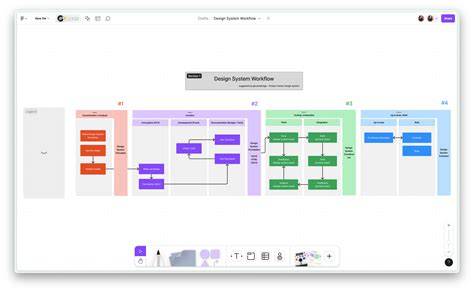
For ongoing learning, educators can use FigJam for collaborative activities and Figma for production-grade design, ensuring a cohesive end-to-end workflow from ideation to implementation.
In sum, Figma’s Education Plan aims to empower classrooms with free, professional-grade tools, supporting both collaborative ideation and production-grade design while clarifying the verification steps for students and educators alike.
tags: #figma #student #verification