Inpainting ControlNet Alpha and Beta model for the FLUX.1-dev model released by the Alimama Creative Team works under Alibaba. The respective model weights fall under Flux dev non-commercial license. Its trained on 12 million images from the laion2B dataset and other internal sources, all at a resolution of 768x768 and 1024x1024. This is the optimal size for inference; using other resolutions can lead to subpar results. Whereas the Beta model trained on 15million image dataset in 1024x1024 resolution is more capable to generate modifications with detailed precision than the earlier one. As reported officially the model is capable to enhance your image generation capabilities and gives you more advantage than the older SDXL inpainting.
This article synthesizes a practical workflow to leverage Flux ControlNet Inpainting within ComfyUI, detailing model setup, masking, prompts, and experiment notes. The aim is to provide a structured, repeatable process for high-quality matte painting and targeted repairs that align with the original image style and intended visual outcome. The workflow combines Flux.1-dev with ControlNet to guide inpainting and achieve precise, intention-aligned repairs.
Overview of Flux.1-dev and Flux Beta for Inpainting
FLUX.1 [dev] model is licensed by Black Forest Labs under the FLUX.1 [dev] Non-Commercial License, and Flux Beta extends the capabilities with more detailed precision. The Alpha family includes Alpha, Alpha-Turbo, and Beta variants. These models are designed to improve image inpainting by offering enhanced control and realism compared to prior inpainting approaches such as SDXL Inpainting.
Key capabilities
- Masked Area Repair: Repairs specific regions using input masks, blending seamlessly with the original image.
- ControlNet Integration: Utilizes edge maps, sketches, and depth maps for enhanced inpainting.
- High-Quality Output: Inherits FLUX.1-dev’s ability to create realistic and natural images.
Compared to SDXL Inpainting, Flux ControlNet Inpainting provides more precise control, superior realism, and advanced style adaptation. In Alpha testing, Flux ControlNet Inpainting has shown potential to outperform models like SDXL Inpainting, offering a more intuitive and high-quality solution.
Step-by-step Installation and Setup
- First install ComfyUI. You also need to follow the basic Flux installation workflow if you have not yet.
- From the Comfy Manager, click "Custom nodes Manager". Then, install "ComfyUI essentials" by Cubiq.
- Download the checkpoints:
- Flux inpainting Alpha model (safetensors) from Alimama creative's Hugging Face repository.
- LoRA model variant Turbo Alpha (8-step distilled LoRA) from their Hugging Face repository.
- Flux inpainting Beta from another Alimama's Hugging Face repository.
- Download ControlNet Alpha workflow, ControlNet Alpha Turbo workflow, and ControlNet Beta workflow from Alimama Creative Hugging Face. This uses the native Flux Dev workflow.
- Drag and drop into ComfyUI. If you see red error nodes, from Manager click "Install missing custom nodes". Restart and refresh ComfyUI.
Workflow and How to Use
- Choose Flux.1 Dev as the model weight from "Load diffusion model" node. Load ControlNet inpainting model downloaded earlier from "Load ControlNet model" node.
- Load your target image in "Load image" node. Right click the image and select "Open in Masked Editor". Mask the area you want to influence and click "save to node".
- Add descriptive positive prompts in the "Clip text encode" node.
- Configure settings. When using the "t5xxl-FP16" and "flux1-dev-fp8" models for 28-step inference, GPU memory usage is high (around 27GB). Recommended: align settings for best performance.
- Load the model weights for Alpha/Turbo-Alpha and Beta, and proceed with generation by clicking the Run button.
Practical prompts and results
In testing, an image of a girl wearing red funky glasses was used. Masking the area and applying prompts such as "First try: american beautiful adorable blue eyes" and "Second try: asian beautiful adorable eyes" demonstrated the model's ability to alter specific features. While results were impressive, they were not always as perfect as claimed; Beta version tended to yield finer detailing. Providing background, effects, and style guidance helps the ControlNet model achieve higher realism.
Configuration and Inference Tips
- Inference Time: With CFG=3.5, expect roughly 27 seconds per image on a suitable GPU.
- Control parameters: Set controlnet_conditioning_scale between 0.9 and 0.95 for best results.
- Memory considerations: 28-step inferences with Flux.1-dev and FP16 configurations require substantial GPU memory; plan hardware accordingly.
- Resolution guidance: The recommended image sizes are 768x768 and 1024x1024; other resolutions may underperform.
Advanced Concepts and Techniques
The Flux ControlNet Inpainting workflow blends Flux.1-dev with ControlNet to guide generation. It maintains consistency with the original image style while enabling precise region-specific edits. Mask quality and broader strokes tend to produce better results than overly refined outlines, particularly at fixed resolutions.
Fundamental nodes include the InpaintingModelConditioning node and the DifferentialDiffusion node. The differential diffusion nodes help preserve image details across sampling steps, while the inpainting node drives conditioning to embed noise into the base image. The ipndm sampler is a fast, deterministic choice that aids iteration by providing reproducible outputs. Leaving some residual noise (e.g., 0.90 denoise) balances current details with new generation and reduces artifacts.
Tips for iteration: good results often require more than one pass. Don’t chase finer details with raw inpainting alone; mix in techniques like ControlNet and Redux. Masks work better with broader shapes and higher-level guidance than with refined outlines. You can combine LoRAs to paint characters by merging a model with Flux. Flux Fill is a specialized inpainting variant for exploring concepts. Denosing around 75% can yield interesting outputs. Read more about Flux ControlNet and Redux techniques for deeper mastery.
Flux ControlNet Inpainting vs. SDXL Inpainting
- Precise control: Flux ControlNet Inpainting enables more tailored edits via ControlNet guidance.
- Superior realism: Flux.1-dev tends to produce natural, high-quality outputs.
- Advanced style adaptation: Flux adapts to user descriptions, enabling versatile style changes.
Illustrative Use Case: Matte Painting for a Desert Scene
In a practical experiment, a polar bear was positioned in a desert setting using masked inpainting and guiding prompts to adjust pose and props. This demonstrates the workflow’s flexibility for composition changes while preserving style and lighting consistency.
Practical Notes on Licensing and Best Practices
The Flux.1 [dev] model is Non-Commercial Licensed by Black Forest Labs. This implies restrictions on usage and distribution in commercial contexts. When sharing workflows or results, ensure compliance with license terms and attribute sources as required by upstream repositories.
Key Visual Aids and Demonstrations
To maximize informational value, consider the following visuals in relevant sections:
The image above illustrates the stepwise integration of diffusion models, ControlNet conditioning, masking, and inference. It highlights where masks influence generated content and how prompts steer the final results.
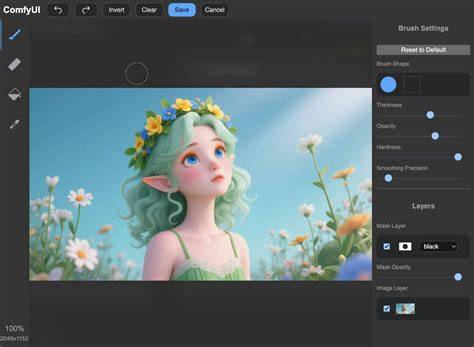
The mask editor is essential for specifying the regions to modify. Clear, broad shapes typically yield more reliable edits at 768x768 and 1024x1024 resolutions.
Inpainting with ComfyUI: All Workflows Explained
The video demonstrates essential steps: loading models, applying masks, entering prompts, and running a 28-step inference while monitoring memory usage and results. This helps users reproduce the workflow with their own images.
Other supplementary visuals such as edge maps, depth maps, and sketch inputs can be incorporated as infographics to illustrate how ControlNet uses auxiliary data to guide inpainting.
Таблица: Резюме параметров и соответствий
| Model | Resolution | Strengths | Notes |
|---|---|---|---|
| Flux Alpha | 768x768 / 1024x1024 | Good balance, faster inferences | LoRA Turbo available |
| Flux Beta | 1024x1024 | Higher precision, detailed inpainting | Requires more memory |
tags: #flux #inpaint #controlnet #matte #painting