InDesign does not include a native Gaussian blur filter, but you can simulate a soft blur or glassy, hazy effects using clever layering, opacity, and shadows. This article compiles practical methods drawn from the provided draft to help you achieve a Gaussian blur look in InDesign CS5.5 and later, without relying on external image editors.
Understanding the limitation and the goal
There is no blur command in InDesign but instead we can blur objects or text by making them invisible and then using their drop shadows as blurry stand-ins for the actual objects.
To approximate a Gaussian blur, you can create multiple layered copies of an image or object, offset them, and adjust opacity and blend modes to soften the overall appearance. This approach can simulate soft edges for materials like smoke, clouds, powder, sand, or spray paint, and can also emulate glassy, translucent overlays often seen in Glassmorphism designs.
Step-by-step technique: fake blur with duplicated copies
- Select the image and copy it, then choose Edit > Paste In Place. This places a copy exactly over the original.
- Nudge the top copy slightly left and up. A single tap on the keyboard is a good starting point; you can increase offsets later for stronger effects.
- With the top copy selected, open the Effects panel (Window > Effects).
- Apply an opacity around 50% and set a layer blend mode such as Soft Light. This blends the top copy with the bottom copy to create a softened appearance.
- Repeat the process: paste in place again, then nudge this second copy down and to the right. Adjust both the opacity and the offset to refine the blur-like result.
You can tweak the blur by varying the amount of opacity and the distance of offset between the stacked copies. This method can produce a convincing softening effect without actual Gaussian blur functionality.
Using shadows to simulate blur for text and objects
You can blur objects or text by making them visually less distinct via shadow blur effects. A practical approach is to:
- Change the text fill from black to a pale or paper color to reduce harsh edges.
- Open the object’s effects dialog (double-click the object in the Effects panel) and enable a drop shadow with a blur parameter. The shadow’s blur helps mimic a softened edge around the object.
By combining a light fill with a softly blurred drop shadow, you can simulate a glowy or hazy edge that resembles Gaussian blur without applying a traditional blur filter.
Applying Glassmorphism-like effects in InDesign
Glassmorphism features background blur and high transparency. InDesign lacks a dedicated blur control for objects, unlike Photoshop or XD, but you can simulate the look by layering translucent shapes with reduced opacity and soft shadows behind them. Use a semi-transparent object in front of a blurred or bright background, and combine shadow blur with opacity adjustments to achieve a glassy, translucent appearance.
To echo the browser/UI trend without external tools, focus on:
- Object opacity adjustments to create translucent layers.
- Soft, spread via drop shadows to mimic blurred edges.
- Stacking multiple translucent layers with progressive offsets for subtle depth.
Practical tips for CS5.5 and workflows on Windows laptops
If you don’t have access to Photoshop or other raster editors on Windows, rely on these InDesign-only techniques to approximate Gaussian blur. Start with the copy-and-offset method and fine-tune using opacity and blend modes. When a higher fidelity is required, consider exporting a rough version for client checks and request temporary access to a raster editor for final polish, if possible.
Tables and quick-reference tips
| Technique | What it does | Key controls |
|---|---|---|
| Duplicated copies with offsets | Softens edges by layering translucent copies | Opacity, blend mode (Soft Light), offset distance |
| Drop shadow blur | Simulates blur around shapes/text | Drop shadow on object, blur amount, opacity |
| Glassmorphism approximation | Translucent panels with subtle depth | Object opacity, background contrast, layer stacking |
These approaches help you achieve a believable blur-like presence when true Gaussian blur is unavailable.
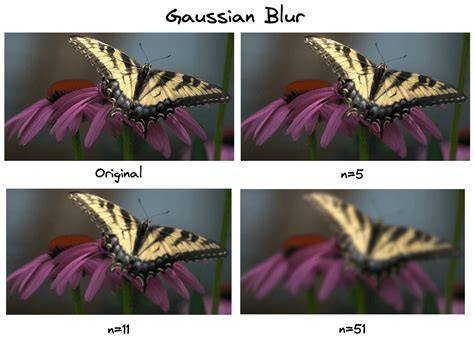
The image above demonstrates how layered, offset copies with reduced opacity can create a soft, blur-like effect similar to Gaussian blur.
How To Blur Image Adobe Indesign [2026 Guide]
A short guide video illustrating how to duplicate, offset, and adjust opacity and blend modes to fake blur in InDesign.
Реалистичный эффект через последовательную подготовку контента
For more refined results, prepare a few test frames with different opacity and offset combinations, then compare side-by-side to choose the most convincing balance between sharpness and softness. This iterative approach helps tailor the effect to varied images and backgrounds.