Until using GIMP for a while, many new users including myself don’t know that GIMP 2.6 does not offer anti-aliasing on the fly, like Photoshop does. While experimenting in my last tutorial, Creating a Chrome Effect in GIMP 2.6, I figured out a way to fake anti-aliasing on rounded edges after drawing with Selection tools that looks convincing.
In this article we will explore why anti-aliasing behaves differently in GIMP, compare line anti-aliasing methods, and present practical approaches to achieve smoother edges when the built-in on-the-fly anti-aliasing is not available. The problem usually shows up after using the Fuzzy Select tool and creating a bump map. For objects without these features, no anti-aliasing may need to be done. So, we will replicate this here.
Understanding the core: how GIMP handles anti-aliasing
At the core of this question is curiosity why the anti-alias function for lines drawn with gimp, is so much more robust than the anti-alias function available via Filters>Enhance>Anti-alias.....just didn't want that to get lost in the following details. In the following sketch (magnified 8X) are two pairs of lines. The black lines are drawn by stroking two paths, each in line mode, with anti-aliasing enabled. The blue lines, drawn for comparison, in the "before" frame ...the same two paths are stroked, but with anti-aliasing disabled. Notice the difference in the broad range of transparency used on the straight black line, compared to it's blue counterpart.
AM I NOT doing something properly, or is there just this much difference in the way Gimp delivers anti-aliasing? Additional curiosity, but the enhance filter (Anti-Alias) seems to only work for me when the target line is drawn on a solid background. What might appear to be the obvious solution, just saying "draw the lines with anti-aliasing, if that's the way you want them", really doesn't work for the project I am on.
Practical approaches: achieving smoother edges in GIMP
The following methods help reproduce anti-aliasing effects when GIMP’s on-the-fly anti-aliasing is not available or is insufficient for complex compositions.
- Stroke with anti-aliasing on the path: Draw paths and use the Stroke Path command with anti-aliasing enabled for cleaner straight lines and curves.
- Work with solid backgrounds: When applying the Anti-Alias filter, ensure the target line sits on a solid, uniform background to improve results, then composite the foreground afterward.
- Use a bump map workaround: After creating a selection and a bump map, apply a controlled blur or edge-softening step to simulate anti-aliasing along the edges of the selection.
- Compare with on-the-fly anti-aliasing: For essential elements, draw directly with the path tool and stroke in line mode to leverage GIMP’s native edge smoothing, then adjust opacity and blending to taste.
- Incremental edge refinement: For rounded edges, apply slight feathering or a subtle blur to the edge after stroking, then re-check the transition against the background.
In practice, the method that yields convincing results often combines drawing with anti-aliased strokes on vector paths and careful post-processing of the raster edges, especially when working with composites or textured backgrounds.
Common pitfalls and how to avoid them
- Aliasing appears when edges are partially selected across a boundary, creating stair-step effects. Ensure selection edges are clean or use feathering sparingly to soften the transition.
- Relying solely on the Filters>Enhance>Anti-alias technique can limit growth of the sampled range, restricting how smoothly edges blend with varying backgrounds.
- Background textures can amplify jagged edges; prefer solid backgrounds when testing anti-aliasing approaches, then adapt to final composites.
- When using Fuzzy Select, a bump map can introduce variability in edge smoothness; calibrate the bump map intensity to avoid harsh transitions.
Putting it all together: a compact workflow
- Draw your element with the appropriate selection tool (e.g., Ellipse Select, Free Select).
- Stroke the path with anti-aliasing enabled, then evaluate the edge smoothness.
- If needed, apply a light blur or feathering to the edge to further smooth transitions.
- For complex edges, create a temporary solid background, apply the Anti-Alias filter, and layer back onto the final composition.
- Compare results against a direct anti-aliased stroke and retain the method that provides the most convincing edge for your project.
Краткое сравнение методов
Stroking paths with anti-aliasing generally provides a more robust edge than post-processing filters in many scenarios. However, when backgrounds are non-uniform or textures are involved, post-processing can assist by smoothing across varying luminance levels. The key is to test multiple approaches on representative areas of the image and choose the method that preserves detail without introducing artifacts.
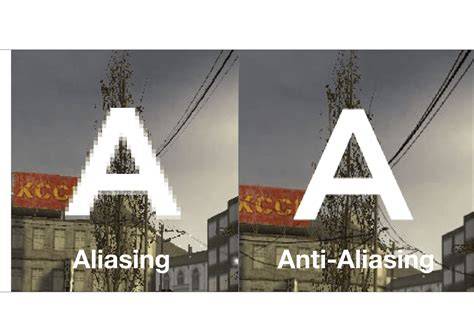
Antialiasing in GIMP the RIGHT way
In the end, understanding the interplay between selection edges, stroke settings, and background context helps explain why identical-looking lines can behave differently under various anti-aliasing workflows.
Таблица примеров параметров
| Method | Background | Edge Quality | Notes |
|---|---|---|---|
| Stroke with AA | Solid | High | Best for clean lines |
| Post-process AA | Solid | Moderate | Limited range; watch artifacts |
| Bump map AA | Textured | Variable | Useful for complex surfaces |