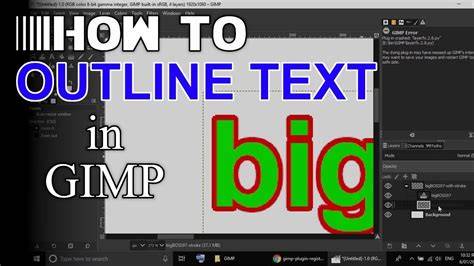
In this guide, we explore two effective methods to outline text in GIMP: using the Paths tool to stroke a text path, and using the Border tool to create a direct outline around the text. Both approaches are straightforward and yield strong, visible outlines suitable for various design needs.
Method 1: Outline Text with the Paths Tool
Next, we will add text using the Text tool. Now it’s time to stroke the path. The Stroke dialog will appear as shown below. Choose the preferred Stroke line option.
Here, we will add text using the Text tool. The tool’s options dialog will pop up as soon as you select the Text Tool. Here, I changed the Text color to a lighter color. A light-colored outline will be applied as it is more visible for practice purposes. Also, I switched the alignment to the Center to make the text more appealing.
It is very simple to make a selection around the text. Generally, it selects the overall edges of the letters to add the border for the text. Next, choose a color for your outline. Choose an appropriate color to apply to the outline.
Once you have applied the necessary touch-ups to the image successfully, you need to deselect the text. Alternatively, go to the Select menu.
Text to Path: Right-click the text layer → Text to Path (or Layer → Text to Path). Stroke the path: In the Paths panel, right-click the text path → Stroke Path. In the dialog, select "Stroke with a paint tool". Choose "Paintbrush" and set line width to your desired stroke size (e.g. 8 px). Set the foreground color to the stroke color. Note that the path stroke is centered on the path boundary, so half of the stroke lies inside the letters and half outside.
A clean alternative that keeps the text layer editable is to duplicate the text layer, apply a Grow + Fill operation to the duplicate, then place it behind the original. Keep the text layer as a live text layer. Duplicate the text layer: Right-click → Duplicate Layer. Alpha to Selection on the duplicate, Grow, Fill: Follow steps 2-6 from Method 1 on the duplicate layer. Set the stroke color as required. Edit the live text freely: Double-click the original (top) text layer to re-enter text editing mode and change the content, font, or color at any time.
Stacking two or three outlines with different colors and widths creates multi-stroke designs popular in sports typography, retro posters, and YouTube thumbnails. Create the first (inner) outline by following Method 1 steps. Grow to the full outer width: Select → Grow. This time enter the total of all stroke widths. Create Outline Layer 2: Create a new layer below Outline Layer 1. Fill the grown selection with the second outline color (e.g. black). Repeat for additional outlines as needed. When text sits over a busy photograph or gradient, a solid-color outline layer may clash with the background. Add a layer mask: Right-click the outline layer → Add Layer Mask. Paint black on the mask with a soft brush to refine areas where the outline is visually cluttered. Hollow text shows only the outline stroke with the fill area made transparent, revealing whatever is behind the text. Delete the interior: Press Delete. The interior of each letter is now transparent on the outline layer, leaving the outer ring filled.
For maximum impact, combine a gradient or pattern fill in the text with one or more contrasting outline rings. Group all text-related layers (select all → right-click → Group Layers) to manage opacity and blend mode at a group level. Export as PNG to preserve transparency: File → Export As → filename.png. If vector output is needed, Inkscape or Illustrator can export paths as SVG, though GIMP’s SVG export has limitations in preserving live text paths.
Method 2: Outline Text with the Border Tool
Another straightforward approach is using the Border tool to create an outline around the text. Add an outline is very simple with this method. Here, we will add text using the Text tool. The tool’s options dialog will pop up as soon as you select the Text Tool. Here, I changed the Text color to a lighter color. A light-colored outline will be applied as it is more visible for practice purposes. Also, I switched the alignment to the Center to make the text more appealing. It is very simple to make a selection around the text. Generally, it selects the overall edges of the letters to add the border for the text. Next, choose a color for your outline. Choose an appropriate color to apply to the outline. Once you have applied the necessary touch-ups to the image successfully, you need to deselect the text. Alternatively, go to the Select menu.
The Border tool method is described above similarly to the path method, offering a more direct stroke option. You can apply strokes in solid colors, patterns, or even gradients by adjusting the stroke settings in the Stroke dialog and choosing the appropriate tool (Paintbrush, Pencil, or Ink) in the Stroke Path dialog if you convert text to a path first. The result is a clean outline that can be further refined with gradients or fills inside the text.
Practical tips and notes
Tip: If the outline corners look square rather than rounded, go to Select → Grow and ensure "Round corners" is checked. This helps create softer, more natural-looking corners on the outline.
Note: To keep text editable, prefer methods that duplicate and style while preserving the original text layer, or work with a text-to-path workflow when feasible. For a multi-color, multi-width look, stack several outline layers with different fills.
Exporting and file formats: PNG preserves transparency and is ideal for web use. JPEG does not support transparency, so PNG is preferable when outlines are used over varied backgrounds.