Graphic design software spans a wide range of tools from raster photo editors to vector drawing suites, page layout systems, and UI design studios. The options below reflect the versatility needed by professionals and beginners alike, highlighting strengths, trade-offs, and typical use cases such as creating posters, social media graphics, branding assets, and UI components. The discussion draws on widely used programs and recent evaluations to help readers choose applications that fit their workflows and budgets.
Core staples for professional design and photo work
Photoshop is a byword for graphic design these days. Adobe’s photo and design software dominates the industry - and with good reason. Setting the gold standard for design work and photo editing, its toolkit is bursting with features, and it's even available on iPhones now. When we reviewed the top tool, we found it offered best-in-class color management, layer handling, and selection tools, with AI automating a raft of effects from cleaning up images to object removal. After reviewing the software, we ultimately felt that from subject selection to object removal, Adobe’s AI tools offer impressive performance that effectively streamlines the more mundane or manual design tasks. While Photoshop isn’t too tricky to learn, there is a slight learning curve that may overwhelm new users. Stick with it though, and you’ll be more than rewarded with high-quality, high-res results. It also means you’ll be familiar with other Adobe apps in the creative toolstack, since they largely follow the same interface.
Illustrator is the premier vector editing and drawing application. Yes, you can edit vector graphics and pull off some effects a bit easier in some other apps, but most graphics designers are still better off learning and creating with the industry standard Illustrator. With it, you also get companion tablet apps for creating digital drawings and impressive type support. After Effects users benefit from vector characters, shapes, and paths for use in motion graphics. Professional graphics designers use Illustrator to produce icons, logos, and multi-page printable assets like packaging and posters. Hobbyists and students can leverage Bézier curves and vector paths to create art and diagrams. InDesign complements this trio for publication layouts, while Canva provides approachable templates for quick branding and marketing assets.
Affinities for those seeking one-time purchases
Affinity Designer 2 is primarily a vector-based graphic design software for Mac, Windows, and iPad, though it also houses raster tools. It’s a strong Photoshop alternative for many designers and, notably, comes with a one-off purchase rather than a subscription. The suite’s Pixel Studio, Layout Studio, and Vector Studio organize image editing, layout, and drawing tools into an approachable, integrated workflow. For those who want a capable, cost-conscious option without ongoing payments, Affinity provides a compelling balance of power and accessibility. Export options are robust, and the tool set includes features like non-destructive editing and real-time previews to keep the creative flow uninterrupted.
Free and approachable options for beginners and casual creators
CorelDRAW, Inkscape, GIMP, and Canva sit on the spectrum between free, beginner-friendly, and capable professional-grade tools. CorelDRAW offers a broad desktop publishing and vector editing toolkit, with a one-time price option in some configurations. Inkscape provides a powerful open-source vector editor with broad file support (AI, EPS, PDF, SVG, etc.) and extensible features via extensions, making it attractive for those who value openness and customization. GIMP remains a top free alternative to Photoshop, delivering raster editing capabilities with a strong community of plugins and tutorials. Canva excels in simplicity and speed for non-designers and professionals needing branded assets quickly; it emphasizes templates, drag-and-drop usability, and online collaboration, though it lacks the depth of professional-grade tools for intricate image manipulation.
Adobe Express, also known as Adobe Spark, is a lighter, template-driven tool ideal for quick marketing materials and social media graphics. It benefits from Adobe’s imaging intelligence while remaining approachable for non-professionals who do not require the full depth of Photoshop or Illustrator. For those who need to sketch UI ideas or collaborate asynchronously, Figma offers a collaborative, design-system-driven environment with strong prototyping and handoff features. Procreate remains a premium iPad-focused option for artists who prefer a tactile, drawing-first interface, while Sketch targets macOS users seeking a streamlined UI design workflow. Together, these tools cover a broad spectrum of capabilities from illustration to interface design and prototyping.
Choosing the right tool for your workflow
When deciding which graphic design software to download and use, consider how serious and professional you need the software to be. If you are only looking to make simple designs and files, you can be less fussy about the program. However, for professional printing, higher-end production, or brand-critical work, opt for a more capable package with reliable output and industry-standard formats. Your computer’s capabilities matter as well; many vector editors and design apps aren’t extremely resource-intensive, but you’ll want a system with accurate color, good graphics, and a responsive display to ensure the final output matches on screen previews. For on-the-go work, drawing tablets and the best laptops for drawing and digital art can align well with your workflow.
Graphic design software has forever changed how designers and fine artists work, with AI features accelerating developments. Readers should note that Photoshop remains highly relevant for raster editing and composite tasks, while Illustrator continues to dominate vector workflows. For those exploring broader creative options, Affinity, Inkscape, Canva, and CorelDRAW provide varied trade-offs between cost, depth, and ease of use.
Feature highlights by category
- Raster editors: Photoshop offers industry-leading tools for photo editing, retouching, and compositing with sophisticated AI-assisted features and robust color management.
- Vector editors: Illustrator and Affinity Designer provide precise vector drawing capabilities, typography control, and scalable output.
- Layout and publishing: InDesign remains the go-to for multi-page layouts; CorelDRAW Graphics Suite and Canva cover alternative workflows with strong template ecosystems.
- UI/UX and collaboration: Figma emphasizes real-time collaboration and design systems, while Sketch focuses on macOS UX design productivity.
- Free and open options: Inkscape delivers solid vector tools, GIMP offers raster editing capabilities, and Photopea runs in a browser for quick edits without installation.
Practical use cases and tips
Social media graphics and marketing materials benefit from Canva and Canva-related templates, which speed up production for non-designers while enabling brand consistency through templates and stock assets. For more complex branding tasks, Illustrator or Affinity Designer provide higher control over typography and vector shapes. For photographers and retouchers, Photoshop remains the standard for high-precision image editing, compositing, and creative effects, and it interoperates smoothly with other Creative Cloud apps for an integrated workflow. UI designers may prefer Figma or Sketch for prototyping, collaboration, and developer handoff, while vector illustration-heavy roles may lean toward Affinity Designer or CorelDRAW for a single, all-in-one design experience.
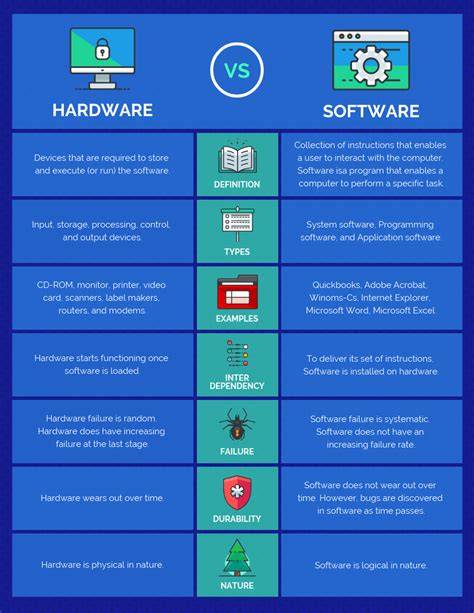
The infographic above would illustrate the major software categories, platform availability, and typical use cases for quick reference.
Graphic Design Basics | FREE COURSE
A concise video overview helps readers visualize software ecosystems, interoperability, and typical workflows across raster, vector, and layout tools.
For those exploring open-source or free options, Inkscape and GIMP provide robust starting points, with community-driven tutorials and extensions. If the focus is on fast, template-driven branding, Canva and Adobe Express offer strong templates and AI-assisted features to streamline creation. Affinity Designer, with its one-time purchase model, provides a balanced alternative to the subscription-heavy ecosystem, combining vector, raster, and layout capabilities in a cohesive interface.
| Software | Type | Platform | Cost Model | |
|---|---|---|---|---|
| Adobe Photoshop | Raster editor | Windows, macOS, iPadOS | Subscription | Color management, layer tools, AI-assisted edits |
| Adobe Illustrator | Vector editor | Windows, macOS, Web | Subscription | Typography, precise vectors, logo design |
| Affinity Designer | Vector & Raster | macOS, Windows, iPad | One-time | No subscription, fast workflow |
| Canva | Template-based design | Web, iOS, Android | Freemium | Ease of use, branding templates, quick outputs |
| Inkscape | Vector editor (open-source) | Windows, macOS, Linux | Free | Extensible, broad file support |
| GIMP | Raster editor (open-source) | Windows, macOS, Linux | Free | Strong photo editing features, plugins |
| CorelDRAW | Vector & layout | Windows, macOS | Perpetual or suite | Extensive templates, multi-purpose suite |
| Figma | UI/UX design & prototyping | Web-based | Freemium | Real-time collaboration, design systems |
| Procreate | Raster illustration | iPad | One-time | Natural drawing experience, raster brushes |
| Sketch | UI design | macOS | Subscription | Streamlined UI design workflow |
What’s important across all these options is matching the tool to the task: raster work demands pixel-level control and photo manipulation; vector work emphasizes scalable shapes and typography; layout software handles multi-page documents and print-ready outputs; and collaboration-centric tools support teamwork and version control. With this understanding, designers can curate a toolkit that covers the essential bases without paying for unnecessary features.
tags: #graphic #application #software