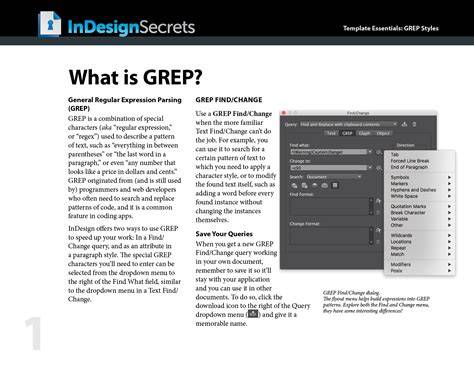
GREP Styles unlock powerful typographic control in InDesign by applying character styles to text matched by GREP patterns within a paragraph style. GREP, as discussed, is a way to describe a text pattern using codes. GREP Styles don’t change text at all; they only apply formatting. To apply a GREP Style to a paragraph, you edit your paragraph style definition and add the GREP expressions in the GREP Styles tab. This article assembles and expands on commonly used GREP expressions and best practices for implementing them in daily typography workflows.
Understanding GREP Styles and Their Use
A GREP Style is a method to apply a character style to specific text inside a paragraph based on a GREP pattern. You can apply a GREP Style to a single paragraph as local formatting by placing the cursor in the paragraph and choosing GREP Styles from the Control panel menu. To apply a character style, click once on Apply Style and it turns into a character style. Type the GREP code in the To Text field. The general idea is to automate typographic niceties across body text without altering the actual text.
In practice, GREP Styles are especially useful for
- Oldstyle numerals in running text
- No-break words and phrases to prevent undesirable line breaks
- Adjusting the width of em dashes to fit a given text texture
- OpenType fractions when fonts support them
- Conditionally applying small caps or tracking to acronyms
- Delimiting punctuation and brackets to maintain traditional typographic behavior
Expressions can be combined to cover a wide range of typography needs. For example, expressions like (?<=\.)~S(?=\.) apply specific horizontal scaling, or \d+ can trigger OpenType features such as fractions or small caps in appropriate contexts. The key is to choose patterns that reflect the document’s typography goals while preserving readability and consistency across the body text.
Common GREP Expressions and Practical Applications
Below are representative GREP expressions along with typical outcomes, organized by goal. These can be added to a paragraph style under the GREP Styles tab and adjusted to fit the chosen typeface and layout.
- Oldstyle numerals - Use a GREP to apply a small caps or proportional numeral style to dates or numbers that should harmonize with body text.
- No-break words and phrases - Target phrases like proper names or technical terms to prevent undesired line breaks (e.g., InDesign).
- Change width of em dash - Apply a character style that scales the em dash to a preferred width (e.g., 75%) to improve line aesthetics in certain fonts.
- OpenType fractions - For fonts with built-in fraction features, apply a Fractions formatting character style to a pattern like \d+/\d+. It won’t work with decimals or commas in the fractions but provides a solid starting point.
- Characters disappear - Create a character style with no fill, zero point size, and minimal tracking to effectively hide unwanted characters (useful for debugging or clean-up tasks).
- Icons replacing text - Replace specific text with an icon by matching a code (e.g., 4(?=z) to map “4” to Bodoni ornaments when followed by z) and applying a dedicated symbol style.
- Brackets and delimiters - Keep delimiters upright by applying a roman style to a pattern like [()[\]] while surrounding text remains in the normal style.
- Italicize phrases within brackets - Use patterns such as \[.+?\] to italicize bracketed phrases (stage directions, citations, etc.).
Additionally, some patterns handle spacing around punctuation to align with classical typography practices, such as adding a tiny amount of letterspacing before punctuation marks like colons, semicolons, and question marks. This helps emulate traditional typesetting rhythms without introducing new content or facts.
OpenType features can be leveraged in tandem with GREP Styles. For instance, you might apply small caps to acronyms or use full caps for specific terms, while ensuring that geographic abbreviations such as USA or UK preserve their intended casing. The aim is to automate the typography so that body text remains consistent and polished across long documents.
Practical Workflow: Implementing GREP Styles
To implement GREP Styles, edit the paragraph style that governs your body text and navigate to the GREP Styles tab. Create a new GREP Style, specify the To Text field with the target character style, and enter the GREP expression. You can preview how the pattern applies in real-time and adjust accordingly. The best practice is to start with a few core expressions that address the most visually inconsistent areas of your text, then expand as needed without overloading the style with too many rules.
When using GREP Styles, think about the document’s overall typographic system: which features will be automated by style, which must remain manual for exceptional cases, and how to balance readability with aesthetics. As the author notes, “A GREP Style is a way to apply a character style to some text inside a paragraph, based on a GREP pattern.” It’s a tool for precision, not a complete replacement for manual formatting when context requires it.
Choosing Between Nested, Line, and GREP Styles
Nesting GREP Styles within paragraph styles can help create hierarchical control: base running text formatting augmented by targeted substitutions (e.g., acronyms, dates, or punctuation refinements). Line styles can be used for edge-case formatting at the line level, such as specific line-end characters or last-word behaviors in justified text. GREP Styles offer the most flexibility for pattern-based, in-flow typographic enhancements. Together, they enable sophisticated, consistent typography across long documents without repetitive manual formatting.
In practice, a typical workflow might set up:
- Base paragraph style for body text
- GREP Styles within that paragraph style for common patterns (acronyms, dates, fractions, symbols)
- Line styles for occasional line-specific adjustments
- Character styles for font- and feature-specific formatting (small caps, bolding, italics)
As the discussion notes, “I love GREP Styles in InDesign. I’ve said it before: It’s probably my favorite new feature, and although it’s small, I think it makes the upgrade very worthwhile.” This sentiment reflects how GREP Styles can streamline typography in comprehensive layouts, such as books or journals, by encapsulating frequently used formatting rules into reusable style components.
Examples and Practical Considerations
When applying patterns, be mindful of language settings and hyphenation rules. Some expressions rely on InDesign’s language-aware hyphenation to behave as intended, while others, like the “no language” option, ensure specific words break only at existing hyphens. Tests on sample passages help confirm that the GREP Styles perform reliably across different sections of the document.
Below are representative use cases to consider adding to your GREP Styles repertoire, adapted from practical experiences:
- Apply a consistent small caps effect to acronyms while preserving the overall body text rhythm.
- Constrain line breaks for certain proper nouns or technical terms to improve readability.
- Adjust punctuation spacing before and after marks to align with traditional typography.
- Utilize OpenType features like fractions or oldstyle figures when the font supports them.
Finally, remember that a well-constructed GREP-based system should be maintainable. Start with a concise set of robust rules, document the rationale for each pattern, and periodically review their impact as the document evolves. This approach helps prevent style bloat and keeps your typography predictable for collaborators and readers.