Wind noise is one of the most stubborn problems for outdoor audio, but DaVinci Resolve Fairlight includes built‑in tools that can significantly reduce it without extra plugins. This guide explains three methods depending on the severity of wind damage and emphasizes best practices from recording to editing.
Understanding wind noise and when editing helps
Unlike a steady electrical hum or a constant hiss, wind noise does not sit at a single frequency. For the quickest cleanup, a high‑pass filter can reduce some of the bass signal, especially when wind is light or distant. In DaVinci Resolve, use the leftmost band (Band 1) in an EQ and set its type to High Pass. A high‑pass filter is shown with a curved line that drops low frequencies and lets higher ones pass through. Set the filter slope to 12 dB/oct for a moderate cut, or 24 dB/oct for a steeper roll‑off.
Most male voices have fundamental energy starting around 85-100 Hz, and female voices around 165-255 Hz, so starting the high‑pass around 80 Hz is safe for most recordings. This approach works best for light wind recorded at a distance, where turbulence stays primarily in the low frequencies. For more severe wind, additional processing is required, preferably during the editing phase, or better, at the recording stage.
Method 1: Quick cleanup with a high‑pass filter
- Activate Band 1 and set its type to High Pass.
- Choose a 12 dB/oct slope for a moderate cut or 24 dB/oct for a steeper roll‑off.
- Set a starting frequency around 80 Hz and adjust as needed to preserve the dialog while reducing rumble.
Note: A high‑pass filter alone is often sufficient for light wind or distant turbulence but may degrade warmth if overapplied. It is fast, works in both the free and Studio versions of DaVinci Resolve, and is the first line of defense in wind removal.
Method 2: In‑built wind reduction with Fairlight Noise Reduction
For moderate to severe wind, the Fairlight Noise Reduction plugin is the most effective built‑in tool in DaVinci Resolve. Open the plugin window, play a section with dialogue and wind together, and adjust carefully to avoid over‑processing, which can make speech sound watery or robotic.
Guidance for tuning:
- Common mistakes include over‑processing. If the voice sounds unnatural, reduce the Reduction amount.
- A reasonable starting range is 40-65% Reduction for most wind recordings.
- After applying, residual wind turbulence may linger in the 200-600 Hz range; keep cuts moderate to prevent dulling the voice.
In practice, apply the high‑pass filter first, then the Noise Reduction plugin. This sequence often yields the cleanest result without sacrificing natural voice quality.
Method 3: Additional tools for stubborn wind and spectrum restoration
In the Fairlight Effects Library, you can also use the De‑Hum plugin to target fixed electrical hums at 50/60 Hz and their harmonics, which can accompany wind noise in outdoor recordings. For the worst cases, the Spectral Recovery (Studio only) can reconstruct frequencies that were clipped or masked by wind, though it’s best used as a complement rather than a replacement for the above methods.
Residual turbulence in mid‑range frequencies can be addressed with careful EQ notching using a 6‑band parametric EQ. After high‑pass filtering and Noise Reduction, apply mid‑range notches to reduce turbulence without harming speech intelligibility. When wind is severe, combining all three steps-high‑pass filter, Noise Reduction, and EQ notching-yields the best compromise between intelligibility and natural sound.
Recording practices to prevent wind issues
The most reliable way to handle wind noise is to reduce it at the source. Physical solutions like a dead cat windshield or foam windscreen absorb turbulent air before it reaches the capsule and are inexpensive additions to outdoor kits. For vloggers, travel creators, and outdoor shooters, microphone choice matters most when conditions change quickly, as wind noise is a common issue in outdoor recordings. A wireless mic with built‑in noise cancellation helps reduce wind during capture, and some units with AI noise cancellation can significantly lessen wind artifacts before the signal reaches DaVinci Resolve.
The Hollyland LARK MAX 2 is an example of a device with AI Noise Cancellation at capture, which can reduce wind artifacts prior to post‑production processing. If you do encounter wind after recording, lower the Noise Reduction plugin’s Reduction amount and raise the Threshold so the plugin targets the loudest wind bursts rather than processing the full audio signal continuously. Small adjustments can make a significant difference.
Practical workflow in DaVinci Resolve
In the Edit page Inspector panel, you can apply a basic EQ with a low‑cut to reduce rumble. There is no single one‑click fix for wind in Resolve; the strongest results come from combining a high‑pass filter, a Noise Reduction plugin, and EQ notching as needed. Begin with a high‑pass filter, capture a noise print for wind reduction, apply the Noise Reduction plugin, and use a 6‑band parametric EQ to notch troublesome mid‑range turbulence. Light wind may be resolved with just the high‑pass filter, while heavy wind often requires all three steps in sequence.
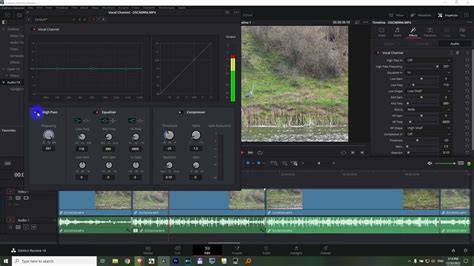
Infographic: wind reduction workflow in DaVinci Resolve
Summary of recommended approach
- Start with a high‑pass filter (Band 1, High Pass, 12-24 dB/oct, around 80 Hz).
- Apply Fairlight Noise Reduction with careful reduction level (40-65%).
- If needed, use De‑Hum to remove electrical buzzing and Spectral Recovery for extreme cases (Studio only).
- Finish with selective EQ notching to clear mid‑range turbulence.
- Prefer recording improvements (windshield, mic choice, wind‑resistant setup) to extensive post‑production edits.