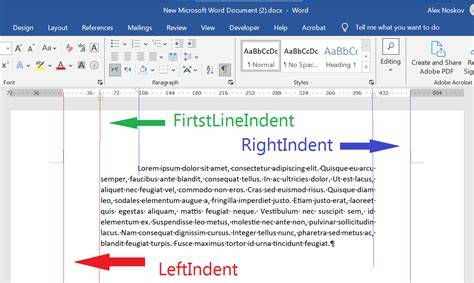
Hanging text, also called a hanging indent or a negative indent, is a type of paragraph indentation that indents all text except the first line. For design programs like InDesign, the process is simple enough. In the screenshot below, you can see at the top left of the screen, the left indent control is set to 12 point, which is the point size of the text (key plot point for proper typesetting).
First, type in your text or copy/paste, and make sure you a tab (not a space) between the bullet and the line of text. Highlight your text and do your left indent in the point size of the font, followed by the first line left indent as a negative of that point size. Using the font’s point size is recommended and is a standard in typesetting. You should certainly go no smaller than the point size of the font, though you can (using your best judgment) go larger if it makes sense with your design.
If you decide against the hanging indent, make sure you zero out the first line left indent first, otherwise, you’ll get an error message saying that indents can’t extend past the text frame. If you need to adjust the point sizes, start with the left indent first, then the first line left indent. You can use the text controls for first line and left indent in pretty much any professional design software, but if you’re using a text editor like MS Word or Google Docs, just use the command to change the text to a bulleted list or numbered list.
Will it be “proper” according to typesetting standards? Maybe, maybe not. Note: A hanging indent is not hanging punctuation. Want to keep up with our blog?
Understanding the Concept of Hanging Indents
A hanging indent places the first line of a paragraph flush with the left margin while all subsequent lines are indented. InDesign offers precise controls to achieve this effect, ensuring consistency across pages and layouts. The technique is especially useful for bibliographies, references, and enumerated items where the lead line should stand apart from the rest of the entry.
Key Settings in InDesign
- Left indent: Sets the indentation for all lines of the paragraph.
- First line left indent: A negative value relative to the left indent to create the hanging effect.
- Tab between bullets and text: Ensures consistent start of the paragraph after a bullet or number.
- Font point size as a baseline: Using the font’s point size helps maintain proportional spacing across the text.
In practice, you would type or paste your text, insert a tab after the bullet, select the text, set the left indent to the font size, and set the first line left indent to a negative of the same value. This sequence yields a clean hanging indent that aligns with professional typesetting standards.
Common Pitfalls and Solutions
- Indents extending past the text frame: Always zero out the first line left indent if you decide not to use a hanging indent.
- Inconsistent sizes: Start with adjusting the left indent, then fine-tune the first line left indent to preserve the hanging effect.
- Using non-tab spacing: Use a tab between bullets and text to avoid misalignment caused by spaces.
While many designers rely on InDesign for its robust typography controls, similar principles apply in other programs. If you’re using Word or Google Docs, you can achieve similar results by applying a hanging indent through paragraph settings or by converting the text to a bulleted or numbered list, though the exact controls differ from InDesign.
Practical Workflow for InDesign
Steps to create a hanging indent in InDesign:
- Type or paste your content and insert a tab after the bullet or numbering marker.
- Highlight the paragraph and set the left indent to the font’s point size.
- Set the first line left indent to a negative value equal to the left indent.
- Verify the alignment by checking that all lines after the first are indented while the first line remains flush with the margin.
Adjustments to point sizes should be made with the left indent first, followed by the first line left indent. This helps preserve typographic balance and avoids accidental shifts that can disrupt the layout.
Hanging Indents vs. Hanging Punctuation
Note that a hanging indent is different from hanging punctuation. Hanging punctuation refers to quotation marks or punctuation marks that extend into the margin for aesthetics, while a hanging indent affects the alignment of the text lines in a paragraph.
Whether a hanging indent is “proper” can depend on the design context, typography system, and publication standards. It is a standard technique in professional typesetting for organizing references, bibliographies, and lists with a lead line that differs from the following lines.
To keep up with best practices, consider testing the appearance across a few sample pages to ensure the indentation remains consistent in different font sizes and across varying text lengths.