In this guide, you’ll learn how to face swap in Photoshop with detailed, practical steps that help you achieve natural-looking composites. You’ll discover techniques for matching lighting and skin tones, precisely aligning features, and blending edges for seamless results.
Choosing the right source images and preparing your project
First, you want to choose images that were taken at the same time in the same lighting. Edit the photos exactly the same. Start by bringing in two images - the main photo and the one with the new face you want to use. If you have photos of similar size and composition, it’s easy to layer them on top of each other in Photoshop for a basic face swap. Ensure the images have similar directions and shadows to ease alignment.
Basic two-image face swap workflow
- Right-click and choose “layer via copy”. This will create a new layer of just the face.
- Make sure the face layer is selected and click on the face. Once it is in place, make the face layer 100% opacity.
- Choose the face layer, and hit the camera-looking icon in the layer’s panel. With the mask layer chosen, choose the brush tool and make sure black is the color. If you erase too much, no worries.
- Open two images - the main photo and the one with the new face. Line up the faces in the two pictures.
- Add a layer mask onto the top layer with your main image. Select the Brush tool, set opacity to 100%, and paint with a black brush over the area you want to swap on the top layer’s mask.
- Turn down the opacity of the face layer to 50% to better see alignment, then use Transform (Scale, Rotate) to match size and angle. Reset opacity to 100% when satisfied.
These steps form a solid baseline for simple face swaps where lighting and composition are close. For more control and realism, proceed with more advanced alignment and blending techniques described below.
Precise location, scale, and masking
- Duplicate the Background layer to preserve the original image for touch-ups. Name the new layer “Body” and hide the original temporarily if needed.
- On the Face layer, load a selection around the desired facial area (eyes, nose, mouth, etc.). Copy the selection and paste onto the Body image, positioning roughly where the face sits.
- Set the Face layer opacity to 50% to visually align features. Use Edit > Transform to scale and rotate until the eyes, nose, and mouth line up with the underlying face.
- Duplicate and organize layers for easier refinements and non-destructive editing. Use a soft brush on the mask to blend edges gradually.
Behind the scenes, sampling and matching tones are crucial for realism. The steps above lay the groundwork for more advanced color matching and edge blending that follows.
Advanced color matching and edge blending
- Match Color: Image › Adjustments › Match Color. Choose a source for the color reference (the image you want to emulate) and apply the adjustment to harmonize skin tones between faces.
- Use a combination of Hue/Saturation and Brightness/Contrast adjustments via Adjustment Layers to fine-tune skin tones and lighting to the target image.
- Auto-Blend and Seamless Tones: If you’re merging two faces into a single scene, use Auto-Blend Layers with Panorama and check Seamless Tones and Colors and Content Aware Fill Transparent Areas to produce a cohesive merge.
- Edge refinements: With a soft brush on the layer mask, carefully paint with black to reveal underlying areas or white to reveal the swapped face. Zoom in to clean up edges where seams are noticeable.
Lighting and skin-tone variations can fluctuate between photos, so iterative adjustments are often necessary. This blending step helps produce a natural look where the swapped face feels like it belongs to the body rather than sitting on top of it.
Common refinements and touch-ups
- Hair and accessories: If the new face overlaps hair or accessories, use the Eraser tool with a soft edge or clone/patch tools to restore natural boundaries and hair strands where needed.
- Shadow and highlights: Add subtle shadows or highlights with a soft brush on a new layer set to Multiply or Overlay as appropriate to integrate depth cues across the swap.
- Final checks: Zoom out to view the composite at its intended size. Look for color mismatches, misaligned features, or obvious seams and correct them with targeted masking and color adjustments.
With these refinements, you’ll achieve a more convincing face swap that holds up under closer scrutiny, whether for personal fun or creative projects.
Using Photoshop tools to enhance control
- Object Selection tool: Useful for selecting specific facial features or whole faces when you want to extract parts with precision.
- Lasso/Polygonal Lasso: Helpful for rough selections around facial features when you’re preparing a mask.
- Move Tool and Free Transform: Essential for repositioning, resizing, and rotating the swapped face for exact alignment.
- Brush Tool and Layer Masks: Core components for blending edges and hiding seams in a non-destructive workflow.
These tools empower you to tailor the swap, improving realism and allowing more complex edits, such as swapping just an eye or adjusting a small facial feature for a better fit.
Is Photoshop the only route?
There are online AI face swap tools that offer quick results, but for a truly controlled and realistic outcome, Photoshop provides deeper editing capabilities. When working with related subjects such as ecommerce photography or portrait work, careful color matching, edge blending, and retouching remain essential for credible results.
Practical tips for best results
- Choose images with similar lighting and camera angles to minimize tedious corrections later.
- Work non-destructively by duplicating layers and using masks instead of erasing on the original layers.
- Start with rough alignment, then refine with masking and color corrections in small increments.
- Respect privacy and copyright when swapping faces, especially with recognizable individuals.
By following these steps and tips, you can achieve convincing face swaps in Photoshop that look natural and cohesive across lighting, color, and texture.
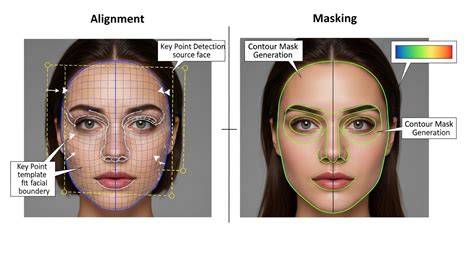
How to Master Face Swap in Photoshop: A Step-by-Step Tutorial for Swapping Faces in Any Photo
For additional guidance, you can look for hands-on demonstrations that show the alignment, masking, and blending processes in real time. This can help visualize subtle transitions and edge refinements that text descriptions may not fully convey.