In this guide, you'll learn how to add stroke in DaVinci Resolve, covering both the Edit page and the more advanced Fusion page. We’ll show you how to give text, images, or any layer a clean, professional-looking border.
What Is a Stroke in Video Editing?
In DaVinci Resolve, a stroke refers to the outline around an object-most commonly text or shape elements. Use them together for more impact-especially in dynamic lower thirds or animated intros.
Overview: Stroke on Text on the Edit Page
The Edit page offers straightforward methods to add strokes to Text+ elements and, with limitations, to other text types. Here are the practical steps to apply a stroke on the Edit page:
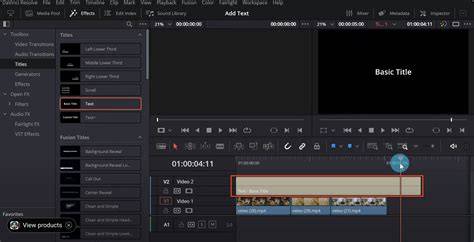
- Add a Text+ element to your timeline and select it in the Inspector. Text+ is the preferred option for outlines due to its layered shading capabilities.
- Open the Shading panel within the Text+ settings. The Shading panel controls borders, outlines, and fills to craft a crisp stroke.
- Enable and customize the stroke by adjusting the Outline parameters: color, width, and softness. A stronger stroke with a saturated color increases legibility on busy backgrounds.
- Fine-tune with additional shading to create a multi-layer outline effect, if desired. This can help achieve a more commercial or cinematic look.
- Test across backgrounds by toggling the background color or video, ensuring the stroke maintains readability in different scenes.
Note: Normal Text (non-Text+) does not support layered outlines via the Shading panel on the Edit page, so for outlines on plain text, use Text+ or switch to Fusion for more complex outlines.
Stroke on Text in Fusion
Fusion provides the most flexible and powerful approach for strokes, including advanced edge handling, multiple outline rings, and animated borders. Follow these steps to add strokes in Fusion:
- Open the Fusion tab for your text layer and reveal the text node connected to the MediaIn node.
- Add an outline by using a Stroke node or by duplicating the text and applying a single-color version underneath with a small offset. The Stroke node can create a clean border around the text.
- Adjust the Stroke parameters such as width, color, and opacity to achieve the desired outline strength. For animated intros, consider easing the stroke width over time.
- Combine with additional effects like Glow or Blur to enhance legibility and style, especially on high-motion sequences.
- Preview in the Timeline to ensure the stroke remains consistent as the text moves or scales.
Fusion is especially useful when you want more than a single outline, multi-layered borders, or animated strokes that interact with other elements in your composition.
Practical Tips for Professional Strokes
- Choose a stroke color with strong contrast against the background to maximize readability.
- Keep stroke width proportional to text size-too thick can look cartoonish, too thin may be invisible on busy footage.
- Use subtle softness for a modern look, unless a hard-edged border matches your design language.
- Test strokes on different screen sizes and export settings to guarantee legibility.
- Combine strokes with drop shadows or glow selectively to maintain clean composition.
FAQ: Stroke in DaVinci Resolve
- Can I add stroke to normal Text (non-Text+)? No. Only Text+ supports layered outlines via the Shading panel.
- Are strokes usable on images or non-text layers? Yes, strokes can be applied to shapes or other layers through Fusion workflows, where you can build outlines around any element.
- Is there a performance impact? Simple strokes typically have minimal impact, but complex animated borders in Fusion may require more processing power during playback and export.
Examples and Use Cases
Strokes are especially effective in:
- Dynamic lower thirds with bold outlines to ensure legibility over moving footage
- Animated intros where outlined titles establish clear branding
- Overlay graphics and captions that need to stand out against varied backgrounds
In practice, combine strokes with color theory principles and motion design techniques to achieve a cohesive, professional look across your video project.