With Photoshop, you can transform your photos with a whole host of artistic photo effects. In fact, you can even use Photoshop to create cartoon images from your pictures. Do you want to make a cartoon out of your photo? Cartoon effects can come in handy for special events and projects. In this article, we will show you how to cartoon yourself in Photoshop. But first, make sure you have Photoshop downloaded on your device. Once you’ve downloaded Photoshop, you’re ready to go!
In Photoshop, there’s rarely only one way to achieve a particular effect. Cartoon effects are no different! Although we’ll be focusing on turning portrait images into cartoons in this tutorial, know that Photoshop’s cartoon effect approaches work on other kinds of pictures, too. But, what kinds of cartoon effects can you achieve in Photoshop?
To create less detailed cartoon drawings of your portraits, you’ll want to use Photoshop’s Brush Tool, Layer Masks and a graphic tablet with a pen that gives you more control over tracing your image. In this approach, you can use the tablet’s pen and Photoshop’s brushes to trace over your image. This approach is easy enough to do if you have the proper equipment, namely a graphic tablet. If you don’t, you can attempt to complete this effect by hand using a mouse or trackpad. You could also try to cartoon photos in Photoshop using the program’s Pen Tool. With the Pen Tool, you can create paths outlining the figure and its essential features, and then use those paths to make blocks of color.
Luckily, you can create the same realistic cartoon rendering of your photo using filters built into Photoshop. If you’re working without a graphic tablet or other tablet, this approach will be the easier of the two. To create a more realistic cartoon of yourself in Photoshop, you’ll need to use Photoshop’s filters, channels and adjustments. When you see your photo in the Photoshop workspace window, go to Filter » Filter Gallery and select the Artistic folder. Then select the Poster Edges option. Before we move on to the next step, we’ll need to set the foreground and background colors to their default values - black and white, respectively. Next, go to Filter » Filter Gallery and select Torn Edges from the drop-down menu.
Here, I’ll use the following settings. Next, locate the Channels Panel from the right-side of your Photoshop screen, near your Layers Panel. Create a new channel from the bottom right corner. Paste your selection into the new channel you just created (Ctrl + V). Then, in the Layers panel, create a new layer by choosing the New Layer icon. Use the paint bucket tool (keyboard shortcut g) to fill the new layer in with black. Then add another new layer and fill it with white. Once again, I’ll name this new layer White. Simply create three new layers by selecting Layer » New » Layer, then name them Skin, Clothes and Eyes/Teeth accordingly. Next, decide what color you’d like the skin, clothes and eyes and teeth in your photo to be. To apply the colors to the appropriate areas on the photo, select the Brush Tool from Photoshop’s left-hand toolbar. Then select the particular layer you want to edit, and carefully brush over your image to apply color in that area.
Notice the continuous gradient bar that appears within the Gradient Editor. I’m going to create a blue-gray gradient with the colors #5d849a and #9cb5c3. To fill the gradient, click and hold the mouse starting at the bottom-left of the image, and drag the mouse to the top-right of the image. Then release the mouse. Now you’re done! You’ve created a cartoon of yourself in Photoshop, complete with a professional gradient background. As we mentioned earlier, feel free to adjust the settings on the Poster Edges and Torn Edges filters to suit your image. However, make sure to follow the steps outlined in this tutorial sequentially. The order of the layers in the Layers Panel is important!
The internet is a great resource for finding tutorials on cartooning yourself in Photoshop! Keep in mind that many other types of cartoon effects will require more extensive use of the brush tool and thus be more well-suited for work on a graphic or other tablet. If you find yourself needing to apply cartoon effects to images often, consider investing in a tablet and stylus. As always, the best results come from practice. Don’t spend too long reading or watching tutorials. Instead, practice the technique yourself. We hope this article has helped you to learn how to cartoon yourself in Photoshop.
Disclosure: Our content is reader-supported. This means if you click on some of our links, then we may earn a commission. Have you ever looked at a regular photo and thought, “This would look awesome as a cartoon”? That’s basically how I got into cartoonizing my pictures. It’s such a cool way to give your photos a fun twist-suddenly, a normal image turns into something bright, bold, and a bit more you. Whether you’re posting it on Instagram, using it for a project, or just messing around, it always grabs attention. When I first tried doing this, I didn’t realize how much Photoshop could actually do, like unblurring the picture, removing the background of an image, removing a watermark from an image, and now cartoonizing an image. Seriously, whether you’re using the latest Photoshop CC, the older version like CS6, or even the Photoshop Express app, there’s a way to get that cartoon look. You don’t need to be a pro either-it’s mostly about playing around with the tools and finding what looks good.
Understanding the importance of high-quality images for cartoonizing in Photoshop
If you want your cartoon edits to actually look good, start with a solid photo. The clearer your picture is, the better your final result will be. A high-resolution image gives Photoshop more to work with-cleaner lines, smoother colors, and sharper details. If you start with a blurry or low-quality shot, no filter or effect is going to save it. Lighting’s another big deal. A well-lit photo makes everything easier-edges show up better, and you don’t get those weird dark spots or blown-out highlights that mess up the outlines. Good contrast also helps because it separates the subject from the background, which is exactly what you want when you’re going for that bold, cartoon feel.
Before I add any effects, I usually do a quick cleanup. I’ll crop out anything distracting, tweak the brightness or contrast a bit, and sometimes sharpen the image slightly. It only takes a minute, but it makes a huge difference. Photoshop has a lot of tools that let you give your pictures a fun, hand-drawn look. Depending on how much time you want to spend and how detailed you want the effect to be, there are a few different ways to do it. You can pick the one that works best for you and your project.
Method 1: Cartoonize a photo in Photoshop CC
Turning a photo into a cartoon in Photoshop CC is actually pretty simple once you know where things are. You just mix a few filters with some color tweaks and keep everything editable with Smart Objects. You end up with bold lines, bright color, and you don’t wreck the original pic.
- Open a good, clear photo and copy the layer.
- Right-click → Convert to Smart Object.
- Go to Filter, then Artistic, and then Poster Edges, and play with the three sliders till it looks right.
- If you want, throw in Cutout or Oil Paint for extra style.
- Copy that layer again, run Find Edges, then Threshold to make it black and white.
- Change that layer’s blend mode to Multiply.
- Make new layers and paint in flat colors, shadows, and highlights with a soft brush.
- Adjust color with Hue/Saturation and Levels.
- Save it and you’re done.
Author’s testimonial: I like this one because I can mess with filters without breaking anything. Once you get the hang of Smart Objects, it’s pretty quick and looks clean.
Method 2: Manual cartoon effect with Pen Tool & Brush
This part’s all manual work. You’re basically drawing over your photo. It takes more time, but the result looks more like an illustration than a filter. You can decide how thick the lines are, what colors to push, everything.
- Zoom in and trace around your subject with the Pen Tool. It’s slow-don’t rush the outlines.
- Close the path and dump in flat color on a new layer.
- Grab the Brush Tool and start painting shadows and highlights.
- Flip between blend modes until something feels right.
- Use masks to clean edges instead of erasing.
- Keep saving versions just in case.
- When it finally looks good, flatten a copy and save your cartoon.
Author’s testimonial: This method takes a bit more effort, but the results are applaudable. Every texture looks like an original painting, not something a filter. It’s perfect for anyone who enjoys drawing or wants a unique, hand-drawn cartoon look that really stands out from the automatic tools.
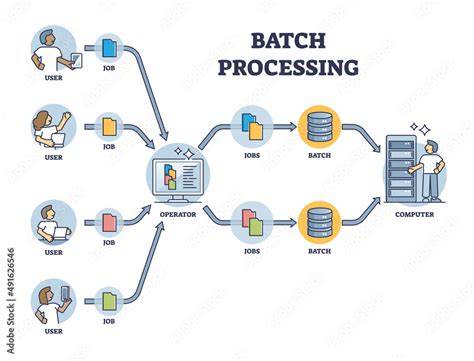
Method 3: Batch processing cartoon effects with Photoshop Actions
If you’ve got a bunch of photos to edit, doing the same cartoon effect over and over gets old fast. That’s where Photoshop Actions help. You can record your steps once, then let the program repeat them for the rest. It saves hours and keeps everything looking the same while using batch processing.
- Open one photo and run through your full cartoon process the way you like it.
- In the Actions panel, hit Record before you start. Every step you take now will be saved.
- When you’re done, click Stop Recording.
- Go to File > Automate > Batch, choose your new action, and pick a folder of photos.
- Let Photoshop run through each image automatically.
- Check the results afterward and tweak settings if something looks off.
- You can rerun the action anytime or update it with new filters later.
- Perfect for bulk edits-social posts, marketing shots, or product images.
Author’s testimonial: This trick saved me a ton of time. I could finish big batches without feeling like a robot clicking filters all day.
Method 4: Cartoonize a photo in Photoshop CS6
Photoshop CS6 might be an older program, but it still does a great job when it comes to turning photos into cartoon-style images. The tools are straightforward and easy to handle once you get the hang of them. With a bit of tweaking-and some patience-you can adjust the colors, saturation, and hue until the picture looks just the way you want it.
- Open your picture and unlock the background layer.
- Go to Filter and then to Filter gallery and then Artistic, and then Poster Edges to bring out some clean outlines.
- Next, use the Cutout filter to flatten the colors into solid areas.
- Add Stylize and then Find Edges to pull out more line details.
- Adjust Levels or Threshold to make those lines stronger.
- Clean up any rough edges with the Brush Tool-take your time here.
- Add color on new layers, using Layer Masks if you need control.
- When you’re done, save it as a PNG or JPEG file format.
Author’s testimonial: I tried this process in Photoshop CS6 and really liked how flexible it worked. The filters did most of the base work, but the real magic came from cleaning and coloring by hand. It takes some practice, but the final cartoon effect looks genuinely handmade and fun to create.
Method 5: Cartoonize a photo using the Photoshop Express app
If you want to cartoonize a photo on your phone, then Photoshop Express is an easy and useful app if you just want to cartoonize a photo quickly. No editing skill needed. Just open the app and work in it.
- Open your photo in the Photoshop Express app. Don’t stress too much about which photo first.
- Scroll through the filters. Pick one that looks “Cartoony” - or just one you like.
- Tweak contrast, sharpness, and clarity a bit. You’ll see edges pop.
- Use selective editing if some parts are weird or blurry.
- Mist with brightness and color until it feels right. Don’t overthink it.
- Save/export as JPEG or PNG, depending on where you’ll use it.
- Done. Now you can post or keep it for later.
Author’s testimonial: Photoshop Express is quick and user-friendly, ideal for casual users wanting cartoon effects on the fly. Though limited in control compared to a desktop, its filters pack a punch for easy social media content creation anytime, anywhere.
How to Turn Photos into Cartoon Effect in Photoshop Tutorial - 2025 (Step By Step)
Troubleshooting and tips
- Edges appear harsh-how to make them soft: add a tiny bit of Gaussian Blur, or use a soft brush with low opacity to go over the lines.
- Cartoon effect looks blurry-sharpening tips: use Unsharp Mask or Smart Sharpen to bring back edge definition.
- Colors seem flat or dull-boost vibrancy and contrast: use Vibrance, or adjust Curves for natural pops.
- Background areas interfere with the cartoon subject-clean edges with Layer Masking or Eraser, zooming in close.
- Outlines look too faint-enhance line work: duplicate outline layer and set to Multiply or Overlay, adjust opacity.
- Cartoon effect creates noise or artifacts-reduce noise or softly blur affected areas, avoid overdoing it.
Additional approaches and resources
Best Photoshop AI alternative to cartoonize a photo - Pixelbin’s Free AI cartoon generator: works completely in your browser, beginner-friendly, with three free tries and no installation. It can be a quick shortcut if you want to test ideas before committing to a workflow in Photoshop.
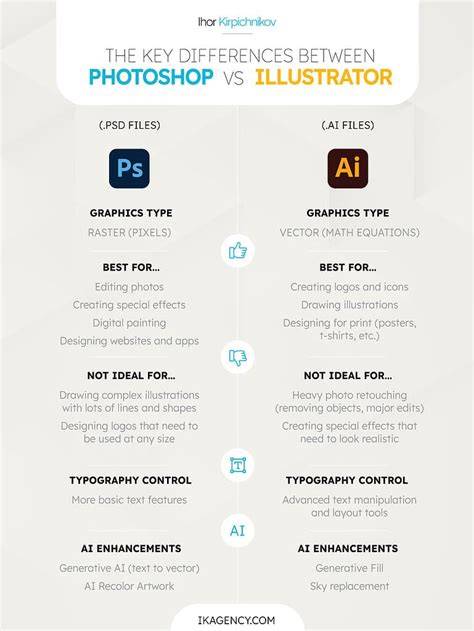
From there, you can enhance your workflow by pairing Photoshop with Illustrator and After Effects for animated or expanded outputs. The trick is to keep practicing and mix methods: use filters to build a base, then refine by hand to control edges and colors. The result is a distinctive, personalized cartoon look that fits your project needs.