If your audio is playing from only one speaker in DaVinci Resolve, you are not alone. This is one of the most common issues editors run into after importing footage recorded with a wireless mic or camera. The good news is that the fix is straightforward once you know where to look. There are two situations that cause this problem most often. The first is a single-channel mic recording. When you record with a lavalier, shotgun mic, or built-in camera mic, the audio is often saved as a single mono channel. The second situation involves clips that actually contain two audio channels, but Resolve reads each channel as a separate mono track. This happens frequently with DSLR and mirrorless camera footage.
In both cases, the fix lives in one of three places: the clip attributes, the Inspector panel, or the Fairlight track settings. This is the right starting point for most users. Note: This change affects how Resolve reads the clip across your entire project, not just on the current timeline.
Method 1 - Clip Attributes: read the file correctly from the start
Choose Dual Mono when your clip has two independent mono channels recorded separately, such as a lavalier mic on one channel and a boom mic on the other. Most wireless mic systems and DSLR cameras record this way. Choose Stereo only when the file contains a true left/right stereo recording, such as audio from a stereo field recorder or music track.
Note: Clip Attributes tells Resolve how to read the file, but it does not automatically remap the channel to both outputs. If audio is still coming from one side only, go to the Inspector panel and use Method 2 to route that channel to both the L and R outputs.
Method 2 - Inspector: map the channel to both outputs
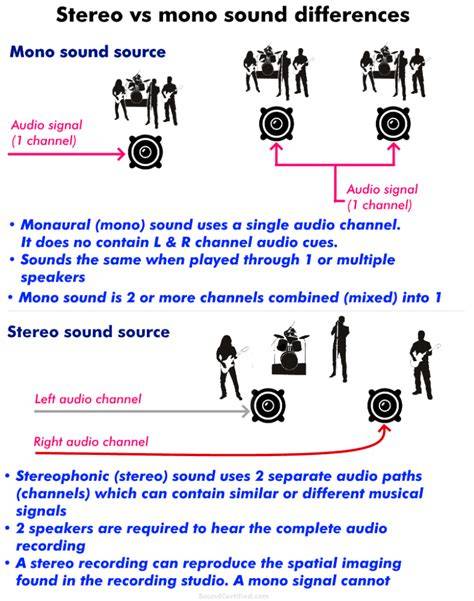
Stereo means one file that contains true left/right content recorded as a pair. Dual Mono means two separate mono channels assigned to the left and right outputs. Most lavalier microphones, shotgun mics, and camera mics produce Dual Mono recordings. Use Method 2 to route that channel to both the L and R outputs when necessary.
Changing the track type affects how the track processes all audio on it, and you do not need to adjust each clip one by one if you apply the change at the track level. This method is particularly useful when a clip has only one recorded channel and you need that channel to play in full through both the left and right outputs.
Method 3 - Fairlight Track Type: a track-wide solution
Changing the track type to Stereo in Fairlight applies the format change to the entire track, so you do not need to adjust each clip one by one. No. Every change covered in this guide - Clip Attributes, Inspector channel mapping, and Fairlight track type - is a non-destructive metadata change stored inside your Resolve project file. If your problem persists, start with Method 1 and follow up with Method 2; if you are working in Fairlight or want a track-wide solution, go straight to Method 3.
Our wireless microphones with "Split" routing, like Wireless GO II, Wireless GO (3rd Gen), Wireless ME, and Wireless Micro, allow you to adjust each audio channel independently in post-production. Separating channels lets you fine-tune volume, apply effects, and fix inconsistencies for a polished, professional result.
Additional considerations for mono vs stereo
When recording video on devices like smartphones or cameras, audio is usually embedded as a two-channel stereo track, combining sound into left and right channels instead of separate tracks. A new channel should appear in the list. Click OK at the bottom, and the window will disappear.
In some cases, you might encounter audio playing only on one side, whether through headphones or speakers. Occasionally, a mono audio recording may be mistakenly identified or mapped as stereo, resulting in one of the channels being empty.
- One common cause of audio imbalance is incorrect channel panning settings. Resolve provides control over audio channel panning, allowing users to adjust the balance between the left and right channels.
- Verify that the audio tracks are appropriately assigned to the left and right channels.
- Consider converting the audio file to a different format, such as WAV or AIFF, using reliable audio conversion software.
Capturing clear, balanced audio right from the start reduces editing headaches down the road. The key difference lies in the number of channels used.
Mono audio can be converted to stereo. Mono audio is often used in scenarios where sound separation is not crucial. Stereo audio is widely used in music production, film soundtracks, gaming, and multimedia applications. Stereo audio can be converted to mono. Quality is subjective and depends on the specific context and requirements. Compatibility issues may arise when playing stereo audio on mono-playback systems. In such cases, the stereo audio may be downmixed to mono, potentially resulting in a loss of spatial separation and localization. DaVinci Resolve offers tools and options to convert mono audio to stereo and vice versa. Both mono and stereo audio formats have their strengths and applications.