In this article we explore how to check the size and resolution of your images using Adobe Photoshop, and how those settings interact with print and on-screen display requirements. If you are preparing images for a book cover or interior, remember that a resolution of no less than 300 PPI is typically required, and interior images should be roughly 4 by 6 inches or larger.
Why resolution and size matter
There are many different programs you can use to view your images, and most of them will allow you to access the image’s properties or attributes from the menu bar. If you can't find the size and resolution in one program, try another. This helps ensure your images meet print standards and look crisp on the chosen page or cover.
Checking size and resolution in Photoshop
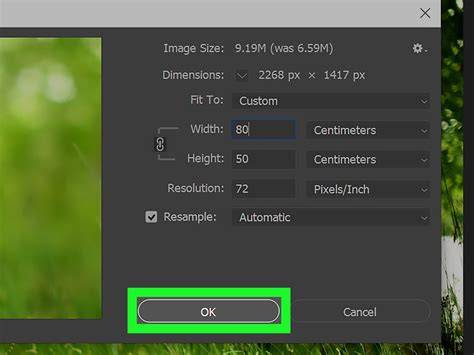
In Adobe Photoshop, you can check the size and resolution by going to Image and Image Size. In the window that pops up, we see that the image is 6 ½ inches wide which is enough to span the width of the page.
When you change the size or resolution, be careful that altering one aspect does not negatively affect another. For example, if we change the resolution of this image to the required 300 PPI, you’ll see that the image gets smaller. It is now only 3 ¼ inches wide, no longer big enough to fit the width of the final page.
There is one other solution when using Photoshop or other image manipulation software. Before changing the resolution, be sure Resample Image is selected. If you have the option, choose a bicubic setting that helps smooth out image enlargement. Now, when we change the resolution to 300 PPI, the width and height remain the same. This process is called resampling. When you resample an image this way, it might look blurry or pixellated. Sometimes, like in this example, the trade off is acceptable. But other times, you will notice the quality of your image degrade so badly that the only remaining option will be to rescan the original photograph or artwork if you have it.
We also offer our own scanning services. Let’s look at another photo. Let’s say that we want this image to fill an entire page in a 5-by-8 sized book. By going to Image and Image Size, we can see that this photo is only 2 inches wide and just over 3 inches tall, not nearly big enough to fill a 5 by 8 sized page. Incidentally, 72 PPI is the standard resolution for images on the Internet. Their low resolution makes them faster to download when you’re surfing the web but it makes them bad candidates for publication. If we select the resampling button and change the resolution to 300 PPI, we could use this image but it could only be 2 inches wide. If we tried making it any bigger, it would lose resolution and become blurry or pixilated. This is what would happen if we tried to make the image fill a page in a 5-by-8 book. It just isn’t possible.
Now let’s look at a couple of images we might want to use on the cover of a book. Let’s say we want this photo to fit width-wise across the middle of the front cover and our book size is 6 by 9 inches. The image is 6 inches wide, almost big enough to fit the width of the cover. Remember that when trying to fill a cover, you have to add 1/8th of an inch to the top, bottom, or outside edge of the cover. In this example, the image wasn’t going to touch the top or the bottom of the cover, but it was going to touch up against the outside edge. We also notice that the resolution of the image is only 250 PPI, slightly less than the required 300. It would be best to re-scan this image if possible, but if you did not have the original image, you might be able to resample it to meet printer requirements. Select the Resample Image button, then change the resolution to the required 300, and change the width to 6 1/8 or 6.125. Click ok.
Next, it is a good idea to go to View and Actual Pixels. If you think the image still looks pretty crisp and clear, it is probably safe to use on your cover. Let’s look at one more image. Let’s say this image is an original painting you made to fill your 6-by-9 cover. Remember that in order to fill a cover, you have to add 1/8th of an inch of bleed space at the top, bottom, and outside edge. When we look at this image’s properties, we see that it is 300 PPI. The width of the image is 6 ½ inches, a little more than the minimum of 6 1/8. The height of the image is a little more than 7 ¾. If we wanted the image to fill the 6 by 9 cover, the height would need to be 9 ¼ inches, including 1/8 inch at the top and 1/8 inch at the bottom for bleed space. This image could fit the width of your cover but could not fit the height. If you could re-scan this image so that the height were 9 ¼ inches, you could then crop the sides of the image until it fit the width of the 6-by-9 book cover.
Your publishing consultant will assist you along the publishing process, make sure you read the terms and conditions, and take your payment. After the submission of your materials, you’ll be on your way to having your book published. Image editing programs like Adobe Photoshop can give you resolution information and allow you to change the resolution of an image. This lets Photoshop know that we do not want to add or subtract any pixels to the photo. Adding and subtracting pixels is what happens when we resize images (to enlarge or shrink them).
Practical tips and quick references
Be aware that changing resolution without resampling changes the physical dimensions of the image, while resampling preserves pixel count but can affect quality. The standard target for print is typically 300 PPI, though on-screen work often uses much lower values. Remember that the actual dimensions in pixels are what determine on-screen size, not the inches or centimeters displayed. If you are preparing a poster or a book cover, calculate final pixel dimensions from the desired print size and target DPI, then set Photoshop accordingly.
On a screen, the resolution is measured in pixels per inch (PPI). The only number that matters on a screen is the actual Dimensions in pixels. If you never print, you may work in pixels to maintain clarity. To change the unit of measurement, press Ctrl/Cmd+R to turn on rulers. The resolution number helps with print workflows but does not change the actual pixel data unless you choose to resample.
If you are working with original artwork or scans, you may need to rescan at a higher resolution to preserve quality when you print at large sizes. The process can involve bleed space adjustments and careful cropping to fit a 6-by-9 or 6-by-9 cover with the correct edge margins.
Image editing and preparation for print is an iterative process. You may need to compare different versions, view Actual Pixels, and assess the image at 100% zoom to judge sharpness and detail. If you’re interested in deeper Photoshop techniques, consider exploring more advanced courses and tutorials.
In summary, check image size and resolution in Photoshop via Image Size, understand the trade-offs when resampling, ensure 300 PPI for print, and consider bleed and edge margins when preparing covers or pages. This approach helps you maintain quality across print and digital displays.
Understanding Image Resolution - PPI and DPI: Ask David Bergman
tags: #how #to #check #resolution #photoshop