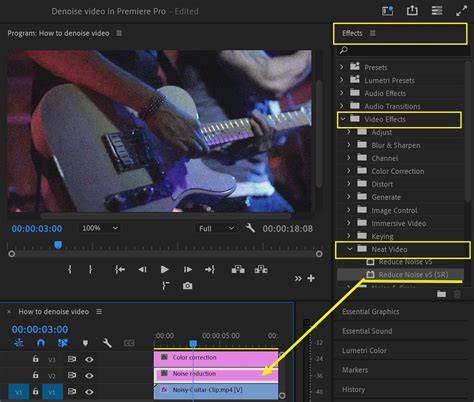
Video noise stems from various factors: Inadequate lighting, high ISO settings, and small camera sensors all contribute to grainy footage. Understanding these causes helps you take preventive measures during filming, but you can also address noise in post-production with Premiere Pro’s built-in tools and plugins. Interference from nearby electronic devices can introduce noise into the video signal, making denoising an essential step for cleaner visuals.
Using the Median (Legacy) Effect for Basic Denoising
The Median effect in Premiere Pro is a video effect that reduces noise by blending the colors of neighboring pixels. The effect works by replacing each pixel’s value with the median value of the neighboring pixels. STEP 1Find the effect. Import your footage into the timeline. In the Effects panel, search for "Median." Alternatively, navigate to Video Effects > Obsolete > Median (Legacy) and drag the Median effect onto your clip.
STEP 2Adjust the settings. The Median effect is now accessible in the Effects Controls panel, allowing you to make necessary adjustments. Modify the Radius value to achieve the optimal balance, where the denoising effect effectively reduces video noise and grain without causing excessive blurring.
STEP 3Fine-tune (Mask). Once you’ve adjusted the initial settings, fine-tune the effect by clicking Free draw bezier. Since the Median effect can wash out the entire image, you may need to use the Mask features to selectively reduce visual noise in specific areas. However, the Median effect will take much more time to process since it is not accelerated by GPU, and when zooming out, it may find blotchier skin and dark spots. Despite these limitations, the Median effect remains a valuable tool for quick noise reduction.
VR Denoise for 360° and VR Footage
The VR Denoise effect in Adobe Premiere Pro is a noise reduction tool for 360° and VR footage. It reduces noise and grain uniformly across the entire 360° frame, ensuring a clean, immersive experience without distortions or artifacts. STEP 1Find the effect. Import your footage into the timeline. Head over to the Effects panel, navigate to Video Effects > Immersive Video > VR De-Noise, and drag that VR De-Noise effect right onto your clip. STEP 2Adjust the settings. Head over to the Effects Controls panel and tweak the Noise Type and Noise Level to your liking. STEP 3Fine-tune (Mask). Use the Mask tool to precisely target and reduce visible noise in specific areas, ensuring your entire image remains sharp and natural-looking. Once done, simply click export.
Third-Party Denoising Plugins: Neat Video and Alternatives
Using video denoising plugins in Premiere Pro is another efficient way to reduce noise in your footage. These plugins, such as Neat Video, offer advanced noise reduction capabilities that can significantly enhance the quality of your videos. Neat Video employs sophisticated algorithms to analyze and reduce noise, helping you achieve a cleaner and more professional look. Select the appropriate version of the plugin for your video editing software and operating system. After installation, apply Neat Video by locating the plugin in the Effects panel, then adjust its profiles and Noise Level to achieve the desired balance. You can perform manual adjustments by zooming in, building a noise profile, and using advanced modes for more granular control. Note that such plugins can have steep learning curves but deliver high-quality results.
Native Denoising in Premiere Pro: Clip Doubling and Luma Masking Tricks
Some workflows leverage Premiere Pro’s native tools with masking to improve denoising effectiveness without plugins. A common workaround is duplicating the clip, applying VR De-Noise to one layer, and using masking and luma-key techniques to preserve detail in the subject while reducing noise elsewhere. This approach can yield a denoised image that retains sharper facial details and reduces artifacts in dark regions. The technique often involves first duplicating the clip, then applying a tinted mask or luma key to blend the denoised result with the original, and finally fine-tuning mask feather and tracking to follow motion. This method can be especially useful when you want a quick, plugin-free improvement and don’t mind a multi-layer workflow.
Practical Tips for Reducing Noise at the Source
- Improve lighting during shooting to keep ISO as low as possible and reduce sensor noise.
- Use the lowest practical ISO and moderate shutter speed to balance exposure and noise.
- Stabilize the camera and minimize motion to prevent amplification of noise through stabilization artifacts.
- Choose cameras with larger sensors when possible, as larger sensors generally produce cleaner images at a given ISO.
- Filter or shield electronics to minimize interference if you notice signal noise from nearby devices.
Workflows: When to Denose and What to Expect
- Import your footage into the timeline and evaluate noise visually at 100% zoom to identify problematic areas.
- Start with a light denoise pass using VR De-Noise for VR footage or the Median effect for quick reductions, then refine with masks to protect details.
- For 360° or immersive content, ensure you monitor uniform reduction across the frame to avoid distortions.
- Consider a professional denoising plugin like Neat Video for complex projects requiring high fidelity, while CapCut PC can offer a beginner-friendly alternative for simpler tasks.
- Always render a test export to assess artifacts and balance between noise reduction and detail preservation before finalizing your project.
Common Denoising Challenges and How to Address Them
- Over-smoothing: Reduce Noise Reduction settings or blend with the original clip to recover detail.
- Artifact patterns: Decrease denoising strength and consider masking to protect subject details.
- Persistent noise in deep shadows: Find the sweet spot between clean and natural, and apply denoising incrementally.
- Mask tracking issues: Animate masks to follow motion and adjust feather to create natural transitions.
In conclusion, Premiere Pro offers multiple pathways to reduce video noise: the Legacy Median, VR De-noise for VR/360 content, and powerful third-party plugins like Neat Video. Native masking techniques and clever layering can further improve results without plugins, while proper on-set practices-adequate lighting, controlled ISO, and thoughtful camera choices-significantly lessen post-production work. CapCut Desktop provides a beginner-friendly alternative for quick, automatic denoising, especially for rapid workflow turnarounds. Whether you’re tightening grain in standard footage or smoothing noise in immersive content, these approaches help you achieve cleaner, more professional-looking video.