Dream it. Learn how to easily rearrange and stack layers in an image. You can create complex composites that are multiple layers deep. In Photoshop, you can easily move around your layers and group multiple layers into a stack to help you perform actions on them as a single entity.
Moving layers and groups in the Layers panel
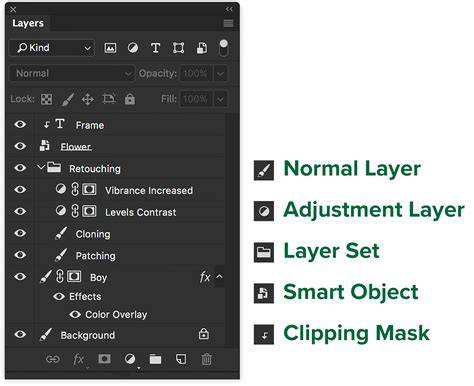
Drag the layer or group up or down in the Layers panel. To move a layer into a group, drag a layer to the group folder. Select a layer or group, choose Layer > Arrange, and choose a command from the submenu. If your selected item is in a group, the command applies to the stacking order within the group. To reverse the order of selected layers, choose Layer > Arrange > Reverse.
You can select the layers that you want to move directly in the document window. In the Move tool’s options bar, select Auto Select and then choose Layer from the menu options that show up. Shift-click to select multiple layers. You can arrange layers by dragging them onto one of the selected layers.
Practical actions: nudging, rotating, and fine-tuning
Objects can be nudged by precise pixel steps, for example by 1 pixel or 10 pixels, to achieve accurate positioning. Choose Edit > Transform > Rotate to rotate a layer or group, which updates the stacking and alignment of elements. The rotation handle becomes a curved, two-sided arrow, and then you can drag to rotate.
Locking layers for protection and precision
You can lock layers fully or partially to protect their contents. For example, you may want to lock a layer fully when you finish with it. You can lock a layer partially if it has the correct transparency and styles but you are still deciding on positioning. When a layer is locked, a lock icon appears to the right of the layer name. Lock Transparent Pixels confines editing to the opaque portions of the layer.
How to Complete Free Transformations Using Photoshop | Adobe Photoshop
| Action | Command |
|---|---|
| Move layer up/down | Drag in Layers panel |
| Move layer into group | Drag layer onto group folder |
| Reverse order | Layer > Arrange > Reverse |
| Nudge by pixels | Arrow keys or explicit pixel steps |
| Rotate | Edit > Transform > Rotate |
| Lock layer | Lock icon next to layer name |
In practice, you can select multiple layers to move as a group, enabling you to streamline complex composites. You can also use Auto Select with the Move tool to pick layers directly from the image, which can speed up your workflow when arranging many elements.