Photoshop can sometimes hang or refuse to quit, even when all windows appear closed. This guide consolidates practical methods to terminate Photoshop processes safely and ensure a clean restart, especially on macOS systems like the 2020 MacBook Air.
Identify the problem and prepare for force quit
First, confirm that Photoshop is indeed the process causing the issue and not another app. If the application remains visible in the Dock or Menu Bar but does not respond to normal quit commands, you may need to force quit.
Force quit from the Apple menu
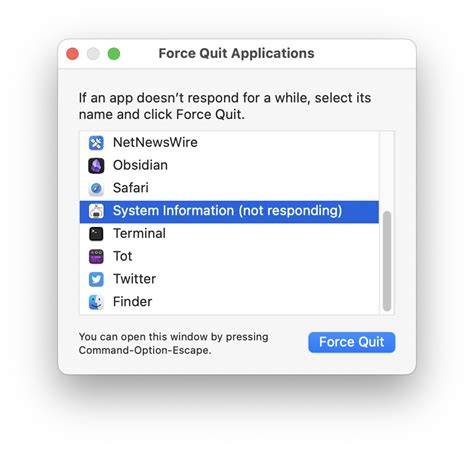
Click the Apple menu in the top-left corner of the screen, then hold Option and choose Force Quit. Select Photoshop from the list and click Force Quit. If Photoshop does not appear, proceed to the next methods.
Force quit using Activity Monitor
Open Activity Monitor from Applications > Utilities. In the processes list, locate any process named Adobe Photoshop (or Photoshop). If you find it, select it and click the X button in the upper-left corner, then choose Force Quit. If Photoshop isn’t listed, move to the next steps.
Terminate related background processes
Sometimes Creative Cloud or helper processes keep Photoshop running. In Activity Monitor, look for processes like Adobe CEF Helper, Photoshop Helper, Creative Cloud, or related daemons. Force quit these as needed, but avoid terminating system-critical processes.
Quit Creative Cloud properly, then force quit
Make sure Adobe Creative Cloud is fully signed out and quit. Open Creative Cloud, sign out, and quit the app. If Creative Cloud keeps running in the background, use Activity Monitor to terminate its processes. After both Photoshop and Creative Cloud are closed, you can reboot the Mac safely if needed.
Restart the Mac with a full shutdown
Instead of restarting, power off the Mac entirely: hold the power button until the machine shuts down. Wait at least 5 minutes, then press the power button to start anew. A full shutdown can clear stuck processes that prevent a normal restart.
Check for remnants after reboot
After rebooting, verify that Photoshop is not launching automatically. If it does, remove any startup items or login items related to Photoshop or Creative Cloud via System Settings (or System Preferences) > Users & Groups > Login Items. Reopen Photoshop to verify normal behavior.
Reinstall and clean cache if the issue persists
If force quitting still fails, consider a clean reinstall. Uninstall Photoshop and Creative Cloud, then remove residual caches and preferences:
- Delete Photoshop app from Applications.
- Remove Adobe folders in Library: ~/Library/Application Support/Adobe and ~/Library/Preferences/com.adobe.Photoshop.plist (or similar).
- Reinstall Photoshop via Creative Cloud installer and sign in again.
Ensure you back up any custom presets or plug-ins before uninstalling.
Preventive tips for future stability
- Keep Creative Cloud and Photoshop updated to the latest versions.
- Avoid force quitting as a first resort; use it only when the app is unresponsive.
- Check for macOS updates, as OS-level fixes can improve application stability.
- If you experience frequent hangs, consider allocating more RAM to Photoshop in preferences, or resetting Photoshop's preferences when needed.