Procreate brushes are a growing group of tools on Creative Market that work solely on a mobile device. Procreate is an app for iPad only, so Creative Market's Procreate brushes will only work on an iPad with Procreate app installed. Note: In order to use Procreate Brushes, you’ll need Procreate App installed on your iPad. (this requires iOS 10.0 or later.) If you're installing the .brushset file format, you'll need iOS 11 and Procreate version 4.1 or higher.
Whether you download on a computer first or work entirely on iPad, the process centers on moving and installing .brush and .brushset files into Procreate. Computer + iPad: You download brushes to a computer first, then transfer them to your iPad (recommended) - Note: this method uses Dropbox. iPad Only: You do everything on your iPad: make purchases, download brushes, unzip files, and install the brushes in Procreate.
Preparing and transferring brushes
Download your Procreate brushes and unzip them on your computer. You'll see folder(s) that contain some files ending in .brush or .brushset. .Brush is an individual brush, and .brushset is a brush library for Procreate 4.1 or higher. The brand new .brushset format allows you to install a set of brushes all at once. You'll need Procreate version 4.1 or higher to install .brushset files.
Transfer the file(s) ending in .brushset from your computer to your Dropbox folder. Quick Tip: If you have a Mac (macOS 10.11 or higher), you can AirDrop the brush set directly from your Computer to your iPad. On your iPad, open the Dropbox app, then navigate to the folder where your brush set is located. Tap on the brush set file, then click the small [...] icon and click Export.
The standard Procreate .brush format allows you to install one brush at a time. Use this option if you have an older iPad or Procreate version 4.0 or earlier. Transfer the file(s) ending in .brush to your Dropbox folder. Quick Tip: If you have a Mac (macOS 10.11 or higher), you can AirDrop the brush directly from your Computer to your iPad. On your iPad, open the Dropbox app, then navigate to the folder where your brush is located. Tap on the brush file, then click the small [...] icon and click Export.
Download your Procreate brushes and unzip them on your iPad. You can unzip a file on an iPad by following these directions. After unzipping the files on your iPad, you'll be able to locate the .brush or .brushset files on your iPad in your Files app in the On My iPad location. Navigate to the .brush / .brushset file(s).
Now, when you open Procreate, you'll see your new .brush files in a set called "Imported" at the bottom of your brush library. .Brushset files will appear at the top of the Brush Library. Tap on the .zip file, then click the small [...] icon and click Share, then click Export File. Click Save to Files. After unzipping the files on your iPad, you'll be able to locate the .brush or .brushset files on your iPad in your Files app in the On My iPad location. Navigate to the .brush / .brushset file(s).
Installing brushes on iPad or via computer
In Procreate, open the brush library and look for your new brushes in the Imported group or at the top of the library if you installed a .brushset. Now, when you open Procreate, you'll see your new .brush files in a set called "Imported" at the bottom of your brush library. .Brushset files will appear at the top of the Brush Library.
There are two main installation methods:
- Import a brush or brush library directly from the Files app: Tap and hold a brush, brush set or brush library you want to move, then drag into Procreate to import.
- Import via the Files app by selecting a brush or brushset and exporting to Procreate: Tap the share/export option and choose Import into Procreate, or drag into Procreate via Split Screen on iPad.
If you are migrating from prior versions, Procreate 5.4 and later store brushes in the iPadOS Files app and support syncing with iCloud Drive. In these versions, brushes can be moved between libraries and even copied when moving between brush libraries, depending on the operation you choose. When updating, brushes may move to Files as .brush files in the On My iPad or iCloud Drive locations.
Managing brush libraries and tools
Tap the Paint, Smudge or Erase tools to select, then browse brush libraries by tapping the library title or a brush set to view its contents. The brush list displays the name of each brush and a preview of the stroke it makes. Tap "Create new brush" to create a new brush and open the Brush Studio, where you can customize shape, grain, behavior, color, responsiveness, opacity, taper, and more. The Brush Studio offers you total control over each aspect of your brush with hundreds of settings for limitless combinations. Procreate always remembers your settings.
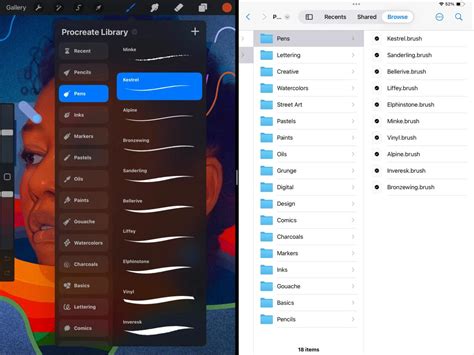
There are two ways to access your brush libraries. Brush libraries are now stored in the Files app, either in On My iPad → Procreate → Brushes or iCloud Drive → Procreate Brushes. You can import individual .brush files by bringing them into a brush set folder in the Files app. Because brushes, brush sets and brush libraries are now files and folders, certain characters cannot be used in names due to operating system restrictions. When you change brushes in the Files app, the changes will be reflected in Procreate and vice versa.
Import a brush library from the Files app. Rename your brush library. Delete this brush library. You will require an internet connection to sync your brushes with iCloud if you are opting to store your brushes there. Tap on a search result to activate the brush, set or library. Find your Recent brushes at the top of the brush library sets. Access these brushes by tapping Paint, Smudge or Erase and then tapping Recent. To find the original set a brush in Recent belongs to, swipe left on the brush and then tap the Find button. To pin a brush, swipe left on the brush in your Recent set and tap the Pin button. This will keep the brush permanently at the top of your Recent set.
You can easily identify pinned brushes by the pin symbol in the top right hand corner. No longer need a pinned brush, or want to delete a brush from Recent? Swipe left on the brush in Recent and tap the Clear button. Discover the 18 new handcrafted brush sets that form the core of Procreate’s brush library. Some of Procreate’s brushes are realistic. Some are fantastical. The idea behind these brushes is to give you a wide range of useful tools. A summary of each brush set is below. Experiment with the different brushes to explore what's possible.
Practical tips and frequently asked questions
Can Procreate brushes work on a computer? No, Procreate Brushes are designed for the iPad-only app Procreate. Can Procreate Brushes work in Photoshop? No; Procreate Brushes are a different format entirely. Can I use fonts in Procreate? Yes; starting with Procreate version 4.3, you can import fonts onto your iPad and use them in Procreate to add text to your images. If you're interested in installing fonts on your iPad, check out this article. Can I install iPad Procreate Brushes in Procreate Pocket? Procreate Pocket is an iPhone app; brushes are built differently, so not all Procreate brushes will be supported. Regularly export files to external storage like Google Drive, Dropbox, or your desktop.
Import Procreate (.brush, .brushset and .brushlibrary) and Adobe Photoshop (.abr) brushes into Procreate. Tap the [] button in the top right of your brush library, then tap Import from Files. Navigate to your desired .brush, .brushset or .brushlibrary file and tap on it to import. If you import a brush set, it will appear at the top of your current brush library. To export multiple brushes at the same time, press and hold a single brush to pick it up, then tap other brushes with your free hand to add them to your selection. Press and hold on a .brush, .brushset, .brushlibrary or .abr file in Files app or any other compatible application, then drag and drop the file into Procreate to import.
In Procreate version 5.4, brushes are stored in the iPadOS Files app and can be synced using iCloud. Previously brushes were stored in the Procreate app itself, and now they will be stored as individual .brush files in the Files app. If you are installing a completely fresh version of Procreate, brushes will be stored on iCloud Drive by default, or On My iPad if you don’t have iCloud enabled. Setting iCloud requires sufficient storage space to sync across devices. When brushes move into Files, duplicates receive a number appended to their name, and certain characters are removed from brush/set names for file system compatibility.
How to Install Procreate Brushes on your iPad (no computer needed)
Tap once on Paint, Smudge or Erase to select the tool. Pinch in on the Brushes panel or tap on the title of your library and select ‘Back to libraries’ to return to your other brush libraries. If you have updated from a previous version of Procreate, all of your custom brushes will be available in the Classic Library. When in the relevant view, tap a brush, brush set or brush library to set it as your current one. Specifically with brush sets, tap hold and choose ‘Select icon’ to give it a special icon from our list. You can now delete custom and default brushes, brush sets and brush libraries. If you have accidentally deleted a default or custom brush, head to the recovery section of this article to attempt to recover it.
When you change brushes in the Files app, the changes will be reflected in Procreate after a moment, and vice versa. This is true if your brushes are set to 'On My iPad' or 'iCloud (Drive)'. If you choose to move your entire collection, this process will take some time, especially if you have quite a few brushes, brush sets, and brush libraries. Please be patient while you wait for the storage changeover to complete. While syncing brushes is now available, we still recommend manually backing up your most important brushes and sets into an external drive or alternate cloud location for data security. You can at any point switch to local storage for your brushes, and selecting this option will trigger a download of all your iCloud Drive brushes to your iPad’s storage.
| Scenario | Action | Result |
|---|---|---|
| New brush set | Import brush set via Files | Appears at top of Brush Library |
| Single brush | Import .brush | Appears in Imported at bottom |
| Backup | Export or copy | Stored in external drive or cloud |
Tap here to create a new brush in your current brush set. Tap here to create a new brush set in your current brush library. Tap here to import a brush, brush set or brush library from the Files app. To duplicate a brush, swipe left on it and tap Duplicate. To duplicate a brush set, tap twice on any set then tap Duplicate. An exact copy of the set will appear below the original. In versions before 5.4, you could rename a brush from About this Brush in Brush Studio. To rename a brush set, tap it twice (or tap and hold) and select Rename. You can also rename brushes from the Files app. Open up Files and head to iCloud Drive → Procreate Brushes or On My iPad → Procreate → Brushes (depending on what brush storage you have selected in Procreate) and rename a brush library, brush set, or brush from in here. You can have an emoji as the icon for your brush set. To do this, first ensure you don't have an icon set for your brush set. Procreate will use the first emoji in the brush set name as the icon for the set.
Share an individual brush by swiping left on the brush thumbnail and tapping Share. Share a custom brush set by tapping it twice and selecting Share. If you are looking to back up your brushes or brush sets, consider saving them to an iPad-compatible external hard drive, or a dedicated spot in a cloud service. Tap and hold the brush or brush set you want to move. After a moment, it will ‘lift up’ and fade slightly. If you specifically hover the brushes over the title of brush set and drop them on the title itself, this action will copy the brushes and place those copies in the set. This is the only instance where a brush is copied across instead of moving completely. To move multiple brushes or brush sets, pick up the first item as above and drag it. A green icon will appear on it. With another finger, tap any other items you want to add to the stack. A number will appear next to the icon counting how many items your stack holds. To move a brush or brush set from one brush library to another, tap and hold the brush or brush set to pick it up. You can also move brushes and sets between libraries in bulk, too. When you move brushes and brush sets in Procreate 5.4 and above, this completely moves the files across to their new positions, it does not copy them and place the copy in the new spot.
To delete a brush, swipe left on it and tap Delete. If you delete a brush or Brush Set, it will be permanently removed from both Procreate and Files. Always ensure you have backed up any important brushes and Sets before deleting. Check the section below for details on how to share brushes. If you do accidentally delete a brush, set, or library, head to 'Recently Deleted' in your Locations in the Files app. To reset a brush in Procreate, you must enter Brush Studio. In the brush library, tap the button to open the context menu. You can also import new brushes from outside the app. Locate a new .brush, .brushset or .brushlibrary file in Files. A set called Imported is created when you import a single brush.