Locate the Creative_Cloud_Set-Up.exe file that was just downloaded. It will usually be found in your Downloads folder. If you are enrolled in our DUO multi-factor authentication system, you will need to approve the login through DUO after entering your credentials.
ImageClick on the blue Start Installing button. The installation will take a few minutes. Adobe Creative Cloud should start automatically and may also update itself immediately on launch.
The disk image will mount on your desktop. Open the disk image and double-click on the Creative Cloud Installer. If you see the warning ...Are you sure you want to open it?, click on Open.
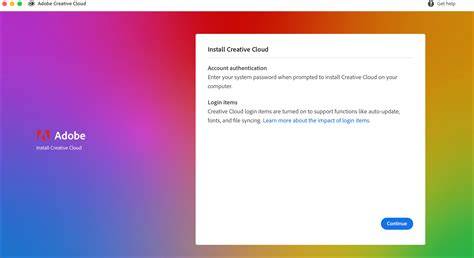
You will see a dialog box stating that Creative Cloud Installer wants to make changes to your system.
- For Windows: Locate the downloaded setup file, run it, and follow the on-screen prompts to complete the installation.
- For macOS: Open the mounted disk image, then run the Creative Cloud Installer from within the window.
- If prompted by a security alert, confirm that you want to allow the installer to make changes to your device.
- Sign in with your Adobe ID when prompted to activate your Creative Cloud apps.
- Enable any optional components you might need for your workflow during the installation process.
Post-Installation
After installation, Creative Cloud should start automatically and may update itself on launch. You can access apps from the Creative Cloud desktop app, manage updates, and install additional Creative Cloud applications as needed. Ensure you have a stable internet connection during initial setup to prevent interruptions.
If you encounter issues, check your system requirements, confirm you have enough disk space, and verify that your internet connection is stable. Restart the installer if necessary and retry the process from the beginning.
| Step | Action |
|---|---|
| 1 | Download Creative Cloud setup file (Creative_Cloud_Set-Up.exe or appropriate package) |
| 2 | Run installer and follow prompts |
| 3 | Complete DUO MFA if enabled |
| 4 | Sign in with Adobe ID |
| 5 | Launch Creative Cloud and update as needed |