Achieving a convincing 3D glossy look in Photoshop involves layering, blending, and selectively applying filters to simulate depth, shading, and reflective highlights. By duplicating and manipulating layers, applying glass or extrusion effects, and carefully masking reflective areas, you can recreate the polished, glassy appearance seen in the reference discussion.
Concept and setup
The goal is to render colored shapes with texture and shading that mimic shiny surfaces. Start with the base shape or text and prepare to build depth by adding lighted areas, darkened creases, and reflective highlights. A common approach is to duplicate the layer, apply a glass-like filter to the duplicate, and then use masks to control where the glossy treatment appears. This preserves original coloration while introducing a glossy, glassy surface on selected regions.
Step-by-step method
- Duplicate the layer that contains the object you want to appear glossy. This creates a separate layer to apply the glow and glass effects without altering the original.
- Apply a glass-like filter to the duplicated layer. Tweak the filter settings to create soft, refractive highlights and subtle translucency that resemble glass.
- Make a feathered selection of the area you want to appear reflective. Invert the selection to focus the glossy treatment on the chosen region.
- Apply a mask to hide the non-essential parts of the glossy layer. This ensures the glossy effect remains only where intended and preserves edge softness.
- Adjust opacity and blend modes to refine the effect. Opacity reduction and blend modes such as Overlay, Pass Through, or Soft Light can help integrate the gloss with the base color.
- To intensify the glassy feel on specific edges, add a white highlight on the sides and blur slightly. Reduce the opacity to keep the highlight subtle and natural.
- For a more three-dimensional look, implement shading on the base layer or the masked glossy region. Shadow areas can simulate depth and enhance the perception of curvature.
- Optionally, incorporate low-contrast texture on the base for realism. This keeps the surface from appearing flat while maintaining the glossy accent.
Alternative techniques and tips
Some artists prefer using 3D extrusion and lighting to create depth directly from text or shapes. In Photoshop, this can involve:
- Creating a 3D extrusion of text or shapes and positioning lights to cast depth and color shifts.
- Using two or more light sources with different colors (for example, a warm orange light and a cool yellow) to generate interesting reflections and depth.
- Disabling paper-like features such as global illumination and turning off shadows in certain lights to keep glossy surfaces crisp.
- Setting the camera to Orthographic to avoid perspective distortion when working with flat surfaces that should read as evenly glossy.
When working with color, the darker parts of the “3D” area can be achieved by careful shading and bevel-like techniques. The bevel method can contribute to depth, but gloss should remain the dominant impression, with strong but controlled highlights to simulate a reflective surface.
Practical workflow example
Take a colored shape, duplicate the layer, apply the glass filter to the duplicate, then create a feathered selection around the reflective region. Invert the selection and apply a mask to reveal only the desired glossy portions. Adjust the opacity so the glass effect blends naturally with the original shape. If needed, add a white highlight on the sides and blur slightly to simulate a light source skim.
Visual aids and resources
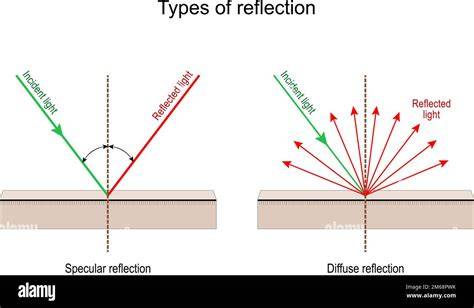
Images and quick-reference diagrams can help you visualize the layering and masking steps, showing how a reflected area sits on top of a colored base and how edge highlights interact with the underlying form.
Stunning 3D Glass UI Explainer with Interactive Text - After Effects Tutorial
Experiment with different blend modes, opacities, and mask shapes to tailor the gloss to the specific artwork. The balance between color saturation, texture, and the intensity of reflections determines how convincing the final result will look.
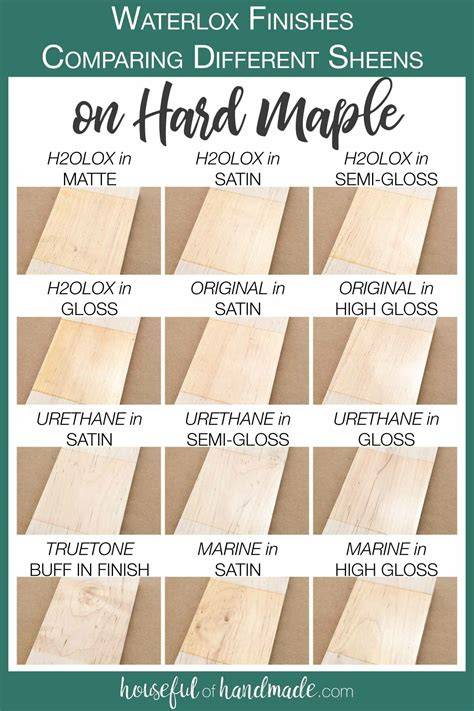
Remember, the key is selective application: gloss for highlights, masks to confine effects, and careful opacity tweaks to merge the glossy area with the base color and texture.
Table: quick settings reference
| Step | Action | Notes |
|---|---|---|
| 1 | Duplicate layer | Keep original intact |
| 2 | Glass/filter | Adjust intensity for subtlety |
| 3 | Selection | Feathered region for gloss |
| 4 | Mask | Reveal gloss only where needed |
| 5 | Opacity/blend mode | Fine-tune integration |
| 6 | White highlight | Edge light, blur slightly |
These steps can be adapted to text or shapes and combined with color grading to enhance realism. The glassy look benefits from careful control of reflections, highlights, and depth cues across the composition.