Merging layers in Krita can be tricky when layers use different blending modes. This article compiles practical, step-by-step guidance using observations and common practices from working with layered projects, and it focuses on ensuring predictable results rather than attempting to force “intuitive” outcomes across diverse modes.
Understanding the problem when blending modes differ
There are several important considerations when you try to merge layers with different blending modes. First, the visible effect of blending modes depends on the underlying pixel data of the layers. Second, some modes interact additively or subtractively, which can lead to results that feel non-intuitive when layers are merged. Third, flattening or merging in Krita combines the pixel data of selected layers, applying the composite effect of their blending modes at that moment in time.
To minimize surprises, it is helpful to recognize that merging is not simply a summation of colors; it is a composition of pixel values affected by blend calculations. When you merge, Krita computes the final color values for the merged region based on the base layer's data, the influence of other visible layers, and their respective modes. In practice, this means that layers with vivid or contrasting modes can produce unexpected brightenings, darkenings, or color shifts upon merge if not prepared.
Preparation: organize, isolate, and preview
Before merging, organize your layers: name them clearly, group related elements, and consider converting certain layers to masks or temporary adjustments. Isolate effects you want to preserve by masking or by applying non-destructive adjustments (such as adjustment layers or filter layers) where possible. Preview the results by temporarily reducing opacity of certain layers or by duplicating groups to compare outcomes without committing to a merge.
In Krita, you can turn off visibility or adjust opacity to study how a merge would affect the composed image. You can also duplicate the current layer stack to create a safe snapshot for testing purposes. When you’re ready to merge, choose a strategy that aligns with your final goal for the composite.
Strategies for merging layers with different blend modes
Strategy A: merge progressively from bottom to top. Start with the bottommost layer and merge it with the one directly above it, then continue upward, merging one pair at a time. This approach helps you observe how each subsequent layer changes the composite.
Strategy B: merge visible layers selectively. If you want the final result to reflect only the lighting or color influence of certain layers, hide others temporarily, merge the visible ones, and then reintroduce the hidden layers into the project as needed using masks or non-destructive edits.
Strategy C: use adjustment and masking rather than direct merging. When possible, apply non-destructive adjustments to achieve the desired effect. This reduces the need to merge layers with incompatible blending modes and preserves editability for later tweaks.
Strategy D: convert problematic layers to regular raster layers. If a layer uses a blending mode that produces undesired outcomes upon merging, try rasterizing or flattening that layer’s effect into a normal mode on a duplicate group, then merge with other layers. This helps you control how the final pixel values are computed during merge.
Step-by-step: merging layers in Krita with different modes
- Identify the layers with different blending modes that you want to merge.
- Duplicate the layer group or relevant layers to create a safety copy for experimentation.
- Hide or reduce the opacity of layers not intended to influence the merge.
- In the Layers panel, select the bottom layer of the intended merge sequence.
- Merge the selected layers using the established approach: merge down or merge selected, depending on Krita’s available options in your version.
- Review the result. If necessary, adjust using non-destructive edits on a duplicate to refine color and lighting before reapplying merges.
- Repeat as needed for subsequent layers in the stack to achieve the final composite, ensuring that each merge preserves the intended effects of the blended layers.
Tips for better results
• Work with duplicates of the original layers to preserve non-destructive editing.
• Use masks to restrict the influence of layers with strong blending effects before merging.
• Consider baking complex blends into a single layer by using a temporary merge and then re-splitting if edits are required later.
• Keep an eye on color profiles and document color management settings to ensure consistent results across devices and outputs.
Practical notes on Krita features
Krita supports a variety of blend modes and offers layer groups, masks, and adjustment layers that help manage complex composites. While merging can simplify the layer structure, it also commits the current pixel data into a single layer, making non-destructive edits more challenging if not planned in advance. By combining masking, non-destructive adjustments, and careful sequencing of merges, you can maintain flexibility while achieving the desired visual outcomes.
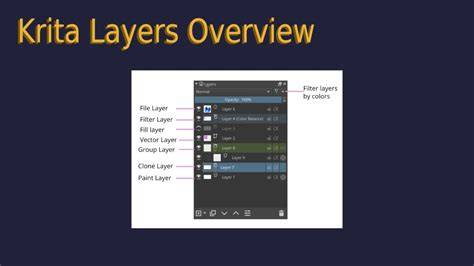
Remember that the exact steps can vary slightly between Krita versions, but the core principle remains: different blend modes create distinct interactions, and merging should be planned to preserve the intended result rather than relying on intuition alone.