If you have a photo and want to change text in it, we will edit our photo in a free online editor Photopea. Once you are there, press File - Open, and find your image (it can be JPG, PNG, etc.).
When there is a simple, solid-color background, we can remove text simply by painting over it with a Brush tool. Hold the Alt key and click into the image. It will pick the color from that spot and set it as the Foreground color (the main color for painting and other operations). You can increase the brush size in the menu at the top (to paint faster).
What if there is a complex background, like grass or sand, behind the text? Painting with a solid color would make our "fix" too obvious. In the toolbar, choose the Healing Brush tool. Hold the Alt key and click into the image (on the background). It defines the source of cloning. Now, release the Alt key and paint over the text.
Switch to a Type tool in the toolbar (or press T). Click into the image, where the text should begin. Now, you can type a new text (you will see it appear on the screen as you type), although, it may not look like the original text.
Once you are done typing, select the text (Ctrl+A, or press the mouse at the beginning of the text, move to the end and release the mouse). You can change the text style in the top bar. The main parameters are the Font, Size and the Color of the text. You can learn about more text parameters: Advanced text style or about Layer Styles (Drop Shadow, Stroke, Gradient overlay ...).
We already know, how to open and save files in Photopea. Just select the tool (in the toolbar on the left) and click on the image. There is a quick mode for the Zoom tool. E.g. you can add or release Alt to switch between zooming in and zooming out. The Hand tool allows you to move the view to different parts of the image. There is a quick mode for the Hand tool. Press the Spacebar to switch temporarily to the Hand tool. This tool allows you to rotate the view of a document. You can find it right under the Hand tool.
Click and drag the document to rotate it around the center of the screen. Zooming and scrolling is also possible with a mouse wheel. Your work in Photopea is represented as a sequence of actions, that are applied to a document. This list of actions is shown in the History panel. Photopea allows you to withdraw your editing and return to previous states. Clicking the name of an action in the History panel will get you back to the previous state.
However, like any artistic process, mistakes are inevitable. This method might not be the most efficient, especially if you need to undo multiple actions in a row. To tailor the keyboard shortcuts to your preference, simply navigate to the Edit section of the top menu bar and select the Keyboard Shortcuts option.
What if you want to cancel the undo action? The process is similar. Did you know that in Photoshop, a command can instantly revert everything to the last saved state? The shortcut for this operation is F12. You can assign Photoshop's Undo, Redo, Revert, and other operations to TourBox. TourBox can significantly enhance your workflow efficiency, making it the perfect companion for creativity and design.
In addition to using the Undo and Redo commands, you can access the "History" command in Photoshop's top window menu bar to open the History panel. When using Photoshop, it's common to perform undo operations. In the Performance panel, you'll see a "History States" module on the right side. The "History States" count is related to your computer's performance. You may have noticed that even if you set the history states to the maximum in the Performance panel, Photoshop can only undo up to 1000 steps.
Non-destructive means that any edits you make can be described using parameters that require much less data than the original image. However, non-destructive editing has its limitations. You're limited in the types of edits you can make, and you can't stack multiple edits on top of each other. On the other hand, most operations in Photoshop are destructive. In theory, unlimited undo in Photoshop is possible, but it would require unlimited storage space to support it. Let's consider a specific example. If you're working on a professional design in Photoshop, it's common for the file size to exceed 1GB. Once you close Photoshop, any unsaved actions cannot be recovered. By default, Photoshop allows you to have 20 steps of undo in the history.
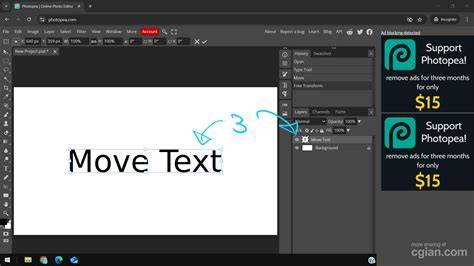
Image-based text editing in Photopea involves selecting the appropriate tools and understanding how to manage layers, opacity, and effects to blend new text with the rest of the image.
How To Replace Text In Photopea Tutorial
When you need to redo or revert edits in Photopea, rely on the History panel to jump back to a previous state. This keeps your workflow non-linear and flexible without starting over from scratch.