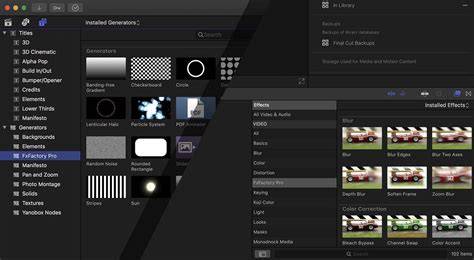
You can save any combination of video effects and video effect parameter settings as a video effects preset, which appears in the Effects browser and functions like any other video effect. You can create an effects preset from any combination of built-in effects and clip effects. After you create an effects preset, you can share it with friends and colleagues so that the same preset (with its specific combination of effects and parameter settings) is available in their Effects browser.
Save a video effects preset: Apply any combination of built-in effects and clip effects to a clip in the Final Cut Pro timeline, and make any needed adjustments to the effects. See Add video effects. Select the clip in the timeline. Do one of the following: Choose File > Save Video Effects Preset. Open the Video inspector, then click Save Effects Preset at the bottom of the inspector. The Save Video Effects Preset window appears, with any applied or adjusted effects selected in the Attributes list. Enter a name for the new preset in the Name field. Click the Category pop-up menu and choose an Effects browser category in which to store the new preset. In the Attributes list, select the video effects you want to include in the preset. If you made any keyframe adjustments to the source clip, select either Maintain Timing or Stretch to Fit. If you select Stretch to Fit, Final Cut Pro adjusts the keyframes in time to match the duration of any clip to which you apply the preset. Click Save. The new video effects preset appears in the Effects browser category you chose, ready to be applied to clips in the timeline.
Apply color presets to quickly give your clips a particular look. Color presets are based on color correction effects and have the same controls as the effect they’re based on. For example, Color Board presets (such as Fall Sun or Moonlight) are based on the Color Board effect. Color-grading presets (such as Green Muted Wash or Cool Shadows with Warm Highs) are based on the Color Adjustments effect. After you apply a preset, you can adjust its settings to create a custom look.
In Final Cut Pro, select a clip in the timeline that you want to apply a preset to, then position the playhead over the clip (so that its image appears in the viewer). To open the Effects browser, click the Effects button in the top-right corner of the timeline (or press Command-5). In the Effects browser, select a color presets category on the left (Color Board Presets or Color Grading Presets), then select a preset on the right. Tip: To preview a preset, skim its thumbnail in the Effects browser. Do one of the following: Drag the preset to the timeline clip you want to apply it to. Double-click the preset thumbnail to apply it to the selected clip. Adjust color presets You can adjust a color preset using the controls for the effect the preset is based on.
SCAN HARD DRIVES ONCE. Create truly professional, cinematic films with our designer sound packs, made for filmmakers and content creators. Excellent Rapide, sûr et très interressant. Super Très heureux de cette application. works really grat it was really helps us very good easy to colour my stuff very good very very good good Thank youi I.m a nuwby and its good have a starting point. Paul HUGE SELECTION This bundle offers so many things to do with your videos. It is a great value! It will take some time to get around to experimenting with them all. The plugin package brings variety and interest to my videos. Glad I purchesed!! Also the team is quick to respond to questions. Thanks Use these SFX every day A great set of sound effects to add to my regular-use wheelhouse good I like it.Easy to use. Simple, works great Regularly edit digitized VHS footage, this is a game changer. Looked in a few places for this but this is the best one I just needed a simple, no frills template of Insta for a 9x16 project i'm editing, this did the trick. Drag and drop and boom, you've got an instagram template.
Free presets in Final Cut Pro (FCPX) can completely transform your editing speed and visual quality. How to Install Free Presets in Final Cut Pro Unlike Adobe After Effects or DaVinci Resolve, Final Cut Pro organizes most presets as Titles, Transitions, Effects, or Generators. Here’s how to install them step-by-step: ✅ Step-by-step installation: Download your preset pack (usually a .dmg, .zip or folder containing .localized FCPX templates). Unzip the file if necessary. Open Finder → click Go in menu → press Option → select Library. Navigate to: Movies > Motion Templates (for older versions) Or Movies > Motion Templates.localized (newer versions) Place templates in the correct folders: Transitions → for transition presets Titles → for title animations Effects → for stylized effects Generators → for backgrounds & overlays Open Final Cut Pro → Go to relevant section (Titles, Effects, etc.) Your new presets should now appear as a new category folder. Drag and drop onto your timeline or apply to clips. 💡 Pro tip: Some free presets require Motion installed (Apple’s companion app) to customize animations.
Curated library of drag-and-drop Final Cut Pro templates including zoom transitions, kinetic titles, and clean lower-thirds. Offers free camera shake presets, glitch effects, and cinematic stylizers. Best Practices & Common Pitfalls: Best Practices: Adjust each preset to match your footage’s color, speed, and pacing; Rename folders and create categories for better organization; Combine LUTs with transitions for cinematic consistency; Save your own modified presets for brand consistency; Use Motion (if available) to customize title animations. Mistakes to avoid: Overusing heavy transitions (can look amateurish or slow down performance); Ignoring color correction consistency when applying LUTs; Forgetting to relaunch Final Cut Pro after installation; Combining too many glitch/zoom presets in corporate content; Leaving presets unedited (makes projects look generic).
Conclusion Free Final Cut Pro presets are a powerful way to speed up your workflow, enhance your style, and stay competitive in a fast-paced content world. Whether you’re editing YouTube videos, cinematic reels, event highlights, or commercial content, presets let you apply polished effects in seconds-so you can focus more on storytelling and less on technical setup. By sourcing presets from reliable libraries, installing them correctly, and tailoring them to your creative voice, you can build a professional editing toolkit that evolves with your projects.
What is a Final Cut Pro preset?
A Final Cut Pro preset is a pre-made animation, effect, transition, or title template that can be applied instantly to clips, helping you save editing time and maintain consistent style.
Where can I download free presets for Final Cut Pro?
Trusted sources include Motion Array, MotionVFX (free section), Pixel Film Studios (freebies), FXFactory (free plugins), RocketStock legacy packs, YouTube tutorial packs, and Reddit communities.
How do I install Final Cut Pro presets?
Unzip the files → navigate to Movies > Motion Templates.localized → place the folders inside Titles, Transitions, Effects, or Generators → restart Final Cut Pro → find them in the Titles/Transitions browser.
Can I edit presets after applying them?
Yes. You can adjust timing, duration, fonts, colors, animation curves, and other motion properties directly in the inspector. Some presets offer on-screen controls.
Do I need Motion to use these presets?
Not always. Most presets work directly inside Final Cut Pro. However, Motion is required for deep customization or building new presets from scratch.
What are LUT presets in FCPX?
LUTs (Look-Up Tables) are color grading presets that can apply instant looks like cinematic, teal & orange, film stock styles, or Blackmagic/Canon/Sony color profiles.
Will presets slow down my editing performance?
Heavy effects like RGB split, blur distortion, or glitch stacks may cause lag on older Macs. Using background render, proxy media, or optimized media helps maintain smooth playback.
Can I use free presets for commercial projects?
Most sources allow commercial use, but always double-check the license.