Resolve doesn't give every safety mechanism the same job. Live Save protects the current state, scheduled backups let you roll back, a DRP carries project data, and a DRA carries a project with its used media. Configure the layers before editing; adding them after a failure can't recreate missing versions. This guide separates saving, rollback and portability so you can choose the right recovery path without treating one checkbox as a complete backup plan.
Overview: How DaVinci Resolve Saves Projects
Quick Answer: DaVinci Resolve saves projects inside a Project Library, not as normal standalone project files. Keep Live Save enabled for automatic saving, turn on Project Backups and Timeline Backups for rollback protection, and export a DRP or DRA when you need a portable copy outside Resolve. Blackmagic walks through Live Save, Project Backups, and project-library recovery in the Resolve 21 Reference Manual.
Resolve stores working projects inside a Project Library rather than asking you to save a normal project file for every session. A library can be local, networked or in Blackmagic Cloud, and each type has different storage and connectivity risks. Open Project Libraries, expand the active local library's details, and use Back Up for a proper library export. The displayed path is an example, not a universal default. Do not rely on a copied path from another computer. In Project Manager, open the Project Libraries sidebar and inspect the active library. For the on-disk details, use Where DaVinci Resolve Projects Are Saved; if Project Manager itself is unfamiliar, start with the DaVinci Resolve beginner tutorial. A raw library-folder copy made while Resolve or its database service is active isn't the beginner backup method. Use the library's Back Up command, scheduled project backups, DRP exports and storage-level backups, then test that a copy can be restored. The library model supports local, network and cloud workflows, but it also means that a project visible in Resolve and its source media can live in different places. Back up both the project data and the media; a healthy library does not replace a media backup.
How to Save Work with Live Save
Live Save incrementally saves project changes without user action. It's enabled by default and recommended in the final Resolve 21 manual. Collaborative projects force Live Save on and don't allow it to be disabled. Live Save protects the current state. Enable Project Backups and Timeline Backups for dated rollback, then choose retention and a backup location that fit the job.
Check it under: Open DaVinci Resolve > Preferences, Select User > Project Save and Load, Confirm Live Save is enabled. Click Save after changing the preference. File > Save Project or Ctrl+S on Windows/Linux and Cmd+S on macOS still performs a manual save. With Live Save enabled, that shortcut is a confirmation habit, not a version history. Turning Live Save off returns Resolve to manual saving and enables File > Revert to Last Save. That can be useful for a controlled demonstration, but it removes continuous protection. Re-enable it immediately after the session and confirm the Edited indicator clears when the project is saved.
Project Backups: Independent Dated Snapshots
Live Save preserves the latest state; it can't take you back through a chain of already saved decisions. Project Backups create independent, dated copies for that job. Right-click the project, choose Project Backups, select a dated snapshot, and click Load. Resolve opens the backup as an independent project instead of overwriting the current one.
Project Backups use a rotating minute, hourly and daily schedule. Each backup is a complete project file, but the manual says Gallery stills and LUTs are excluded to save space. Back up those assets separately or use an export option that includes them when handing off a project.
To enable Project Backups: Open DaVinci Resolve > Preferences > User > Project Save and Load, Enable Project Backups, Set minute, hourly and daily retention for the project, Choose a writable backup location, preferably on storage independent of the active library, Click Save and later confirm that backups appear in Project Manager. To restore, open Project Manager, right-click the project and choose Project Backups. Select a dated backup and click Load. Resolve opens it as an independent project instead of overwriting the original; rename it clearly before continuing work.
Live Save and Project Backups operate independently and should normally run together: one protects the current state, while the other preserves earlier states.
Timeline Backups: Protect Individual Timelines
Timeline Backups use the same rotating schedule but preserve individual timelines. They're useful when one edit sequence is damaged and the rest of the project should remain untouched. Restore Timeline Backup works from the timeline in the Media Pool. The chosen snapshot returns as a new timeline with Backup appended, leaving the current timeline intact. Enable Timeline Backups in Preferences > User > Project Save and Load. Project and Timeline Backups share the interval fields and backup location.
To restore, right-click the timeline in the Media Pool and choose Restore Timeline Backup. The selected snapshot returns as a new timeline with Backup appended, so the current timeline isn't overwritten. Resolve 21 can also compare a timeline with a backup from Compare with Timeline Backup. Timeline Backups don't recover bins, grades or settings outside that timeline. Keep Project Backups and external project/library copies as separate layers. A manual Create Timeline Backup before a major restructure is also useful, but duplicating the timeline remains the simplest visible checkpoint.
Manual Saving and Exporting for Portability
Live Save and scheduled backups operate inside Resolve's project system. When a project must exist as a portable item outside the library, export a DRP or create a DRA archive.
Export as DRP (DaVinci Resolve Project) - A .drp contains the project structure, timelines, edits, grades, Fusion work and settings, but not source media. A normal export also omits Gallery stills and LUTs unless you choose the Project Manager option that explicitly includes them. With the project open, choose File > Export Project. From Project Manager, select Export or right-click the project and choose the required export variant. Save the resulting .drp somewhere outside the active library. Use a DRP for a small, quick project-data backup, version handoff or move between systems that already have the media. Importing it does not copy or relink missing source files.
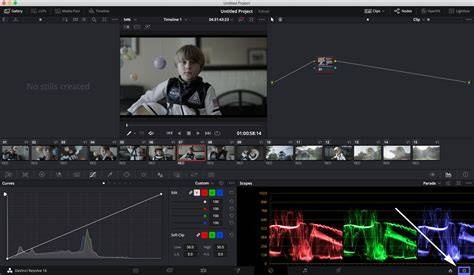
Export as DRA (DaVinci Resolve Archive) - A .dra is a directory archive containing the project and the media used by it, including subtitle files. Resolve can optionally include Optimized Media and Render Cache when the archive is created. In Project Manager, right-click the project and choose Archive. Select a destination with enough free space, choose whether Optimized Media and Render Cache should be included, and start the archive. Resolve reports missing or offline media at the end; don't treat the archive as verified until that report is clean and a restore test opens. Use DRA for transfer or long-term storage when the project and used media must stay together. The archive can be large because it copies media rather than merely recording file paths. A DRA does not automatically preserve every external dependency: fonts, plugin installers, licenses, third-party scripts, LUT installers, briefs and client documents need their own package. Resolve reports missing or offline media during archiving, so fix Media Offline before treating the archive as a verified handoff.
Export Project creates a DRP with project data but no source media. Archive creates a DRA directory with the project and used media, with optional Optimized Media and Render Cache.
Practices: Settings to Configure Before Any Project
Use this as a baseline, then adapt retention and storage to the value and duration of the work:
- Live Save: on, then confirm the Edited indicator clears as changes are saved
- Project Backups: on, with retention matched to the work and a verified backup location
- Timeline Backups: on for active editing projects
- Before a major timeline restructure: duplicate the timeline or create a named Timeline Backup
- Before a Resolve or Project Library upgrade: back up the library and export important DRPs
- For handoff or archive: create a DRA and test-restored copy; preserve fonts, plugins and documents separately
Manual save is useful, but it isn't an additional backup generation. The stronger check is whether Live Save is on, scheduled backups are being written to the intended location, and a DRP or DRA can be restored on another system. An archive protects editable work; keep a separate finished deliverable using the Resolve export workflow.
Common Save Problems (and What Actually Happens)
My project isn't showing up in the Project Manager - Open Project Manager and inspect the Project Libraries sidebar. Local, network and cloud libraries show different project sets, and a disconnected or signed-out library can make a project appear missing. Confirm the correct library before importing duplicates or moving folders.
I Can't Save: Resolve Throws an Error - Start with the exact error. Check free space and write access for a local library; for network or cloud libraries, also check the server connection, account and library availability. Preserve the current project and backup folders before attempting database repair.
I lost a project after a crash - First reopen Resolve with Live Save still enabled and inspect the current project. Then use Project Manager > Project Backups, or restore a timeline snapshot for timeline-only damage. Work from a loaded copy and keep the current project untouched until the recovered version is verified. If no usable scheduled backup exists, import the latest DRP or restore the DRA/library backup. A DRP cannot restore missing media, and a DRA can't restore dependencies that were never included, which is why the layers must be tested before a failure.
FAQ: Saving and Portability Details
Does DaVinci Resolve save automatically? Yes. Live Save is enabled by default and incrementally saves changes. Verify it under Preferences > User > Project Save and Load. Enable Project Backups separately when you need dated states that can be loaded without overwriting the current project.
Where does DaVinci Resolve save projects? Working projects live in the active Project Library. In Project Manager, inspect the Project Libraries sidebar; for a local library, use its details or Reveal in Finder instead of assuming a default OS path. Export a DRP for portable project data or create a DRA for the project and used media.
What is the shortcut to save in DaVinci Resolve? Use Ctrl+S on Windows/Linux or Cmd+S on macOS for File > Save Project. Ctrl+Shift+S or Cmd+Shift+S invokes Save Project As and creates a separately named project in the library. Custom shortcut presets can be checked in Keyboard Customization.
What's the difference between a DRP and DRA file? A DRP carries project data but no source media. A DRA is a folder archive containing the project and media used by it, with optional Optimized Media and Render Cache. Neither automatically includes every external font, plugin, license or document.
Can I recover a DaVinci Resolve project after a crash? Start with Live Save, then load a dated Project Backup or restore a Timeline Backup when only one timeline is affected. If the library itself is unavailable, restore a library backup or import a known-good DRP/DRA. Keep the damaged original untouched until recovery is verified.
Does DaVinci Resolve free version have autosave? Yes. Live Save, Project Backups and Timeline Backups are available in the free version as well as Studio. Project Backups and Timeline Backups must be enabled and need a writable backup location.