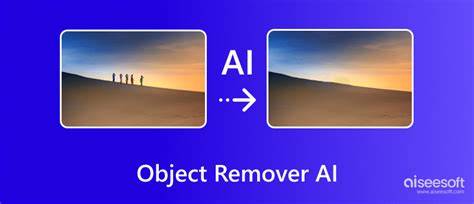
Photoshop’s AI-powered Remove Tool offers a fast, intuitive way to remove people, objects, or distractions from photos simply by painting over them. The tool is designed to be user-friendly, requiring no selections or confusing dialogs, and it pairs especially well with Generative Fill for cleaning up AI-generated content. This article draws on practical demonstrations and comparisons to show how to use the Remove Tool to achieve seamless results across diverse images.
Getting started with the Remove Tool
The Remove Tool is a brush, not a selection tool. You simply paint over the person or object you want to remove, and the AI handles the rest. Resize your brush using the left and right bracket keys ( [ and ] ) on your keyboard, then paint over the target area. By default, the Remove Tool will try to remove the person or object as soon as you release your mouse button, so you may need to adjust this behavior later.
Release your mouse button once the area is completely covered by the brush. The result may vary in perfection, but the Remove Tool typically performs remarkably well. Since the Remove Tool is most similar to Photoshop’s Spot Healing Brush, it’s helpful to compare results side by side: the Remove Tool often avoids filling areas with unintended content, such as parts of a person’s arm that the Spot Healing Brush might incorrectly copy.
In practice, you can perform non-destructive edits by applying removals to a separate layer. This lets you toggle changes or mask them without altering the original pixels. Select the Remove Tool from the same tool group as the other healing tools, then turn on Sample All Layers in the Options Bar. Paint over the area you want to remove, which is particularly handy when removing multiple targets close to one another.
Working with multiple strokes and larger areas
When removing larger areas, a single continuous stroke may not be practical. If you need to remove a bigger area, you can uncheck Remove after each stroke so the tool waits to remove until you tell it to. For complex scenes, work with shorter strokes along edges and gradually fill in the rest with broader brush strokes. This approach often yields better alignment and less noticeable seams.
After painting, release the mouse button to apply the removal. If the tool introduces artifacts or odd shapes, you can undo and retry with different brush sizes or stroke orders. You can also paint over the same area multiple times to refine the result and clean up edges progressively.
Edge repair and the distinction from traditional tools
One notable advantage of the Remove Tool is its ability to repair and align edges as you paint. In many cases, a few short strokes can snap overlapping textures back into place, reducing the need for manual cloning or edge repair. If a particular edge or detail proves difficult, you can switch to a smaller brush to follow the contour precisely, then switch back to a larger brush to fill in the rest.
When edges are especially challenging, the Remove Tool’s AI can sometimes misbehave and remove supporting detail. In such cases, keep additional passes with smaller strokes, or try removing the area in steps rather than in one long pass. If results become unacceptable, you can undo, delete the generated layer, and retry with adjusted settings.
Layered workflows and non-destructive editing
To preserve the original image, enable Remove after each stroke so the tool performs each removal on its own layer, allowing for easy toggling and masking. This is particularly useful when you’re comparing the before and after, or when you want to adjust the extent of the removal after seeing the full composition.
For precise control, you can still use the Spot Healing Brush for small imperfections or to address localized texture mismatches after the Remove Tool has done its primary job. The combination of both tools often yields the cleanest results, with the Remove Tool handling large-area removals and the Spot Healing Brush handling fine-tuning.
Comparisons: Remove Tool vs. Spot Healing Brush
In practice, the Remove Tool consistently beats the Spot Healing Brush on complex scenes, especially where clothing folds, overlapping elements, or textured backgrounds are involved. A direct side-by-side comparison shows that the Remove Tool avoids odd fill artifacts and produces a more natural background after removal, whereas the Spot Healing Brush can introduce unexpected fills in challenging areas.
Practical tips and scenarios
Use the Find Distractions feature to automatically remove wires, cables, or other clutter with a single click. This works especially well on busy architectural or outdoor scenes, where distracting lines or objects pull attention away from the subject. Always review the result and clean up any remaining artifacts with the Remove Tool or Spot Healing Brush.
If you’re working with imagery where a direct removal would affect important edges, you can paint across the area in shorter segments, then let the AI align and repair the sections incrementally. Short strokes tend to deliver better edge alignment than attempting a single, long stroke across a complex boundary.
For non-destructive editing, create a new layer for removals and consider turning the tool on Create New Layer in the Options Bar. Removals land on their own layer, letting you toggle visibility, apply masks, or delete the layer without touching the original image. This approach is especially valuable when you’re experimenting with multiple removal options across a single frame.
Integration with Generative Fill
Photoshop’s Generative Fill, powered by Firefly Image 3, complements the Remove Tool by offering a more advanced option for tricky textures or highly detailed patterns. If you need a more precise match, you can first remove an object with the Remove Tool or a selection, then use Generative Fill to rebuild the background with multiple variations. Leave the text prompt blank and select the Firefly Image 3 option to generate several plausible reconstructions, choosing the best match for the scene.
Generative Remove in Firefly can also handle removing photobombers, crowds, or signage in landscape photography, with results that preserve textures and details. It’s designed to operate on a user-selected area, producing several generative variations that you can compare and select from, with all changes saved on a new layer for easy masking or adjustment.
Practical workflow walkthroughs
- Open an image and select the Remove Tool. Paint over the object or person you want to remove. Adjust brush size as needed.
- Enable Sample All Layers to work non-destructively, then paint over additional areas if necessary. Release the mouse button to apply the removal; or keep Remove after each stroke enabled for incremental processing.
- Review the result. Use the Spot Healing Brush for minor refinements or paint over troublesome edges with shorter strokes to improve alignment.
- If a result seems off, undo and retry with a different brush size or stroke pattern. For complex edges, manually assist with the Lasso Tool to isolate objects before removing them.
- Optionally, switch to Generative Fill for difficult areas or to refine textures, using the Firefly Image 3 model in the Properties panel and providing no text prompt to generate variations.
Additional notes and troubleshooting
In some cases, the Remove Tool may produce unusual textures or shapes. If this happens, undo, delete the generated layer, and try again with shorter strokes or a different edge-following approach. The tool’s effectiveness improves with practice and experimentation across diverse subjects and backgrounds.
Ключевые моменты
The AI-powered Remove Tool offers a fast, non-destructive workflow for removing objects and people, with edge alignment and texture consistency that often surpass traditional tools. Combined with Generative Fill, it delivers powerful options for handling complex backgrounds and textures, enabling photographers and editors to produce clean, natural-looking results with minimal manual cleanup.