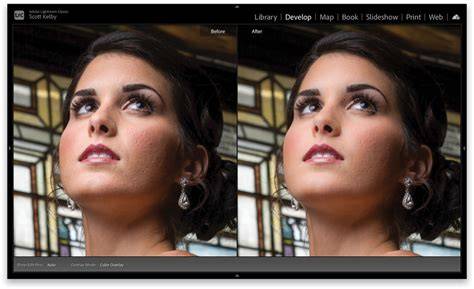
If you do a lot of portrait editing, there may be times when you want to quickly soften rough skin and wrinkles without using a lot of time-consuming techniques. I’ve got the solution for you. In this tutorial, I’ll show you how to soften rough skin and wrinkles in Photoshop and how you can apply the same technique to skies in landscape photos. Let’s get started!
Softening Rough Skin and Wrinkles
There’s a tendency for Photoshop users to go too far when retouching women’s faces, often resulting in a plastic-like effect. For men, it’s just the opposite; there’s a tendency to over-sharpen features.
In this example, this gentleman's features could be softened a bit for a more natural look.
1. Duplicate the background layer by pressing Ctrl + J.
2. Press Ctrl + I to invert the layer.
3. Change the blend mode to Vivid Light.
4. 5. Set the Radius to 24. Press OK.
6. Go to Filter > Blur > Gaussian Blur.
7. Set the Radius to 3. This number will vary based on the image resolution. You’re looking for a number that gives a slightly-over smoothened look that can be dialed back later. Press OK.
8. 9. Press B for the Brush tool. Then select a Soft Round brush.
10. Make the foreground color white. Press D and then X if necessary.
11. Set the Flow to around 15 percent.
12. Brush the effect onto the face to the areas that need to be softened. Avoid the eyes.
13. When finished, you can lower the Opacity if necessary to reduce the effect to taste. I reduced the Opacity to 67 percent.
I’m going to use the same steps shown above on another portrait. The goal is to make some of the sharp wrinkles softened without blurring them out completely. I want a natural look that doesn’t draw attention to my editing.
Like many techniques in Photoshop, it’s possible to use this one for a completely different purpose, like removing the texture from a sky.
If you look closely at the sky in this image, you’ll see a lot of distortion in the form of texture and JPEG artifacts. In fact, you don’t really need to zoom in to see it but here’s a 66 percent zoom view. While it didn’t completely clean up the sky, the method took care of a lot of the obvious texture issues and greatly reduced the overall noise profile.
Softening Techniques: A Breeze in Photoshop
I hope you found this Photoshop tutorial on skin softening informative and useful. Once you have the method down you’ll find yourself racing through the steps easily enough whenever such issues arise. If you don’t have any images of your own, look for examples on Google to practice with. If you can’t find any good examples, leave a message in the comments and I’ll send you a link there in the reply.
In this tutorial, I'll show you how to improve your portraits by giving your subject beautifully smooth skin with Photoshop! We'll start by learning how to remove pimples and other minor skin blemishes using Photoshop's Spot Healing Brush. To follow along, you can use any portrait photo. The original image. I used Photoshop CC but this tutorial is fully compatible any recent version up to Photoshop 2023, plus older versions like Photoshop CS6.
With the image newly-opened in Photoshop, the Layers panel shows the photo on the Background layer. Before smoothing the skin, start by removing any unwanted blemishes. Click on any unwanted skin blemishes with the Spot Healing Brush to remove them. Photoshop will instantly "heal" the blemishes by replacing the problem texture with good skin texture from the surrounding area. For best results, make your brush slightly larger than the blemish. To change your brush size, press the right bracket key ( ] ) on your keyboard to make the brush larger or the left bracket key ( [ ) to make it smaller.
If we look at the woman's forehead in my image, we see what looks like a large pimple just to the right of center. To remove the blemish, I'll click on it with the Spot Healing Brush. Photoshop analyzes the area I clicked on, finds good skin texture from the area surrounding it, and then blends the good texture in with the problem area's original tone and color. As you're retouching the skin, keep in mind that while it's okay to remove temporary problems like acne or other minor skin issues, it's usually not okay to remove permanent features like moles or even certain scars, as these are part of what makes someone who they are.
Continue working your way around the person's face to remove any remaining blemishes. Here's a side-by-side comparison of what the woman's skin looked like originally (left) and after some quick retouching with the Spot Healing Brush (right). With most photos, this initial skin cleanup should take no more than a few minutes.
With the blemishes removed, we're ready to smooth and soften the skin, and again, it's best to work on a separate layer. To smooth the skin, we'll use Photoshop's High Pass filter. If you're familiar with the High Pass filter, it's most likely because you've used it to sharpen images in Photoshop. Even though we'll be using High Pass to smooth skin, not sharpen it, many of the steps are the same.
The High Pass filter looks for edges in the image and highlights them. An edge is an area where there's a big, sudden change in brightness or color between neighboring pixels. With portrait photos, the edges are usually along the person's hair, around the eyes, the mouth, and so on. Skin texture, on the other hand, has relatively low amounts of detail with much smoother transitions. These areas are not considered an edge, so rather than highlighting them, the High Pass filter fills these areas with neutral gray. If we were sharpening the image, the High Pass filter would allow us to sharpen the edges (the details) without affecting the skin. But for smoothing skin, we use High Pass for the opposite reason. We'll detect the edges not so we can sharpen them but so we can smooth and soften everything except the edges.
The High Pass filter detects edges and highlights them, and the Radius option at the bottom of the High Pass dialog box controls the "thickness" of the edge highlighting. In other words, once Photoshop has detected an edge, the Radius value tells it how many pixels on either side of it to include as part of the edge. Low Radius values will highlight only the finest details in the image. But to make sure we don't end up softening these important details, we need to highlight the areas around them as well, which means we need a larger Radius value. If your subject is further back in the photo, or you're working on a lower resolution image, a smaller Radius value of 18 pixels or even 12 pixels might work better. Why these specific values? It's because it's important for the next step that you choose a Radius value that's easily divisible by 3. For example, 24 divided by 3 is 8, 18 divided by 3 is 6, and 12 divided by 3 is 4. Nice, easy numbers. Click OK to close the High Pass dialog box. Your image will turn mostly gray. We need to blur the High Pass filter effect. It may seem counterintuitive, but the blurring will actually help to bring out more good texture in the skin. In the Gaussian Blur dialog box, set the Radius value to exactly one third of the value you used for the High Pass filter. In my case, I set the High Pass radius to 24 pixels, so I'll set the Gaussian Blur radius to one third of that, which is 8 pixels. This blends the High Pass result in with the image, creating a high contrast, over-sharpened effect. It may look terrible, but don't worry.
In the Layer Style dialog box, look for the Blend If sliders at the bottom. There are two sets of sliders, one labeled "This Layer" and one below it labeled "Underlying Layer". Notice the slider below each end of the gradient bar. These sliders control how the "Smooth Skin" layer blends with the image below it based on the brightness levels of the layer. Start by reducing the lighter halos. Press and hold the Alt (Win) / Option (Mac) key on your keyboard, click the slider on the right and begin dragging it towards the left. Holding the Alt (Win) / Option (Mac) key tells Photoshop to split the slider in half so that as you're dragging, only the left side of the slider moves while the right side stays in place. Watch your image as you drag the slider and you'll see the lighter halos fading away. Here's the result after dragging the first slider. Most of the lighter halos are now gone, or at least, they're much less noticeable. To reduce the darker halos, press and hold your Alt (Win) / Option (Mac) key, click the slider on the left and drag the right half of it towards the right. Again, you'll need to drag almost all the way to the right for most of the dark halos to disappear. And here's my image after dragging both sliders. Her skin is looking very smooth, but so is everything else in the image. To limit the smoothing effect to just the skin, add a layer mask. A black-filled layer mask thumbnail appears on the "Smooth Skin" layer. Make sure your Foreground color (the brush color) is set to white. You can see your current Foreground and Background colors in the color swatches near the bottom of the Toolbar. The swatch in the upper left is the Foreground color.
Before you begin painting, check your brush options in the Options Bar. Then paint over the skin to reveal the smoothing effect. A soft-edge brush will work best. We already know that we can change the brush size from the keyboard using the left and right bracket keys. Add the Shift key to change the brush hardness. I'll start by painting over her forehead. Since we're painting on the layer mask, not on the layer itself, we don't see the brush color as we paint. Next, I'll paint over her nose, her cheeks, and around her eyes to reveal the skin smoothing in those areas. Adjust your brush size as you go to avoid painting over details that should remain sharp. If you do slip and paint over the wrong area, press the letter X on your keyboard to set your brush color to black, and then paint over the mistake to hide the smoothing effect. This switches your view from the image to the layer mask. The white areas in the mask are where you've painted to restore the skin smoothing. Black areas are when the smoothing effect remains hidden. It looks a bit creepy, but viewing the mask is a great way to make sure you haven't missed any spots, and you can paint directly on the mask if needed.
At this point, we've smoothed and softened the skin, but the effect is too intense. To reduce it, lower the opacity of the "Smooth Skin" layer. In general, an opacity value of between 40% and 60% works best, but it will depend on your image. And with that, we're done! And there we have it! For more portrait retouching tutorials, learn how to reduce wrinkles, how to change eye color or how to whiten teeth with Photoshop!
Smoothing skin in Photoshop is a key step to enhance the quality of portrait photos. In this tutorial, we will show you two simple methods for how to smooth skin in Photoshop. Start by opening the photo you want to edit. Next, switch to the Channels panel and look for the channel - Red, Green, or Blue - where the skin imperfections are most visible. Now, go to the Filter menu, choose Other, and then select High Pass. Set the radius so that the skin imperfections are clearly visible but not overly sharp. If the radius is too low, the smoothing effect won't be noticeable. In the panel that pops up, leave most of the settings as they are. Repeat the Calculations step two more times, following the same process. Once you've completed the previous steps, hold down Ctrl (or Command) and click on the Alpha channel at the bottom of the Channels panel (in this case, Alpha 3). Next, click on the RGB channel and make sure the invisibility of all the Alpha channels. Since we want to work on the blemishes, press Shift + Ctrl (or Command) + I to invert the selection. Go back to the Layers panel and create a Curves adjustment layer. Gently lift the middle part of the curve to brighten the selected areas. As you brighten the curve, you will see the blemishes on the face gradually fade away. Be careful not to overdo the curve adjustment here. If the brightness is increased too little, the smoothing effect won't work. At this point, the channel-based skin smoothing process is essentially complete. To fix this, switch to a black brush, adjust its size and opacity, and paint over the Curves adjustment layer mask. Now, let's take a look at the final smoothed portrait. Using channels for skin smoothing in Photoshop is straightforward. The main challenge lies in setting the right High Pass filter value and making precise curve adjustments.
In the previous section, we explored how to smooth skin using channels. Neural Filters in Photoshop are powerful tools powered by AI technology. Open the Neural Filters Panel: Open your photo in Photoshop. Enable the Skin Smoothing Filter: In the Neural Filters panel, locate the Skin Smoothing filter. If you see a cloud icon next to it, you'll need to download it from the cloud first by clicking the icon. Adjust the Smoothing Settings: After enabling the filter, you'll see two sliders: Blur and Smoothness. Adjust these sliders to control the level of skin smoothing and detail preservation. Choose an Output Option: Before applying the filter, choose how you want to save the results. You can output to the current layer, duplicate layer, duplicate layer with a mask, new layer, or as a smart filter. Apply the Filter and Fine-Tune: Click OK to apply the filter. However, as we mentioned, there are many other ways to achieve skin smoothing. No matter which method you use, skin smoothing is rarely a one-step process - even with the advanced Neural Filters. This means you'll often find yourself adjusting brush sizes, zooming in and out, or rotating the image to get the best editing angle. That's why we would like to introduce you to TourBox, a creative tool loved by photographers and digital artists alike. TourBox lets you customize every button to fit your workflow, helping you edit photos much more efficiently.
Achieving perfectly smooth skin in Photoshop is a skill that every portrait photographer should master. With just a few simple steps, you can transform your photos by removing blemishes and creating a flawless base. Setting up our workspace in Photoshop is crucial for an efficient workflow. Using tools like the Spot Healing Brush for initial retouching, and advanced methods such as the High Pass filter, we can achieve stunning results. For those looking to delve even deeper, we highly recommend the ADVANCED SKIN RETOUCHING WORKFLOW with Nino Batista from PRO EDU. To achieve smooth skin in Photoshop, it is important to start with a well-organized workspace. Layers are foundational in Photoshop and are essential for non-destructive editing. Each layer functions like a transparent sheet on which we can edit different elements. For skin retouching, we often work with several layer types. The Background Layer is our original image, which we safeguard by making a Duplicate Layer (Ctrl+J / Command+J). Adding a New Layer is another common step. Here, we might use tools such as the Spot Healing Brush or Clone Stamp Tool. Efficient navigation of the Photoshop interface can significantly improve our workflow. The Layers Palette is on the right, displaying our image’s layer structure. Using Keyboard Shortcuts can speed up our workflow. For instance, Ctrl+J (Command+J on Mac) to duplicate a layer and B to select the Brush Tool. The Spot Healing Brush is a quick and effective way to remove small blemishes, acne, and freckles. To use it, we simply select the tool from the toolbar and click on the unwanted spot. The Spot Healing Brush automatically adjusts and analyzes the nearby areas, ensuring that the correction looks natural. For larger areas or spots closer to edges, we should paint over the blemish or imperfection. The Healing Brush Tool offers a more controlled approach to photo retouching compared to the Spot Healing Brush. Once we select the Healing Brush Tool, we alt-click (on Windows) or option-click (on Mac) to choose from the source area. After selecting the source, we paint over the blemish, mole, or scar. This tool is invaluable for retouching larger imperfections or areas where texture continuity is crucial.
Achieving high-end smoothness in portrait retouching requires precise techniques and tools. Neural Filters offer a powerful way to smooth skin while retaining natural texture. To access this tool, duplicate the original portrait layer using Ctrl J (Windows) or Command J (macOS). Navigate to the Filter menu and select Neural Filters. Enable the Skin Smoothing option to activate the effect. Adjust the Blur Filter and Smooth Skin sliders until the desired smoothness is achieved. Frequency Separation is a technique used to separate skin texture from color and tone. Begin by duplicating the original layer twice. Apply a Gaussian Blur to the second layer to blur out fine details. On the top layer, use the High Pass Filter to isolate the texture. Set the blend mode of the top layer to Linear Light. This separation allows for independent adjustments to the color and texture layers. To achieve a smooth and flawless base in Photoshop, we use several techniques like Gaussian Blur and Layer Masks. Start by duplicating the background layer. Apply the Gaussian Blur filter. Adjust the Radius value. The Radius determines the intensity of the blur. Fine-tune the smoothing. Create a Layer Mask. Paint on the Layer Mask. Blend Mode Adjustment. Blending ensures that the smoothness is consistent and doesn't make the skin appear unrealistic. When enhancing portrait details in Photoshop, focusing on the eyes, mouth, and hair can transform an image. To bring out the best in eyes, we start by sharpening and increasing contrast. Next, we enhance the whites of the eyes to reduce redness or dullness. Applying a subtle dodge and burn technique around the eyelids lets us add depth and emphasizes the natural shape of the eyes. We use a small, soft brush with the Dodge Tool set to highlights and the Burn Tool set to midtones. For the lips, we use the Brush Tool to subtly enhance their natural color. We choose a soft round brush with a low opacity and pick a slightly pinker or redder shade than the natural lip color. Sharpening the lips slightly with the Sharpen Tool at a low strength can bring out details in the texture, making them appear more defined. When refining hair details, we focus on sharpening and adding contrast. Using the Sharpen Tool at a moderate strength (20-30%), we run it along strands of hair to define individual hairs and add texture. Employing brushes for local adjustments in Photoshop allows us to control specific areas of an image with precision. To begin, we select the Brush Tool. It’s crucial to tailor the brush size and hardness based on the area we are adjusting. We alter the Opacity and Flow settings in the options bar. Lower opacity and flow settings yield gradual changes, useful for subtle adjustments. The Blend Options also play a pivotal role. For local adjustments, using blending modes like "Soft Light" can enhance texture without overpowering the original details. When focusing on local skin texture adjustments, our primary tools are the Adjustment Brush Tool and the Spot Healing Brush. With the Adjustment Brush Tool, we access the Blend Options to adjust how our edits integrate with the original image. Meanwhile, the Spot Healing Brush addresses specific blemishes and uneven patches. Carefully editing these areas avoids creating an artificial look. Additionally, using a layer mask can limit smoothing effects to targeted regions.
In Photoshop, color correction and adjustment are crucial tasks when working with portrait images. Adjustment layers are powerful tools in Photoshop that allow us to modify colors and tones non-destructively. To start, we open the Layers Panel and navigate to Layer > New Adjustment Layer. Options like Selective Color, Color Balance, and Hue/Saturation are essential for precise adjustments. Selective Color lets us target specific color ranges, making it easy to tweak skin tones. Color Balance is effective for overall color temperature adjustments. Hue/Saturation allows for control over the intensity and vibrancy of colors. Adjusting skin tones is a delicate task requiring precision. We start by selecting Layer > New Adjustment Layer > Selective Color. Access the Selective Color panel by double-clicking the layer thumbnail in the Layers Panel. Sometimes, using Blending Modes such as Vivid Light can also enhance skin tones. We select the layer, apply the blending mode, and adjust the opacity to blend it seamlessly.
Using smart filters allows us to non-destructively sharpen our images, providing flexibility and maintaining the quality of our work. With our layer now a smart object, we can go to Filter > Sharpen > Smart Sharpen. In the dialog box, we can adjust the amount, radius, and reduce noise settings. After applying the smart filter, we can fine-tune it by double-clicking on the smart filter layer in the Layers panel. This opens the settings again, letting us make real-time adjustments. Once the image is sharpened to our satisfaction, the next step is to finalize and save. To save for web, we'll go to File > Export > Save for Web. Here, we can choose formats like JPEG or PNG, adjust the quality settings, and resize if needed. For high-quality prints, we should save our work as a TIFF or high-resolution JPEG. This can be done via File > Save As and selecting the desired format. Finally, for cloud storage or sharing, using File > Save to Cloud allows us to keep a backup and easily access our files from anywhere.
In this section, we'll address common questions about achieving smooth skin using Photoshop. To smooth skin using Photoshop’s built-in tools, we recommend starting with the Spot Healing Brush to remove blemishes. Then use the Blur tool or the Gaussian Blur filter to soften the overall skin texture. A reliable smooth skin filter can be found within the Camera Raw filter in Photoshop CC. This includes the Texture Slider, which offers high-end skin softening techniques. Yes, Photoshop provides all necessary tools to smooth skin without additional plugins. Using the built-in Spot Healing Brush, Gaussian Blur, and Camera Raw filters can yield excellent results. To adjust the settings for a natural look, lower the opacity of the smoothing layer and use a soft brush for blending. It's crucial to keep a balance between smoothness and texture to avoid an unnatural, plastic-like appearance. The high pass technique involves duplicating the image layer, applying a High Pass filter, and setting the layer’s blend mode to Soft Light or Overlay. This method enhances texture while smoothing out blemishes. Blending skin tones effectively can be achieved using the Mixer Brush tool, which blends colors smoothly. Alternatively, Frequency Separation allows us to work on the texture and color separately, creating a more seamless blend.