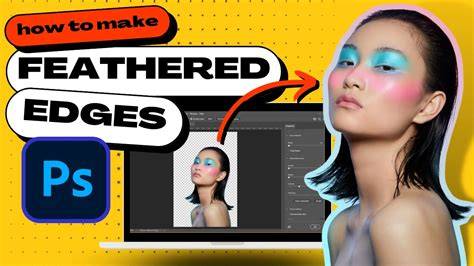
If you're looking for a way to blur the edges of an image to blend it seamlessly with the background, whether it's solid, transparent, or a different background image, this tutorial is for you! Learning how to blur edges in Photoshop can also help you achieve artistic effects for dreamy sequences, fix harsh edges, or bring attention to a subject. In today’s tutorial, you’ll learn various methods to blur edges in Photoshop. So, pick a photo you want to blur the edges of, and let’s begin!
Method 1: Feather Selection
This method is ideal when you want to change the background to a different color or place the selection into another background image or collage.
- Step 1: Select Subject
Import the image into Adobe Photoshop and use a selection tool to select the area you want to keep untouched by the blur effect. Depending on your image, the subject you're isolating, and the final effect you're looking for, you can use the Elliptical Marquee tool or the Rectangular Marquee tool. For more complex subjects and shapes, use the Lasso tool or the Magic Wand to make the selection. - Step 2: Blur Edges
After making the selection, go to the top menu Bar and click Select > Modify > Feather. The Feather Selection dialog box pops up, where you can adjust the Feather Radius using the slider. The Feather Radius controls the feathering in the edges of the selection. Lower values create a harder edge and smaller edge transitions, and higher values make the edge transition broader and smoother. For more control over the final result and to see the Feather effect in action in your image, enable the Quick Mask mode from the left-side toolbar. Click the icon that looks like a rectangle with a circle inside. A red overlay appears over the entire image where the Feather effect is active. - Step 3: Cut the Selection
With the selection still active, click the New Layer Mask button at the bottom of the layers panel to create a mask from the selection. This will cut the selection from the background to let you place a different background or a solid layer behind the layer. - Step 4: Change Background
Now it's time to change the background layer. Create a new adjustment layer and select the Solid Color option. Choose the color of your preference from the color picker and click OK. You can also import a new image and place it at the bottom in the layers panel to make it the new background layer.
Method 2: Manual Blur
This method is a manual approach to creating a subtle transition between a subject and the background when you don't want to change the background. Paint over the edges and areas you want to blur manually. You can zoom in and out of the image and change the brush size and strength to achieve the desired smoothness.
Method 3: Gaussian Blur Effects
With this method, you can blur the entire background of the photo to bring attention to a subject or area in the image.
- Step 1: Import Photo
Import the photo and duplicate the image layer. Right-click the duplicate layer and select the "Convert to Smart Object" option. Adjust the amount of blur using the slider and press OK to apply the effect. The Gaussian blur effect is applied to the entire image. Since you add the effect in a Smart Object, you can later re-adjust the Radius. - Step 3: Mask the Effect
Now, let’s define the area of the image that you want to stand out with a gradient mask. Press the Add Layer Mask button in the Layers panel and select the Gradient Tool (or press G). Then, select the Radial Gradient from the options bar and click and drag over the area you want to stand out, creating a mask around the subject. - Step 4: Fine-Tune the Blur Effect
To blur more or less of the background, click the Gaussian Blur filter listed below the smart object layer to display the Gaussian Blur dialog box and adjust the Radius.
The tutorial also mentions Boris FX Optics for additional blur and bokeh effects. If you use Optics, you can follow these steps:
- Step 1: Import Photo
Open a new Photoshop document and import the image you want to blur. Duplicate the layer to preserve the original image file. Then, convert the layer to a Smart Object to make non-destructive changes to the image. - Step 2: Apply Boris FX Optics
Optics works as a plug-in inside Photoshop. To add Optics to the Smart Object layer, go to the Filter menu bar and find the Boris FX > Optics path. Wait for the Optics user interface to launch and import the Image automatically. - Step 3: Create a Mask
In the Optics interface, click Add Mask to isolate the object you want to draw attention to. Use EZ Mask to select the subject and background efficiently, then Generate Mask. - Step 4: Add the Bokeh Filter
Create a Bokeh effect to blur the background and emphasize the subject using filters like S_RackDeFocus, adjusting Defocus Width, Lens shape, and chromatic aberration to taste. Save and return to Photoshop; you can re-open Optics for further tweaks since the layer is a Smart Object.
Note: The article also discusses quick tips and variations, such as feathering to soften edges, anti-aliasing for smooth transitions, and using defringe to refine transparent pixels. Use feathering when you want to blend edges seamlessly, like when compositing objects onto new backgrounds or creating masks.
Practical tips and variations
- Start with a small feather radius and increase gradually for softer edges.
- Feather values 5-20 px are common for moderate transitions; larger selections may benefit from higher feathering.
- Anti-aliasing smooths jagged edges but does not blur them; combine with feathering for best results.
- Defringe can help feather just the transparent pixels on the inside of an edge.
- Working with Smart Objects preserves original image data and allows re-adjustment of blur later.
Feathering is a powerful technique to soften the edges of an object so it blends naturally with the background. You can also use a Gradient Fill Adjustment Layer to create a feathered edge and achieve a dreamy transition.