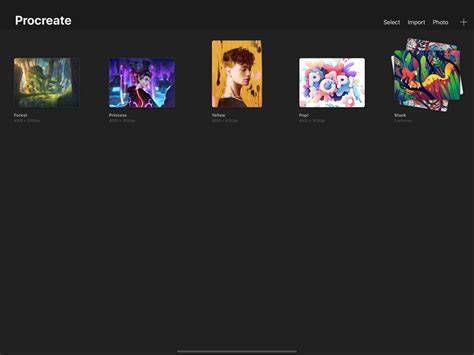
Unstacking artwork in Procreate is a straightforward process that helps you free individual pieces from a composite Stack and place them back into your gallery as separate files. This guide compiles the most relevant steps and tips from the provided draft to offer a clear, detailed workflow.
Open the stack and select the artwork to unstack
First, open the stack containing the artworks you want to unstack. You can see all the artwork in the stack, but you want to separate them out. To do this, click and hold the artwork you want to move. Hold and drag it to the upper left corner and wait for the gallery to open. Drag it towards the arrow in the upper left corner. Don’t release it yet! This will open your gallery in a few seconds.
Drop the artwork into your gallery
Release and drop the file in your gallery. After your gallery opens, select a space where you want to put your image from the stack. Then lift your finger or Apple Pencil and drop it in between the other artworks in the gallery. The file becomes part of your gallery. Voila! The drawing became part of your gallery. In this way, you can unstack art one by one.
Alternative method: using multi-select
1. First, open the stack you want to unstack.
2. Click the “Select” button in the upper right corner.
3. Click on your files one by one to select all or multiple of them.
4. Now, hold and drag your selection towards the upper left arrow next to the title “Stack.” Alternatively, you can tap the arrow with your finger.
5. Select a spot where you want to release your selection and drop it there by lifting your finger or Apple Pencil.
6. Voila, the images are now part of your gallery as single files again.
Tips for efficient unstacking
- To move artwork out of a Stack, tap the stack to enter it, pick up one or more artworks, then tap the Stack return button in the top left of the tool bar (
) with another finger. - All Stacks are named Stack by default, but you can manage them after unstacking to keep your Gallery organized.
- Bulk actions save time: use Select to choose multiple items and perform actions like Share, Duplicate, or Delete as needed.
When to unstack versus reorganize
Unstacking is useful when you want individual artworks to stand-alone in your Gallery instead of remaining grouped. Reorganizing Stacks can help you tidy your workspace and prepare portfolios or collections for sharing. Dragging and dropping thumbnails can merge or separate stacks as needed, giving you flexibility in arranging your Procreate library.
Additional context from common workflows
Moving artwork around is easy. Fix sideways and upside-down canvas previews as you work. Under each artwork thumbnail you’ll see a title. You can also drag and drop an artwork thumbnail onto another thumbnail to merge them into a new stack. When you've dragged the first artwork over the top of another, the bottom artwork will turn blue. To drag and drop an artwork onto an existing Stack, use the same method as above, but hold the top thumbnail for a moment longer until the Stack flashes blue twice.
To move artwork out of a Stack, tap the stack to enter it. Pick up one or more artworks then tap the Stack return button in the top left of the tool bar ( < Stack ) with another finger. All Stacks are named Stack by default.